
Letter organiser
You regularly scan appointment letters and want to find them later by name or date. Check whether the software for your chosen model can create searchable PDFs; Epson lists PDF among the file formats available for the ES-60W.


If you only scan one appointment letter at a time, a compact single-sheet scanner may be enough. For regular batches or double-sided letters, automatic feeding and duplex scanning are more useful features. Epson, Canon and Brother describe these functions for specific models, but if you want to find documents quickly, also check whether the software for your chosen scanner can create searchable PDFs.
You regularly scan appointment letters and want to find them later by name or date. Check whether the software for your chosen model can create searchable PDFs; Epson lists PDF among the file formats available for the ES-60W.
You scan one or a few sheets at a time and want to clear your hobby table afterwards. A scanner you can put away calls for different considerations from a model with a feeder tray that needs a permanent spot.
As well as appointment letters, you scan several loose letters at a time, sometimes double-sided, and don’t want to feed each sheet individually. If so, check the feeder capacity and whether the model can scan both sides.
A good fit if: you usually scan one letter at a time and want to put the device away after use.
Consider: whether you’re happy to feed sheets in one at a time, and whether the software supports searchable PDFs.
A good fit if: you regularly scan several loose letters in a row or want to scan the reverse sides too.
Consider: measuring the space needed when the input and output trays are in use, and checking that the scanner connects to your computer.
| What to consider | What should you check? | Who is this important for? |
|---|---|---|
| Searchable PDF | Check whether the software for the exact model supports text recognition and searchable PDFs. | I want to find a letter later by name or date. Around 33% of consumers put finding documents first. |
| Workspace | Measure the space you have while scanning, allowing room for the paper input and output. | If I need to clear my hobby table after scanning, being able to put the scanner away matters. Around 27% of consumers mainly want to keep their workspace clear. |
| Batches and double-sided scanning | Check the feeder capacity and whether the scanner can scan both sides of suitable loose sheets. | If I want to process several letters or scan the reverse sides too, I want to spend less time feeding sheets by hand. Around 20% of consumers put batch and double-sided scanning first. |
| Private files | Check where the software saves files and whether sharing or cloud storage is enabled. | I want to choose where scans of my appointment letters are stored and who I share them with. Around 20% of consumers prioritise control over private files. |
The option to save a PDF doesn’t automatically mean you’ll be able to search the letter for specific words later.
Check whether text recognition is available with your scanner and software combination. Then try using a sample scan to find a name or date.
Without searchable text, it can take longer to name letters manually or find them again.
The space needed in use may differ from the scanner’s dimensions when put away. Canon lists separate dimensions for the R10 with its tray closed and open.
Measure the space available while paper can be fed in and out. Also allow for the connections and the space where scanned sheets come out.
A scanner that doesn’t fit well when in use can take up valuable workspace or need to be put away every time.
The Canon imageFORMULA R10 is a compact, USB-powered option for anyone looking for portability and a feeder for several letters.
The WorkForce ES-60W is designed for mobile use, while the ES-C320W is a fixed option with Wi-Fi and two paper paths.
The Brother ADS-1300 is a good fit if you regularly scan several loose letters and want a device that connects via USB-C.
According to Ricoh, the iX1300 combines continuous feeding via a U-turn path with a separate return path for certain other documents.
This selection features document scanners with paper feeders for anyone looking to digitise loose appointment letters, including several in a row. Check each model’s feeder capacity, supported documents, and computer and power connections required.
 No image available
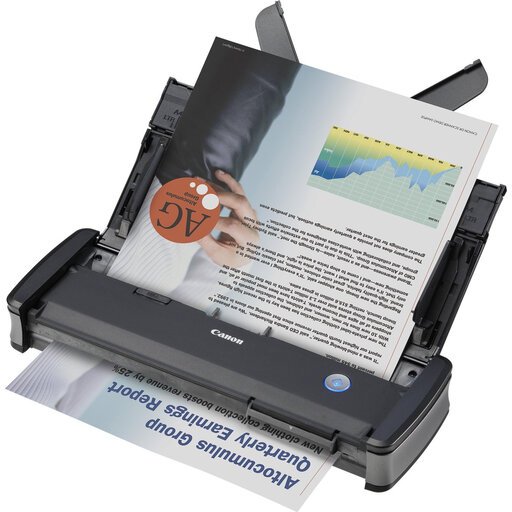
The automatic feeder may suit anyone who scans several loose letters in a row.
The product description lists a 20-sheet feeder and automatic duplex scanning. It is an A4 scanner powered via USB.
According to the product description, Wi-Fi requires the optional WU10 unit.
 No image available
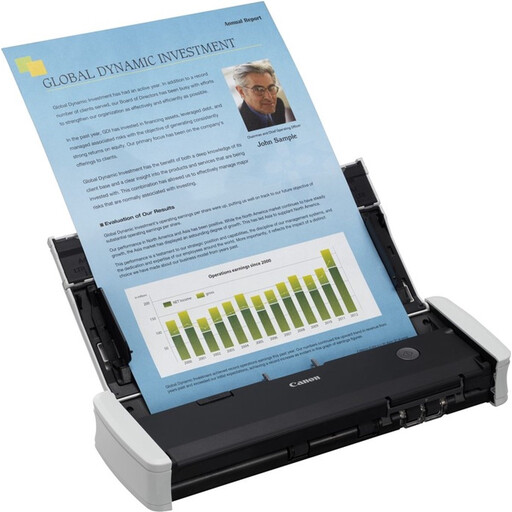
The R10 may suit anyone who regularly scans several loose letters and wants to capture both sides.
The product description lists a 20-sheet feeder, duplex scanning and USB power. It is an A4 scanner with CaptureOnTouch Lite software.
 No image available
The paper path may be useful if you also want to scan unusually shaped documents in a compact workspace.
The product description lists a U-turn paper path, paper protection and support for booklets up to 5 mm. It is an A4 scanner; output formats include PDF, JPG and TIFF.
 No image available
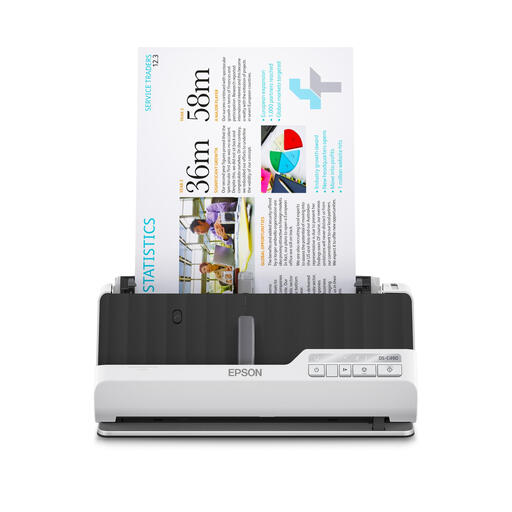
This model may suit anyone who scans double-sided letters and needs other paper paths too.
The product description lists automatic duplex scanning, a standard paper capacity of 10 sheets, and both U-shaped and straight-through paper paths. Support for booklets up to 5 mm is also mentioned.
 No image available
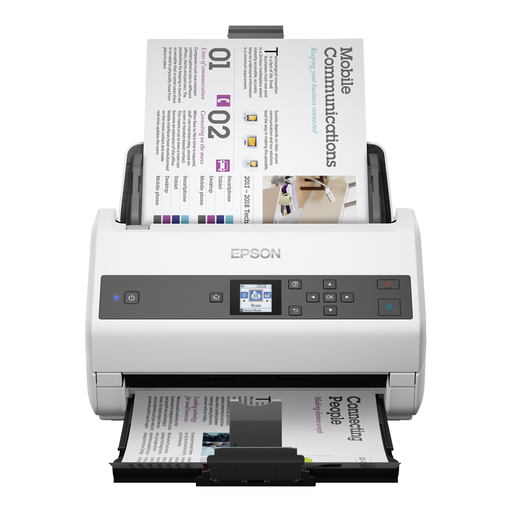
The higher stated feeder capacity may suit anyone who regularly scans a series of loose letters.
The product description lists a 100-sheet feeder and automatic duplex scanning. An optional flatbed scanner is mentioned; the instructions say to connect the scanner to a power source and computer via USB.
No. Saving a PDF doesn’t automatically mean you can search its text. Check whether the software for your exact scanner supports text recognition and searchable PDFs, then test it with a name or date from a sample scan.
First, check the connection and the software supported by the exact model. Only place suitable loose sheets in the feeder, and check after scanning that any reverse sides have been captured too. Canon lists a 20-sheet feeder and duplex scanning for the R10, as does Brother for the ADS-1300.
No, not automatically. First check that the scan is complete and legible, and whether you still need the paper original for your appointment or records.
According to the Dutch Data Protection Authority, personal or household use only is outside the scope of the GDPR. This exception does not necessarily apply to public sharing or use on behalf of an organisation.
For consumer purchases in the Netherlands, your statutory consumer rights still apply; there is no fixed statutory warranty period. The Government of the Netherlands says that if a product is faulty, you should contact the seller. Whether you’re entitled to a remedy at no cost depends, among other things, on normal use and what you could reasonably expect from the product.