For demonstrations that participants need to follow from above, a document camera or adjustable content camera is usually a better fit than a standard webcam mounted on a monitor. Choose a USB model if you present through a computer, or check a document camera’s outputs if you want to connect it directly to a room display. The stated capture area or video mode does not guarantee that fine lines will be easy for the group to see on screen. Test the full set-up with your own paper, lighting and display.
Who is this camera set-up for?
Anyone demonstrating geometric constructions on paper
You’re drawing with a compass and ruler, and want the group to follow your work from above. IPEVO lists a maximum capture area of 440 × 330 mm for the V4K PRO 120; HUE lists A4 as optimal and A3 as the maximum for the HD Pro.
Anyone switching camera angles while explaining
You want to switch between yourself and details on the drawing table. Logitech describes Reach as a content camera with an adjustable arm; check that its range suits your table and set-up.
Anyone presenting on a room display
You want to know in advance how the camera connects to the shared display. AVer lists HDMI, VGA and USB outputs for the M11-8MV; ELMO lists HDMI, RGB and USB outputs for the MX-P3.
What should you look for when choosing?
USB document camera positioned above the paper
Best for: a demonstration shared through a computer and presentation or video-conferencing software.
Bear in mind: check that your app and computer support USB video, and allow for the space taken up by the arm and base.
Adjustable content camera
Best for: explanations where you regularly switch between the presenter, the worksheet and close-up details.
Bear in mind: check the range and mounting options above your work surface. A stated video mode does not prove that fine lines will be clear from a distance.
Document camera with display output
Best for: a meeting where the group views the content together on a room display.
Bear in mind: compare the camera output with the display input and check which cable you need.
Standard meeting webcam
Best for: a meeting where you mainly want to show yourself, with occasional shots of paper.
Bear in mind: a webcam on a monitor won’t automatically give you a top-down view of paper. Plan the camera position and focusing distance in advance.
| What to consider |
What should you check? |
Which consumers is this most important for? |
| Fitting the whole drawing area in frame |
Measure the paper and the space needed for your compass, ruler and hands; compare this with the capture area. |
I want to show the whole construction and my tools at the same time. Around 36% of consumers prioritise seeing the complete drawing area. |
| Fine lines and drawing steps |
Test with your pencil, paper, lighting and viewers’ display; check the focusing method and video mode. |
I want participants to follow fine lines and moving hands, even when the camera is some distance away. Around 29% of consumers prioritise clear lines and steps. |
| Switching between the presenter and worksheet |
Check the adjustability, mounting options and camera selection in your video-conferencing app. |
I want to switch regularly between myself and the drawing table during one explanation. Around 21% of consumers prioritise switching viewpoints. |
| Connecting to the room display |
Note the display inputs and check the camera output and cable you’ll need. |
I want to show the construction directly on a shared screen. Around 14% of consumers prioritise a connection to the room display. |
Common pitfalls
-
Assuming a large capture area means clear, readable lines
A construction may fit fully in frame, yet fine pencil lines can still look small on participants’ screens.
Before the meeting, test both the whole sheet of paper and a fine detail in the video set-up you plan to use.
-
Assuming every USB camera connects directly to a room display
A computer that recognises USB video and a display with an HDMI input require different connection set-ups.
First check the display inputs. Then choose between a USB set-up connected to a computer and a camera with a suitable video output.
-
Choosing a standard webcam without planning a top-down view
Automatic framing designed for faces is not the same as a stable view of paper and drawing tools.
Decide in advance where the camera will go, how far it will be from the paper and whether there’s room for your hands. Check that the mount is suitable for your set-up.
-
Confusing the manufacturer’s warranty with all your statutory rights
According to the Dutch government, the Netherlands has no fixed statutory warranty period. The end of a manufacturer’s warranty does not automatically bring your statutory rights to an end.
Keep your proof of purchase and contact the seller if something goes wrong. The circumstances of the fault will affect how your case is assessed.
Camera brands to consider
IPEVO
IPEVO positions the V4K PRO 120 as a USB document camera for showing a large work surface through a computer.
- IPEVO specifies a maximum capture area of 440 × 330 mm and autofocus from 10 cm.
- Check that your computer port and video-conferencing app support the camera. The stated capture area does not guarantee that fine lines will be clear.
HUE
HUE describes the HD Pro as a flexible USB camera for document presentations and video calls.
- HUE specifies 1080p video and LED lighting; the camera has manual focus.
- HUE lists A4 as the optimal capture size and A3 as the maximum. You may need to refocus after changing the distance.
Logitech
Logitech describes Reach as an adjustable content camera and Brio 500 as a separate webcam for meetings.
- According to Logitech, Reach has an adjustable arm and 1080p/60 fps. Logitech lists 1080p video and automatic face-framing for Brio 500.
- The stated Brio 500 specifications do not in themselves prove that it can provide a top-down view of a complete drawing area.
AVer
AVer positions the AVerVision M11-8MV as a document camera for presentations via a computer or display.
- AVer specifies an A3 capture area and HDMI, VGA and USB outputs.
- Check which output is compatible with your existing equipment. The stated specifications are not an independent test of fine pencil lines.
ELMO
ELMO describes the MX-P3 as a portable document camera for presentations, with or without a computer.
- ELMO lists HDMI, RGB and USB outputs, one-touch focusing and recording to an SD card.
- Before buying, check which output and accessories suit your room set-up.
Cameras at Joybuy
These Joybuy products are meeting cameras and webcams. Before choosing, check specifically whether the camera supports the paper set-up and viewing angle you need. The camera features listed do not, on their own, guarantee a clear top-down view.
 No image available
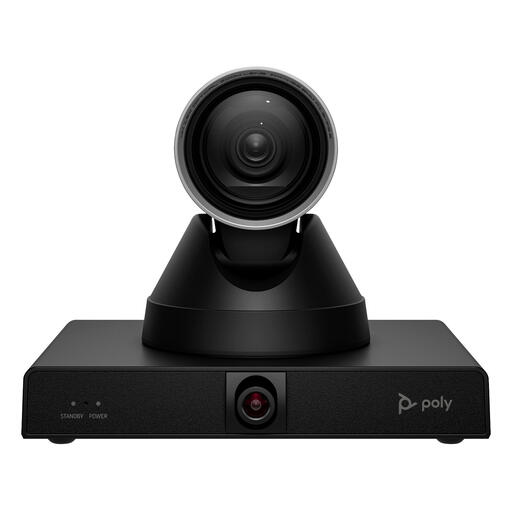
HP Poly Studio E60 Smart Camera 4K MPTZ with 12x Optical Zoom
The product description mentions large meeting rooms and collaboration. Check separately whether the camera is suitable for the paper view you need.
4K video and 12x optical zoom.
View at Joybuy
 No image available
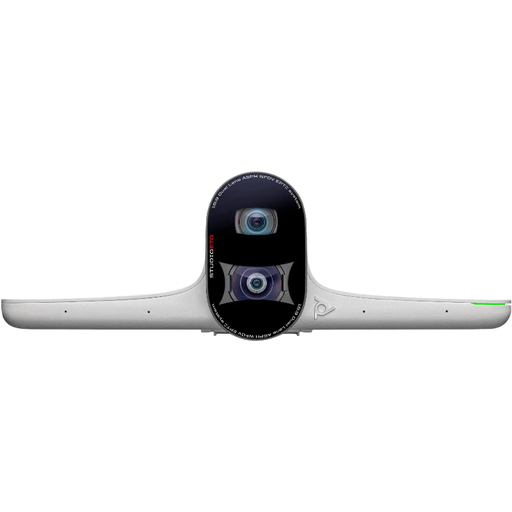
HP Poly Studio E70 Smart Camera
The product description mentions meeting rooms and hybrid collaboration. Check whether the intended camera position will also show the drawing area.
Dual camera, 4K video, digital zoom, USB-C and Ethernet connections.
View at Joybuy
 No image available
Philips 4000 Series 4K UHD Webcam SPL6408BT/00, EU Version, Black
The product description mentions meetings, lectures and livestreams. Plan in advance how you’ll position the webcam for a paper demonstration.
4K UHD, 8 MP, autofocus, dual built-in microphones and USB-A connection.
View at Joybuy
 No image available
Logitech MeetUp Black
The product description mentions small meeting and collaboration spaces. Check whether the camera also provides the angle you need to capture paper.
3840 × 2160 pixels, 30 fps, 120-degree field of view and built-in microphones.
View at Joybuy
 No image available
Insta360 Link 2C Standard Bundle Graphite Black
The product description mentions various presentation modes. Check whether the mode and camera position you need are suitable for showing your construction.
4K webcam for PC and Mac, with DeskView and Whiteboard modes, autofocus, auto-framing and gesture control.
View at Joybuy
Frequently asked questions
How can I stop my construction from appearing mirrored?
Check the image participants actually see, not just your own preview window. HUE describes mirroring and rotation features in its apps, and warns that Google Meet may show your own preview as mirrored even though participants see the image differently.
Can a USB document camera connect to any room display without a laptop?
No. USB video compatibility does not automatically mean the camera will work directly with every display. HUE recommends checking compatibility with the specific interactive display. For a direct connection, you could consider a camera with a suitable HDMI output, such as the AVerVision M11-8MV.
What happens if a fault appears after the manufacturer’s warranty ends?
Your statutory rights may still apply after a manufacturer’s warranty ends. According to the Dutch government, the Netherlands has no fixed statutory warranty period; what applies in your case will depend partly on the circumstances of the fault. Contact the seller if you have a problem.
Can I record recognisable participants or publish the footage?
Not automatically: images of identifiable people count as personal data. According to the Dutch Data Protection Authority, filming and publishing on behalf of an organisation or at an event requires a valid legal basis under the GDPR. Consent is one possible basis, but not the only one. Point the camera at the work surface if participants do not need to be on screen, and consider separately whether recording or publishing is necessary.


