
Working things out on paper
You want a teacher or tutor to be able to read your written working as you continue solving a problem. Mathpaul describes using a document camera to show maths work on paper.


If your tutor mainly needs to follow your written working, a document camera is usually better suited to the task. If you want to switch between showing your face and your desk during the lesson, a tilting webcam may be more practical. Before you buy, check that the whole worksheet is in focus, your computer and teaching software support the camera, and your surroundings stay out of shot.
You want a teacher or tutor to be able to read your written working as you continue solving a problem. Mathpaul describes using a document camera to show maths work on paper.
You discuss questions on a video call and want to show both yourself and parts of your worksheet. Logitech explains how you can tilt the Brio 500 down to show objects or your work.
You want to use the camera with your computer and video-calling software while keeping personal belongings out of shot. The Dutch Data Protection Authority emphasises that educational institutions must limit the impact on privacy when making video calls online.
Choose this if: you regularly work things out on paper and the worksheet is the main focus of the lesson. IPEVO lists a maximum capture area of 342 × 255 mm for the V4K; HUE gives A4 as the optimum capture area for the HD Pro.
Bear in mind: the arm and base take up desk space. A document camera won’t automatically give you a useful view of your face as well.
Choose this if: you want one camera for your face and occasionally need to show a calculation on your desk. Logitech describes this switch for the Brio 500 as Show Mode.
Bear in mind: tilting the camera down doesn’t guarantee that a whole exercise book will be visible, level and easy to read from above. Test the framing and focus on your own desk.
Choose this if: your questions are available digitally and you don’t necessarily need to show your calculations on paper. Bijlesnetwerk describes sharing files and writing on a digital whiteboard as options for online homework tutoring.
Bear in mind: this approach won’t automatically show your handwritten working on paper. Agree in advance how your tutor will be able to follow your calculations.
| What to consider | What to look for when buying | Who is this important for? |
|---|---|---|
| Clear view of your paper | Place your own exercise book under the camera and check that both the question and your writing hand fit in shot and stay in focus. IPEVO lists a maximum capture area of 342 × 255 mm for the V4K; HUE gives A4 as the optimum capture area for the HD Pro. | If I want my tutor to follow my figures and working, I check that the whole exercise book is clearly visible. Around 36% of consumers mainly need a clear view of paper. |
| Switching between your face and worksheet | Think about how often you’ll switch, then test from where you sit at your monitor to see if the whole question is visible. With a tilting webcam, also check how securely it stays in place when you move it. | If I switch between my face and a calculation during a lesson, I want to be able to reposition the camera easily. Around 29% of consumers want to switch views smoothly. |
| Connection and teaching software | Check your computer’s USB connection, whether your video-calling software supports an external camera, and whether you can select the right camera and microphone in the software. IPEVO and HUE describe support for USB cameras; check that it works with the software you use. | If I want to keep using my computer and teaching software, I want to know in advance whether they’ll recognise the external camera. Around 21% of consumers prioritise connection and software compatibility. |
| Lighting and privacy | Check the view you receive in your usual lighting, watch out for shadows and keep personal information out of shot. HUE lists built-in lighting on the HD Pro. | If I work in a shared space, I want to show my paper clearly without accidentally revealing my surroundings. Around 14% of consumers mainly want to manage lighting and privacy. |
IPEVO lists a maximum resolution of 3264 × 2448 pixels for the V4K, and up to 30 frames per second at Full HD. These are different settings, so the highest pixel count doesn’t mean the camera delivers that frame rate at that resolution.
Compare the video setting you’ll actually use in your teaching software, and check that small figures remain easy to read.
Logitech describes the desk view for the Brio 500, but the final framing depends on where and how you position the camera.
Test the camera on your own desk. If you spend a long time writing on paper, choose a setup that keeps the worksheet in view while you write.
Your computer and video-calling software need to recognise the external camera, and you must then be able to select it as the video source.
Before buying, check the connection, operating system and camera settings for the software you use.
Depending on the connections available, you may need a suitable adapter or a different setup.
The V4K is a USB document camera for showing paper beneath an adjustable arm.
The HD Pro is a flexible USB document camera for showing paper and making video calls.
The Brio 500 is a webcam for showing your face, which you can temporarily tilt towards sketches or work on your desk.
The MX-P3 is a document camera for those considering separate display connections as well as computer use.
The Joybuy options below are aimed at webcam and video-call setups. Check separately whether the camera angle is suitable for showing handwritten work.
 Image unavailable
Suitable for a monitor-based video-call setup; check that the camera angle works with your desk and that your teaching software recognises the camera.
The product title lists a 27" QHD IPS monitor with a 100 Hz refresh rate and an integrated webcam.
 Image unavailable
A webcam option for video calls from a PC or laptop; check that you can select the camera as a video source in your teaching software.
The product title lists Full HD 1080P, a built-in microphone and USB Plug & Play.
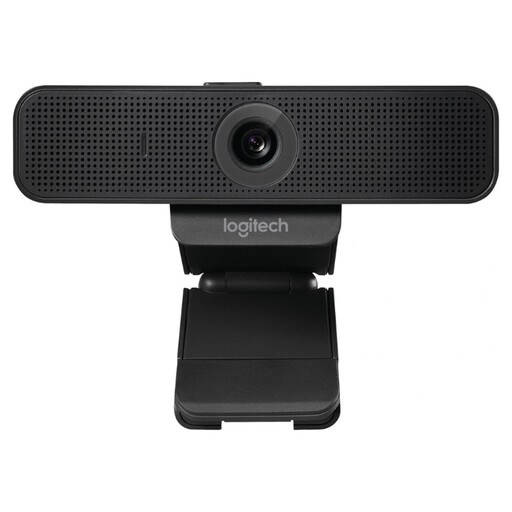 Image unavailable
Suitable for video calls via a laptop or monitor. Check that the adjustable mounting clip fits where you want to use the camera.
The product information lists Full HD 1080p, autofocus and a built-in microphone.
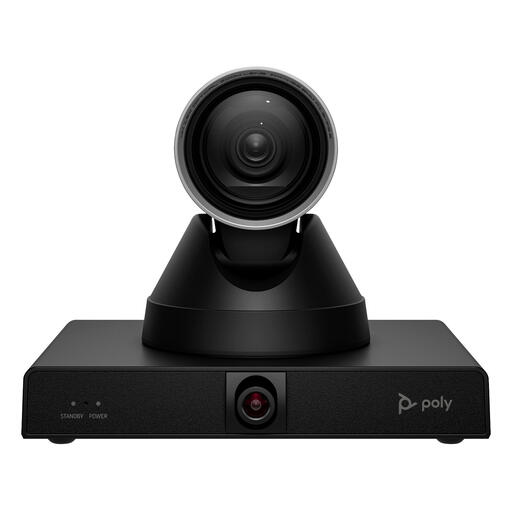 Image unavailable
This camera is designed for video-conferencing setups. Before buying, check that the mounting and connection are suitable for your home workspace and teaching software.
The product title lists 4K MPTZ and 12x optical zoom; the product description mentions mounting on a display, tripod or ceiling.
 Image unavailable
A webcam option for video calls from a computer; check that the supplied mount suits your screen or workspace.
The product title lists 4K UHD. The product description mentions autofocus, dual microphones and a privacy shutter.
Not always: a computer with a webcam and microphone may be enough for digital questions. A digital whiteboard can help with sharing files and calculations. If you want to show your writing on paper live, compare a document camera with a tilting webcam.
Check both your own preview and what the other person sees. HUE explains that Google Meet may mirror your own preview while showing other participants the image the right way round. So don’t change your camera settings based only on your own preview.
Check that the connection and computer are compatible and that your video-calling software supports an external camera. Then select the camera as the video source in the software settings. A camera’s stated resolution doesn’t guarantee the same picture quality in every app.
In the Netherlands, online purchases from a business usually come with a 14-day cooling-off period. The Dutch Government says that the seller must tell you about this period; check the seller, terms and any exceptions before ordering.
Keep personal belongings out of shot and check the framing before the call starts. The Dutch Data Protection Authority says schools and universities must limit the impact on privacy during online video calls and should be cautious about recordings. That guidance for educational institutions doesn’t determine which type of camera a private buyer should choose.