
Teachers demonstrating constructions
You want to show lines, arcs and the position of the compass and pencil on the classroom screen. Mathpaul explains how zooming in can help make work legible at the back of the classroom.


For demonstrating geometric constructions on paper step by step, a document camera with an adjustable arm is usually the better choice, as you can position it above the work surface. Check that both the compass movement and fine lines are visible on the classroom screen. A standard webcam is a better fit if you mainly want to show yourself and only occasionally need a view of your desk; in that case, check the software requirements and monitor setup too.
You want to show lines, arcs and the position of the compass and pencil on the classroom screen. Mathpaul explains how zooming in can help make work legible at the back of the classroom.
You want to keep the compass movement and the surrounding construction in view at the same time. Compare the capture area with the paper and the space taken up by your instruments; IPEVO and INSWAN publish work-area measurements for specific models.
You switch between paper, a view of yourself and existing computer or projector equipment. Check that the connections and any required software are compatible with the equipment you use in class.
First decide whether paper constructions or a view of yourself is the main task. Then check the visible work area and compatibility with the equipment in your classroom.
| What to consider | What to look for | Who is this important for? |
|---|---|---|
| Making fine lines visible | Check the focus, live video output and a sample construction on the classroom screen. | If I want pupils to follow the compass point and pencil lines, I want to assess the image from the seats. Around 36% of consumers say making details easy to read is their top priority. |
| Showing the whole work area | Set out the paper, compass and ruler as you intend to use them, then compare this with the stated capture area in millimetres. | When using large drawing sheets, I want to keep the whole construction and compass movement in view. Around 29% of consumers prioritise seeing the entire work area. |
| Connecting to your classroom setup | Check the available USB, projector or screen connections, and whether you’re allowed to install any required software on the school computer. | If I want to use the camera with the existing computer or projector, its connection needs to be compatible with that equipment. Around 21% of consumers say this is their top priority. |
| Switching between yourself and your desk | Decide which camera view you’ll use most and check how to switch views and position the camera. | If I want to show myself as well as the occasional sketch, I look at how the camera captures the desk. Around 14% of consumers prioritise switching between a view of themselves and a view of their desk. |
Manufacturer specifications can tell you about the capture area, focus and connections, for example, but they don’t show how legible a construction will be on your classroom screen. A test setup using your own paper and screen will help you make a practical assessment.
A resolution or megapixel specification on its own doesn’t tell you whether fine lines will be easy to read on the screen in your classroom. The framing, focus and distance from the screen all matter too.
Compare a sample construction on the actual classroom screen, and check separately that both the details and the whole work area fit in view.
A webcam attached to a monitor shows the desk from a different angle than a camera positioned above the paper. According to Logitech, the Brio 500 uses Show Mode to show the desk; this requires Logi Tune.
Choose based on the main task: continuous construction on paper or mainly showing yourself, with an occasional view of your desk. Also check whether you’re allowed to use the required software on the school computer.
Consumer protections don’t automatically apply to purchases made for a business. Ondernemersplein distinguishes between consumer purchases and sales to businesses.
Before ordering, check who will be named as the buyer on the invoice and which business returns and warranty terms apply to the purchase.
The V4K is a USB document camera with a specified capture area and autofocus.
The HD Pro is a USB camera with a flexible neck for demonstrating work on paper.
The ELPDC07 is a USB visualiser for showing work on paper with an existing classroom computer or a compatible Epson projector.
The MX-P3 is a document camera with USB and connections for a compatible screen or projector.
The Brio 500 is a standard webcam for lessons where showing yourself is important and you sometimes need to show your desk.
This selection includes Philips webcams for general webcam use and a CZUR document camera for A3 paper. Choose based on whether you mainly want to show yourself or work on paper.
 No image available
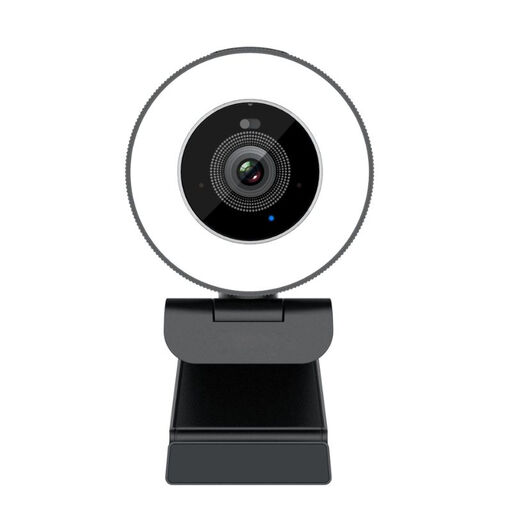
This is a standard webcam; before buying, check that your intended setup will also show the paper on your desk.
The product name specifies 4K UHD, 8 MP, autofocus, dual built-in microphones, a privacy cover and a clip for attaching it to a desktop monitor or laptop. Version: EU Version, Black.
 No image available
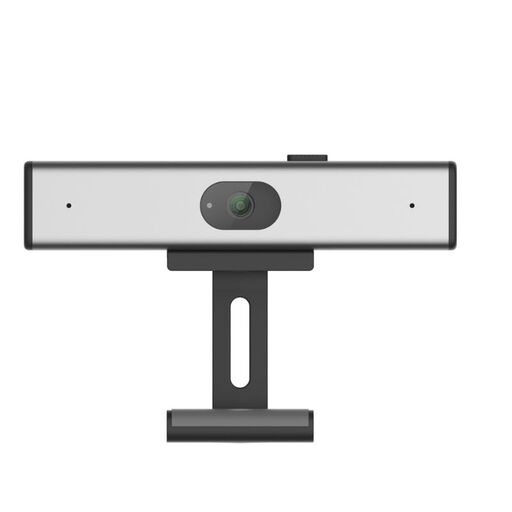
This standard PC webcam is a good fit if you’re looking for a webcam; check that your intended placement will actually show your work on paper.
The product name specifies 2K QHD, a noise-cancelling microphone and a clip for attaching it to a desktop monitor or laptop. Version: EU Version, Silver.
 No image available
A document camera is one way to show work on paper; check that its position and field of view suit your sheet and compass movement.
The product name specifies support for a flat A3 sheet, OCR and compatibility with Windows and macOS. The model is also described as a portable document scanner.
Set up a test using the paper, pencil and classroom screen you’ll use. Assess the live image from the back row, then check that the full compass movement remains in view. Mathpaul explains that zooming in can help make written work legible at the back of the classroom, but you may need to reposition the camera during the lesson.
That depends on the connections available on both the camera and the projector. ELMO lists HDMI and RGB outputs for the MX-P3; Epson describes connecting the ELPDC07 directly via USB to compatible recent Epson projectors. Compare the inputs and user manuals for the equipment in your classroom.
That depends on the camera and whether the distance from the paper changes. The HUE HD Pro has manual focus; Epson lists one-touch autofocus for the ELPDC07. Check the focus after moving the camera.
First check who the buyer is and whose name the order will be in. Ondernemersplein explains that consumer protections, including the statutory cooling-off period, don’t automatically apply to sales to businesses. The Dutch Government states that there is no fixed statutory warranty period in the Netherlands. For a school purchase, ask which terms apply to that order.
For a demonstration on paper, point the camera at the work surface where possible. The Dutch Data Protection Authority explains that consent and appropriate security are required when using identifiable images in education. A live lesson, a recording and publication aren’t automatically the same type of data processing; discuss the specific use with the school before filming pupils in a recognisable way.