What should you look for when choosing?
First decide whether showing small symbols on paper is the main priority, or whether you’ll mainly be filming yourself and occasionally showing work on a desk. Then check how the camera connects to your computer or directly to the classroom screen.
| Key consideration |
What should you check? |
Who is this important for? |
| Legibility of working |
Check that the worksheet fits within the capture area and test small symbols on the screen you’ll be using. IPEVO lists a maximum capture area of 342 × 255 mm for the V4K; Epson specifies Full HD and autofocus for the ELPDC07. |
If I want pupils to follow fractions, exponents and minus signs line by line, legibility on the shared screen is my top priority. Around 40% of consumers give legibility of paper the highest priority. |
| Connection to the classroom screen |
Check which screen inputs are available, whether you’ll need a computer and what power supply the camera requires. ELMO lists HDMI, RGB and USB outputs for the MX-P3; Epson describes direct connection for the latest Epson projectors. |
If I want to connect the camera to the screen in my classroom and may need to present without a computer, the signal route must suit my set-up. Around 30% of consumers give direct screen display the highest priority. |
| Switching between your face and the desk |
Check whether the desk remains visible when you tilt the webcam and what software you need for the features you want. Logitech describes Show Mode for the Brio 500 and Logi Tune for automatic framing. |
If I switch between explaining on camera and showing a larger sketch during a video call, I want to make this easy. Around 20% of consumers give switching between their face and their work the highest priority. |
| Computer and software |
Check the USB port, operating system and whether your school allows the required software. CZUR lists software features such as annotation for the Fancy S Pro; IPEVO specifies a USB Video Class interface for the V4K. |
If I want to use the camera with the school computer I already have, I don’t want to rely on software that can’t or isn’t allowed to run on it. Around 10% of consumers give straightforward connectivity and software the highest priority. |
Joybuy products
This selection includes webcams and a smart camera. If you’re showing work on paper, assess how legible it is on the screen you’ll be using and check the connections available in your teaching set-up.
 No image available
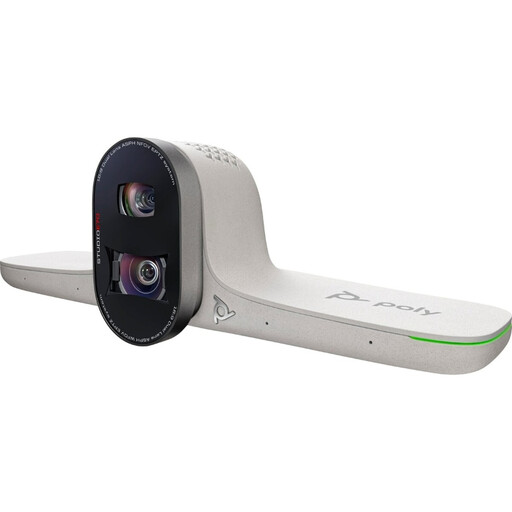
HP Poly Studio E70 Smart Camera
May be worth considering if you’re looking for a smart camera for a hybrid working set-up. Check that the connections and field of view suit your teaching space.
The product description lists two cameras, 4K video and 7.3× digital zoom.
Joybuy
 No image available
Philips 4000 Series 4K UHD Webcam, EU Version, Black, SPL6408BT/00
May suit you if you’re looking for a webcam and want to assess how its autofocus works for your way of presenting. Test small symbols on the screen your pupils will see.
The product name lists 4K UHD, autofocus and built-in dual microphones.
Joybuy
 No image available
Philips 2K QHD PC Webcam, EU Version, Silver, SPL6308S/00
May suit you if you’re looking for a webcam with a clip for a desktop or laptop set-up. Check that your worksheet is visible from the camera angle you want.
The product name lists 2K QHD, a noise-cancelling microphone and a clip for mounting on a desktop or laptop.
Joybuy
 No image available
Insta360 Link 2C Standard Bundle, Graphite Black
The DeskView and Whiteboard Mode features listed may be useful if you’re looking for a webcam that can also show work on a desk. Test whether the symbols are legible in your set-up.
The product name lists a 4K webcam and 1/2-inch sensor.
Joybuy
 No image available
Insta360 Link 2 Standard Bundle
The DeskView and Whiteboard Mode features listed may be useful if you’re looking for a webcam that can show work on a desk. Check that your own handwriting is legible on the screen you’ll be using.
The product name lists a 4K webcam and 1/2-inch sensor. The product description lists AI tracking, autofocus and Whiteboard Mode.
Joybuy
Frequently asked questions
Can I connect a USB document camera to any interactive whiteboard without a computer?
No. The fact that it uses USB doesn’t tell you that. Epson describes direct USB connection to the latest Epson projectors for the ELPDC07, while ELMO lists HDMI, RGB and USB outputs for the MX-P3. Check the exact screen or projector model and the power supply required.
How can I stop symbols going out of focus while I’m writing?
Position the worksheet within the capture area, focus on the writing surface and assess the image on the screen your pupils will see. IPEVO lists autofocus for the V4K and Epson lists one-touch autofocus for the ELPDC07. Also test with your own handwriting and lighting.
In the Netherlands, are the manufacturer’s warranty terms the only thing that determines what happens if a camera breaks?
No. Consumer purchases are also covered by the statutory guarantee. According to the Government of the Netherlands, there is no fixed statutory time limit for this in the Netherlands, and you can contact the seller if a product is faulty. If you’re buying on behalf of a school, check the terms that apply to that purchase too.
Can a school film identifiable pupils and publish the footage?
For filming and publishing identifiable images of pupils, the Dutch Data Protection Authority says consent is required: from pupils aged 16 or over themselves, and from parents for younger pupils. This is not the same as a general consent requirement for showing only an equation on paper. When using online video calls, also consider privacy risks and the rules around pupils appearing on camera and recordings.


