What should you look for when buying?
Start by checking the connection to your classroom display, then test the camera’s framing and position on the table where you teach.
| What to consider |
What should you check? |
Who should pay extra attention? |
| Paper and hands in frame |
Test the size of paper you use with both hands in frame. Compare how adjustable the camera is with its stated capture area; a stated maximum doesn’t guarantee a usable frame in every set-up. |
If I don’t want a hand or the next fold line to go out of frame while I’m folding, I prioritise the framing. Around 36% of consumers in this teaching scenario prioritise framing. |
| Clear workspace |
Check the position of the base, how the arm moves and where the cable runs on your own table. |
I want to be able to turn and fold the paper without the base or cable getting in the way of my hands. Around 29% of consumers prioritise having a clear workspace. |
| Connection to the display |
Check whether you’ll connect via USB to a compatible computer or need a suitable HDMI input. Also check whether the required camera app is allowed on your school computer. |
If I want to connect the camera to my classroom projector or screen, I check the available inputs first. Around 21% of consumers prioritise display compatibility. |
| Showing the teacher too |
Check how you switch between the speaker and the paper, and whether the meeting app you want to use recognises the camera. |
I sometimes want to film myself and sometimes show a fold, so switching between the two views matters. Around 14% of consumers prioritise this dual use. |
Cameras at Joybuy
This Joybuy selection includes meeting cameras and webcams for teaching. For a folding demonstration, check for yourself whether the set-up shows the whole sheet of paper and both hands; the product names don’t indicate that these are document cameras.
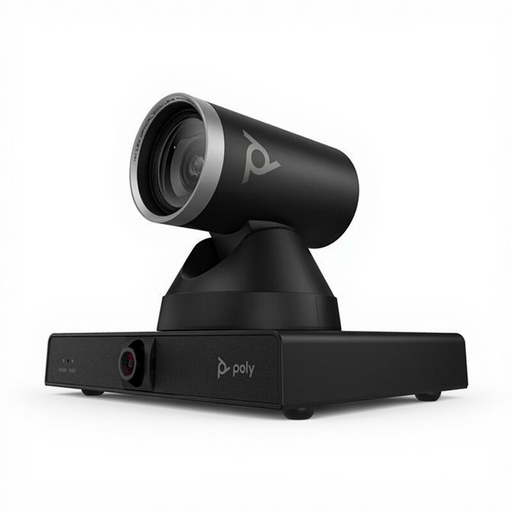 No image available
HP Poly Studio E60 Smart Camera, 4K MPTZ with 12x Optical Zoom
Best suited if you’re also looking for a video conferencing camera for the classroom; check separately whether it can be positioned to show the table.
The product information lists 4K video, PTZ control, 12× optical zoom and presenter tracking.
Joybuy
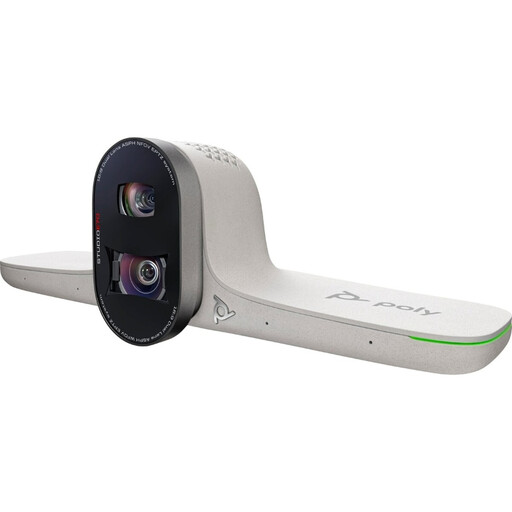 No image available
HP Poly Studio E70 Smart Camera
A relevant choice if you’re looking for a video conferencing camera for the classroom; check that the mounting and framing will also work for your demonstration table.
The product information lists 4K video, automatic framing, tracking and a 93° to 111° field of view.
Joybuy
 No image available
Philips 4000 Series 4K UHD Webcam SPL6408BT/00
A webcam option for lessons where you film yourself; test the positioning separately before using it for an overhead folding demonstration.
The product information lists 8 MP, autofocus, USB-A, two built-in microphones and a privacy shutter.
Joybuy
 No image available
Philips 2K QHD PC Webcam SPL6308S/00
Could be a good fit if you’re looking for a webcam with a monitor or laptop clip for teaching; check whether it can be positioned over the table as needed.
The product name lists 2K QHD, a noise-cancelling microphone and a clip for a monitor or laptop.
Joybuy
 No image available
Insta360 Link 2C Standard Bundle, Graphite Black, 4K Webcam
A relevant choice if you want to use different camera modes while teaching; check that the work surface and fold lines are clearly visible in your set-up.
The product information lists autofocus, DeskView and Whiteboard Mode. The product name specifies a 1/2" sensor.
Joybuy
Frequently asked questions
How should you position a camera for a folding demonstration?
First, put a sheet of the size you use on the table and check on your classroom display that the whole sheet and both hands stay in frame throughout a complete fold. Use the adjustable arm or neck to fine-tune the framing. The HUE HD Pro has manual focus; CZUR describes the Fancy S Pro as offering single and continuous autofocus.
Can a USB document camera connect directly to any projector?
No, don’t assume that it can. Epson describes a direct USB connection from the ELPDC07 to compatible Epson projectors; the ELMO MX-P3 also has an HDMI output. Compare the specific inputs and support available on your screen or projector with those of the camera.
Do you need to install or maintain software?
It depends on the model and how you plan to use it. HUE lists UVC compatibility with compatible camera apps; CZUR describes visualiser software for the Fancy series. If you use a managed school computer, check that the required app is allowed, and test the image and focus before the lesson.
What should you check about accessories and additional costs?
Check whether the specific version includes the cable and carry case you want, as well as any software. HUE says the HD Pro version supplied without a carry case does not include one. Epson lists a carry case with the ELPDC07, with separate options for extended warranty cover.
What should you consider if pupils are identifiable on camera?
Keep pupils out of shot if you don’t need to show them. The Dutch Data Protection Authority states that parental consent is required for identifiable images of pupils under the age of 16. For online video calls, the regulator recommends that schools agree who may appear on camera and how recordings are made and stored.


