
Explaining detailed diagrams
You point out small symbols and component labels, and want to switch easily between the full diagram and a close-up.


Choose a document camera for circuit diagrams based on the smallest labels you want to show, the size of your paper and how you plan to present. USB may suit presentations through a computer; for large sheets, check the capture area. If you want to present without a computer, choose a model only if its video output is compatible with your screen. Manufacturer specifications are a useful starting point, but they don’t guarantee that small text will be legible in your meeting software.
You point out small symbols and component labels, and want to switch easily between the full diagram and a close-up.
You want to discuss a large paper diagram in a single shot, so you need to compare the capture area with the size of your sheet.
You switch between paper, individual objects, video calls or a screen connected directly to the camera.
Start by thinking about where the image will be displayed: in a video call, as a scan or on a screen connected directly to the camera. Then compare the capture area with your paper and consider whether you also want to show small labels separately.
| What to consider | What should you check? | Who is this for? |
|---|---|---|
| Small symbols and text | Check the autofocus, close-up options and the final image in your meeting software. | If I want to point out component numbers and small symbols, I look for reliable focusing and zooming without losing sight of the overall diagram. Around 36% of consumers say that making fine details easy to read is their main consideration. |
| Online presentations | Check the USB connection, camera selection in your meeting app and the available video mode. | If you mainly present using a computer, you’ll want to know whether the camera is available in the app you use and which video mode is suitable. Around 29% of consumers give online connectivity top priority. |
| Showing a large diagram in one shot | Measure your sheet and compare both dimensions with the stated maximum capture area. | If I want to discuss a large circuit diagram in full, the sheet needs to fit within the capture area; small text may still need a close-up. Around 21% of consumers focus mainly on having enough space to show the entire diagram. |
| Switching between different uses | Check the outputs, arm adjustment and software features offered by the specific model. | If you switch between paper, individual components and presenting on a screen, you’ll want to choose features that suit your set-up. Around 14% of consumers put this versatility first. |
A large capture area and a high stated resolution don’t, on their own, tell you whether small labels will be easy to read in the shared image. IPEVO lists different maximum capture areas for the V4K and V4K PRO 120.
Measure your largest sheet and check separately whether you’ll need a close-up to show component numbers.
For the CZUR Fancy S Pro, CZUR specifies up to 4K at 15 fps and up to 1080p at 60 fps: these are separate video modes.
Check which resolution and frame-rate combination is available for the way you plan to present.
According to IPEVO, the IPEVO V4K uses UVC over USB, while ELMO lists HDMI, RGB and USB for the MX-P3. The connection you need depends on your computer or screen.
Check the input on your device and which cables you’ll need.
The V4K and V4K PRO 120 have different stated capture areas.
Epson’s Dutch product information describes the ELPDC07 as a USB visualiser for detailed images.
The MX-P3 is worth considering if you need a direct video output as well as USB.
AVer describes the U50+ as a USB visualiser with a flexible arm and additional annotation software.
According to CZUR, the Fancy S Pro combines a document camera with webcam use and software features.
This selection includes an A3 document camera/scanner for digitising paper, plus a webcam with DeskView and Whiteboard modes for online presentations; the webcam is not a document camera.
 No image available
An option to consider if you want to process your diagrams as scans rather than just show them live.
The product information lists support for A3 paper, OCR and compatibility with Windows and macOS. Scanning glossy materials is not recommended.
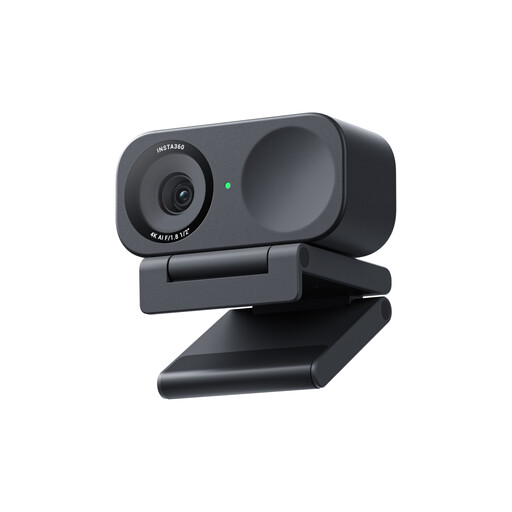 No image available
A webcam to consider if you want to switch to a desk or whiteboard view during online presentations; it is not a document camera.
The product information lists 4K, a 1/2-inch sensor, DeskView and Whiteboard Mode. This model is not compatible with ARM-based Windows systems.
No. Also consider the focus, capture area and available video modes. For the Fancy S Pro, CZUR specifies up to 4K at 15 fps and up to 1080p at 60 fps; also check how the image looks in your meeting.
Place the diagram within the stated capture area and refocus when you move to a component or close-up. AVer lists a flexible arm for the U50+; Epson describes the ELPDC07 as having a height-adjustable stand with a rotating camera head.
According to ELMO, the MX-P3 can present with or without a computer, and the model has HDMI, RGB and USB outputs. Check in advance which input and cable your screen requires.
Keep sensitive documents out of view and follow your organisation’s security guidelines. The Dutch Data Protection Authority advises protecting documents when working from home and taking care with video calls; this doesn’t mean that every circuit diagram contains personal data.
Check that your computer and meeting app recognise the camera, and find out which video modes the model offers. IPEVO specifies UVC over USB for the V4K; the maximum resolution and frame rate listed for the CZUR Fancy S Pro are separate modes.