Vandaag of morgen in huis

Kwaliteit gegarandeerd

Welkomstaanbiedingen ontgrendelen: GRATIS bezorging | Tot 80% korting | Gratis 30 dagen JoyPlus-proefperiode
Download de app
By Joybuy Product Recommendation Officer | Published on: 2026-07-05
A laptop offers flexibility, but often at the expense of connectivity. Does a desk cluttered with cables, adapters, and chargers for your monitor, mouse, keyboard, and network sound familiar? Every time you grab your laptop to go, you have to unplug everything, only to plug it all back in later. A docking station offers the perfect solution: a single cable for all your peripherals and for charging your laptop.
As a Joybuy Product Recommendation Officer, I'm here to help you make the right choice. In this article, I'll provide practical tips and present a selection of recommendations suited for various users, from the remote worker to the creative professional.
The market for docking stations is vast. To avoid choosing a model that doesn't meet your needs, here are a few key considerations.
The connection between your laptop and the docking station is crucial. Most modern docks use USB-C, but there's a significant difference between standard USB-C and Thunderbolt.
Look beyond just the main connection. Make a list of the devices you want to connect. Do you need a docking station for 2 monitors? Then check if the dock has enough HDMI or DisplayPort connections that support your desired resolution and refresh rate. Also, consider USB-A ports for older peripherals, an Ethernet port for a stable internet connection, and possibly a card reader.
A major advantage is a docking station with charging capabilities. This feature is called Power Delivery (PD) and is measured in Watts (W). It allows the docking station to charge your laptop through the same USB-C cable.
Check how much power your laptop requires. A compact ultrabook is often fine with 65W, while a powerful 16-inch MacBook Pro or a gaming laptop might need 100W or more. A docking station with insufficient power will charge your laptop slowly, or not at all, during intensive use. Your laptop's product information typically specifies the required wattage.
Not every docking station works with every laptop. Always check for compatibility with your operating system (Windows, macOS, ChromeOS). This is particularly important for Apple users. For instance, a standard MacBook docking station must specifically support driving multiple external displays, as macOS handles this differently than Windows. Check the product details to see if your specific model and operating system are supported to avoid disappointment.
Based on specifications and functionality, we've highlighted a few popular choices for you.
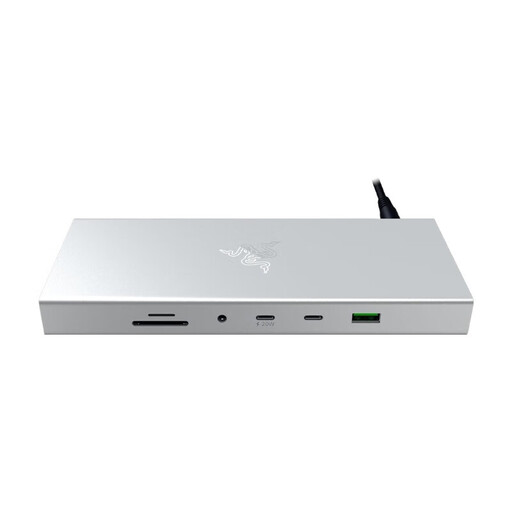
Why It Stands Out This dock combines the latest USB4 technology with a sleek, minimalist design. The Mercury White finish makes it a stylish addition to any modern workspace.
Advantages
Who Is It For? For professionals, creatives, and gamers with a recent laptop that supports USB4. Ideal if you value both high performance and a clean, aesthetic workspace.
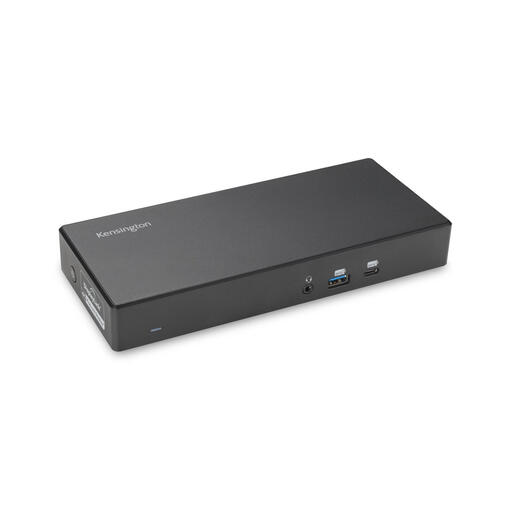
Why It Stands Out This Kensington dock is a versatile powerhouse designed for universal compatibility. It supports both modern USB-C laptops and older models with USB-A, making it a practical choice for mixed-device environments.
Advantages
Who Is It For? Perfect for the professional seeking a reliable solution for work-from-home setups or for offices where different types of laptops are used. Its broad compatibility and high charging power make it a flexible choice.
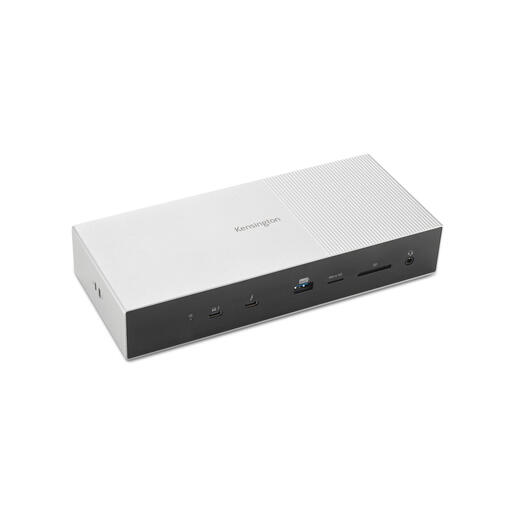
Why It Stands Out This is a model for the most demanding user. Featuring Thunderbolt 5 technology, this docking station offers extreme speeds and the ability to drive multiple displays at very high resolutions.
Advantages
Who Is It For? Creative professionals like video editors, 3D artists, and graphic designers who work with massive files and complex multi-monitor setups. This is an investment in maximum productivity and future-proofing.
View the Kensington Thunderbolt 5 Dock
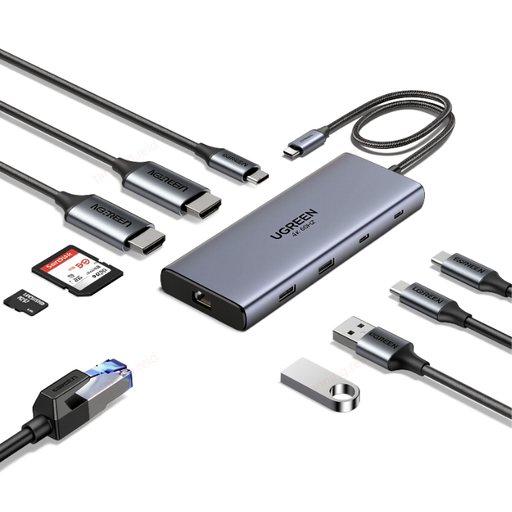
Why It Stands Out This UGREEN adapter is technically more of a laptop hub than a full-fledged docking station, but it offers a tremendous amount of functionality in a compact, portable form factor. It's an excellent, budget-friendly choice for expanding your port selection.
Advantages
Who Is It For? For the user looking for a flexible and affordable solution. Perfect for students, travellers, or if you want to create a simple work-from-home setup without the cost of a high-end docking station.
The world of docking stations and hubs is diverse. If the recommendations above don't perfectly match your specific needs, many more options are available. Every setup is unique, and the right solution depends entirely on your equipment and requirements.
Discover more options in our USB Desk Hubs category
What is the difference between a docking station and a USB hub? A USB hub (or laptop hub) is typically a small, passive device that expands a single USB port into multiple ports. A docking station is a more comprehensive solution. It often has its own power supply, can charge your laptop, and offers a wider range of ports, including advanced video outputs (HDMI, DisplayPort) and an Ethernet connection. It's designed to transform a laptop into a full desktop workspace with a single cable.
Can I connect two monitors with any docking station? No, this isn't a standard feature. The ability to use a docking station for 2 monitors depends on the specifications of the dock itself and your laptop's graphics capabilities. Always check the product description to see if the dock supports "Dual Display" or "Multi-Monitor" and what resolutions and refresh rates are possible.
Does every USB-C docking station work with a MacBook? While most USB-C docking stations offer basic functionality on a MacBook, there's a key consideration for connecting multiple external monitors. macOS does not natively support MST (Multi-Stream Transport) over USB-C, which means many standard docks can only output to a single external display (or two mirrored displays). For a true dual, extended desktop on a MacBook docking station, you need a model that specifically uses Thunderbolt or a dock with DisplayLink technology. Always verify this in the specifications.