Vandaag of morgen in huis

Kwaliteit gegarandeerd

Welkomstaanbiedingen ontgrendelen: GRATIS bezorging | Tot 80% korting | Gratis 30 dagen JoyPlus-proefperiode
Download de app
Modern laptops are thin and light, but that often comes at the cost of connectivity. Do you only have one or two USB-C ports and a constant tangle of cables and adapters on your desk? A docking station is the solution. It transforms your laptop into a full-fledged workstation with a single cable, complete with multiple screens, a stable internet connection, and all your peripherals.
This guide will help you choose the right model for your needs. We'll cut through the marketing jargon and focus on what really matters: specifications and practical usability.
The market for docking stations can seem overwhelming. By focusing on a few key points, you can make the choice much simpler.
Take stock of the devices you want to connect. Think about monitors, a mouse, keyboard, external hard drive, and a network cable.
Not every docking station works with every laptop. The connection technology is the key factor here.
The terms are often used interchangeably, but there is a difference. A usb c hub is typically smaller, cheaper, and powered by the laptop itself. Ideal for on the go. A laptop docking station is a more robust solution for a permanent workstation, often has its own power adapter, and offers significantly more ports and power.
Based on specifications and functionality, we have listed some popular choices for different users.
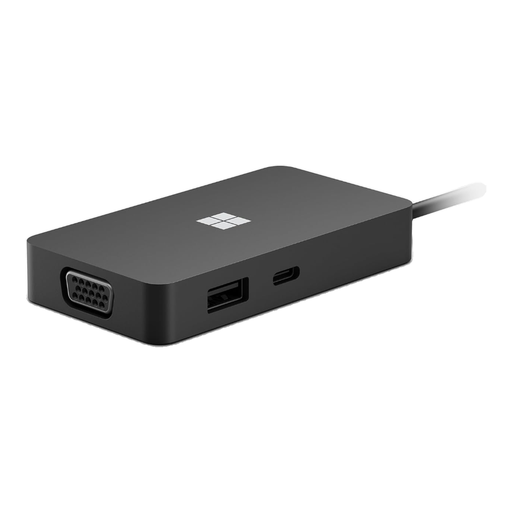
Why It Stands Out This hub from Microsoft is designed for mobility. It's compact, lightweight, and provides the most essential ports for the hybrid worker or professional who travels frequently.
Pros
Who It's For For the user who is often on the go and needs a reliable, simple solution for presenting and connecting in various locations.
View the Microsoft Surface USB-C Travel Hub
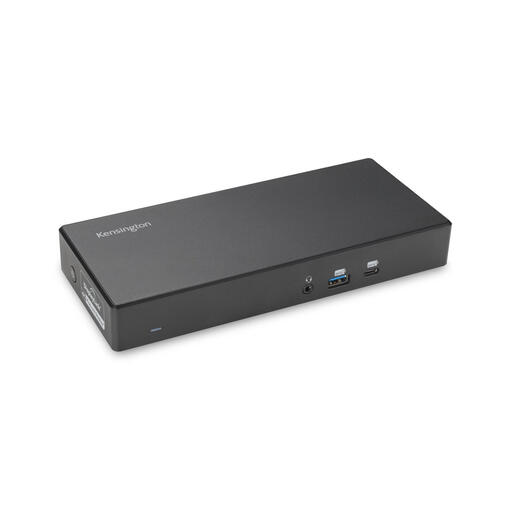
Why It Stands Out This Kensington dock is a true powerhouse for a permanent workstation. It stands out for its universal compatibility with both USB-C and older USB-A laptops, and its powerful charging capability.
Pros
Who It's For Ideal for IT managers who need to manage an office with different types of laptops, or for remote workers looking for a powerful and future-proof solution for their desk.
View the Kensington Docking Station 100W
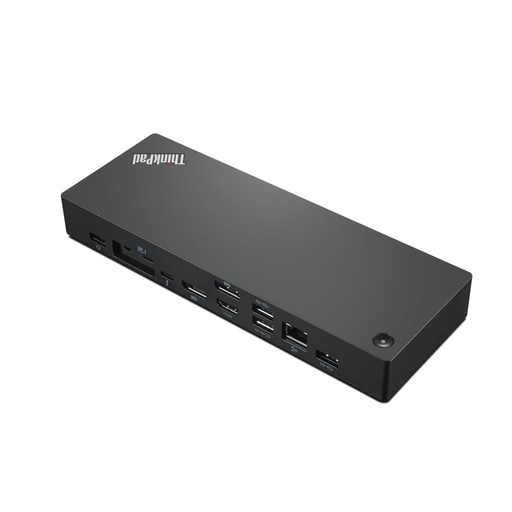
Why It Stands Out This is a high-performance thunderbolt dock for users who want to get the most out of their equipment. The Thunderbolt 4 technology provides unprecedented speeds and video capabilities.
Pros
Who It's For For the demanding professional, such as video editors, graphic designers, and software developers, who have a laptop with a Thunderbolt 4 port and need maximum bandwidth and screen real estate.
View the Lenovo ThinkPad Thunderbolt 4 Dock
A docking station is a personal choice that depends on your laptop, your peripherals, and your workflow. The models above are a great starting point, but there are many more options available.
Check out our full range in the Laptop & Tablet Accessories category for more options that might better suit your specific needs.
A USB-C hub is typically a small, portable adapter that adds a few extra ports (like USB-A and HDMI) and draws its power from the laptop. A docking station is a larger, stationary solution with its own power supply, many more ports, and the ability to charge your laptop at high power.
No. Always check for compatibility. Pay attention to the connection type (USB-C or Thunderbolt) of both the laptop and the dock. Also, check if the dock supports your laptop's operating system (Windows, macOS, ChromeOS). Especially with MacBooks, it's important to verify if the dock can drive multiple external displays, as not all models support this.
Yes, many docking stations are specifically designed to connect two or more monitors. This is often referred to as "dual display" or "multi-monitor support." Check the product specifications to see how many displays are supported and at what maximum resolution and refresh rate.