What should you look for when buying?
All-in-one desktop
A good fit if: you want a compact workspace and the screen specification, adjustability and connections of a particular computer suit your desk.
The trade-off: you choose the screen and computer together; an anti-glare finish won’t necessarily prevent glare from direct sunlight through a window.
Separate desktop with monitor
A good fit if: you want to choose and position your own monitor, for example to view assignments and assessment information in your preferred screen layout.
The trade-off: the computer and monitor are separate products; check the video connections and which cables and input devices you’ll need.
Mac mini with monitor
A good fit if: the marking software and your school’s policies are compatible with macOS, and you want to choose your own monitor. Apple lists support for external displays with the Mac mini with M6.
The trade-off: a monitor isn’t included with the Mac mini; also check the software, device management and screen connection.
First, consider the light and where you’ll position the screen. Arboportaal highlights positioning relative to windows and suitable blinds or curtains as points to consider when working with screens.
| What to consider |
What should you check? |
Who is it most important for? |
| Reflections and daylight |
Check the screen finish and adjustability of the exact configuration. Also consider the position of the window, blinds or curtains and light sources. |
If I’m marking work beside a bright window, I want to reduce distracting reflections by being able to position the screen and workspace properly. Around 36% of consumers say reflections are their top buying priority. |
| Room for documents |
Compare the screen size and resolution with the documents you want to view side by side; also check the scaling settings and height adjustment. |
When I want to view assignments and assessment information at the same time, I focus on a screen layout that works well with my software. Around 29% of consumers prioritise space for documents. |
| Compact workspace |
Decide whether you want an integrated computer or a separate PC with its own monitor; for a separate setup, check the video ports and components you’ll need. |
If my desk is short on space, I weigh up an integrated screen against the flexibility to choose my own monitor. Around 21% of consumers say a compact setup is their top priority. |
| School software and data |
Ask which marking software, operating systems, accounts and managed storage are permitted. Product specifications don’t prove that a computer meets your school’s policies. |
When I work with pupil data, I want to know whether the computer meets the software and device management policies of my workplace. Around 14% of consumers prioritise this compatibility. |
Joybuy products for digital marking
This selection includes all-in-one PCs and separate desktops for a digital marking workspace; with a separate desktop, you’ll need to choose a monitor separately.
 No image available
Acer Aspire C24-A WI5418 NL All-in-One PC
A good fit for a compact workspace with the computer and screen in one setup.
23.8-inch Full HD IPS screen; Intel Core 5 120U; 16 GB DDR5; 1 TB PCIe NVMe SSD; Intel Graphics; Windows 11 Home.
View at Joybuy
 No image available
Dell Pro QCS1250 Slim PC
A good fit for a setup with a separate desktop, where you choose and position the monitor yourself.
Intel Core Ultra 5 235; 16 GB DDR5-SDRAM; 512 GB SSD; Windows 11 Pro. A monitor is required separately; check the connections and included components. The product listing states that the charger must be purchased separately.
View at Joybuy
 No image available
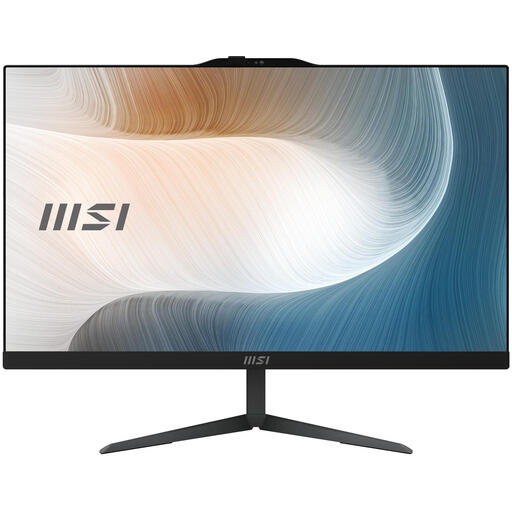
MSI Modern AM242 1M-1219EU All-in-One PC
A good fit if you want to combine the computer and screen in one workspace; the listing specifies an anti-glare screen.
23.8-inch Full HD IPS screen; Intel Core 5 120U; 8 GB DDR5; 512 GB SSD; Windows 11 Pro; Wi-Fi 6E (802.11ax). The product listing states that the charger must be purchased separately.
View at Joybuy
 No image available
Lenovo Yoga AIO 27IAH10 F0J2001DNY
A good fit if you want to view documents on a larger integrated screen.
27-inch QHD screen; 120 Hz; Intel Core Ultra 7 255H, 16-core; Intel Arc 140T Graphics; 16 GB LPDDR5X; 1 TB SSD; Windows 11 Home.
View at Joybuy
 No image available
HP 24-cr0050nd 895R0EA#ABH All-in-One
A good fit if you’re looking for an integrated computer and screen. Check that the fixed screen position suits your workspace.
According to the product specifications, the stand is not adjustable.
View at Joybuy
Frequently asked questions
Is an anti-glare screen enough beside a bright window?
No. Treat the screen finish as just one factor. Arboportaal also highlights positioning relative to windows, suitable blinds or curtains and light sources. Check the viewing angle and adjustability in the workspace you plan to use.
How should you set up a workspace for digital marking?
Adjust the screen and furniture to suit you, keep light sources out of your field of vision and take breaks from screen work. Arboportaal distinguishes between legal requirements for employers and practical advice; not every recommendation is a legal product requirement.
Does a school need to approve a desktop you choose yourself?
Check your school’s policies before using the desktop with pupil data. The Dutch Data Protection Authority (Autoriteit Persoonsgegevens) explains that schools must put appropriate technical and organisational safeguards in place. Ask which software, accounts and management requirements apply.
What warranty applies when a consumer buys in the Netherlands?
According to the Dutch government (Rijksoverheid), there is no fixed statutory warranty period in the Netherlands: a product must meet what you could reasonably expect from it. A manufacturer’s warranty or an additional warranty is separate from this. This consumer information does not necessarily apply to a business purchase agreement.
Can you return a PC bought online if the screen is too reflective?
For most online distance sales from a business to a consumer, there is a 14-day cooling-off period, although exceptions may apply. Check the terms before ordering; a school’s business purchase may be subject to different arrangements.


