Who is this buying guide for?

Households with both old and new devices

You want to download magazines on an older tablet, for example, as well as on newer phones or laptops. Compare your devices’ Wi-Fi standards with the router’s: older devices can connect without benefiting from the improvements offered by Wi-Fi 6. The Consumers’ Association explains these differences between Wi-Fi devices.

Readers using several rooms

Wi-Fi works well near the router, but isn’t reliable everywhere you read or download. In that case, the position and number of access points matter more than the advertised top speed alone.

People who manage their own router

You want more control over your home network and are happy to manage the connection, settings and security updates. ACM ConsuWijzer states that a provider cannot refuse a suitable and secure device simply because of its brand or model.

What should you look for when choosing?

What to consider What should you check? Who is this important for?
Compatibility Compare the Wi-Fi standards of your most important devices with those supported by the exact router model. Also check the security settings before connecting an older device. If I use older tablets alongside newer phones or laptops, I want them all to be able to connect. Around 33% of consumers prioritise compatibility.
Coverage where you read Test your existing Wi-Fi in the places where you read. Then check whether better positioning, a single wired access point or several mesh units are needed. When I read in different rooms, a reliable connection in those spots matters more than a high theoretical speed. Around 27% of consumers prioritise coverage where they read.
Connection and management Decide whether the router will sit behind your provider’s equipment, work as an access point or replace the modem. If you want to replace the modem, ask your provider for the connection details you’ll need. I want to use my own device without it being incompatible with my provider’s equipment or the way I want to manage my network. Around 20% of consumers prioritise connection and management.
Security and running costs Check for updates for the correct hardware version, any terms that apply to extra features and the CE marking on the version being offered. If I’m going to use a router for a long time, I want to know how updates and any recurring costs for features are handled. Around 20% of consumers prioritise security and running costs.

Common mistakes

  • Mistaking the maximum Wi-Fi speed for your download speed

    A manufacturer’s band rating is a specification, not a measured download speed in your home. Your internet connection, the router’s position and your devices’ capabilities all play a part too.

    Choose based on coverage and compatibility first. Don’t treat the Mbps figure on the packaging as a prediction of your download speed.

  • Confusing a mesh kit with a single unit or a different Deco model

    A coverage claim for a kit doesn’t automatically apply to a single unit. Deco X10, X50 and X50-PoE are different model names.

    Check the full model name, number of units, connections and where each unit can be placed.

    You may need an extra unit or cabling to get Wi-Fi where you want it.

  • Assuming advanced features are always included

    In its review of the Archer BE230, Tweakers lists a subscription for advanced features as a drawback. That doesn’t tell you what terms apply to another model.

    Check the terms for the router you’re considering and the features you actually want to use.

Brands to consider

TP-Link

The Archer AX55 is a standalone Wi-Fi 6 router; the Deco X50 is a mesh range for anyone looking to extend Wi-Fi to several areas.

  • TP-Link lists OFDMA for simultaneous transmission on the Archer AX55. The Deco X50 is available in several pack sizes.
  • These are model specifications and manufacturer information, not a guarantee of coverage in your home. Check the pack size and hardware version.

ASUS

The RT-AX58U is an example of a router with selectable router or access point mode.

  • ASUS lists support for Wi-Fi 4, 5 and 6, a guest network and access point mode for the RT-AX58U.
  • ASUS notes differences between hardware versions V1 and V2. Check which version is being offered, and don’t draw conclusions about all ASUS routers based on this model.

FRITZ!

The FRITZ!Box 7690 is designed for a compatible DSL connection or use behind a fibre-optic modem.

  • FRITZ! lists DSL speeds of up to 300 Mbit/s for this model, as well as use behind a fibre-optic modem.
  • First check that the model is compatible with your connection. Wi-Fi 7 and telephone features aren’t essential for downloading digital magazines.

Joybuy products

The products below are aimed at providing mesh coverage in several reading areas or offering a standalone access point. Check that your chosen setup is compatible with your existing provider equipment.

TP-Link Deco BE68 2-pack

TP-Link Deco BE68 (2-pack)

A good fit if you’re looking for mesh coverage in several reading areas. The product name indicates a pack of two.

Joybuy

TP-Link Deco E4 3-pack, dual-band Wi-Fi 5

TP-Link Deco E4 (3-pack), dual-band Wi-Fi 5

A mesh kit for anyone looking to extend Wi-Fi to several reading areas. The product name indicates three units, dual-band (2.4 GHz/5 GHz) and Wi-Fi 5 (802.11ac).

Joybuy
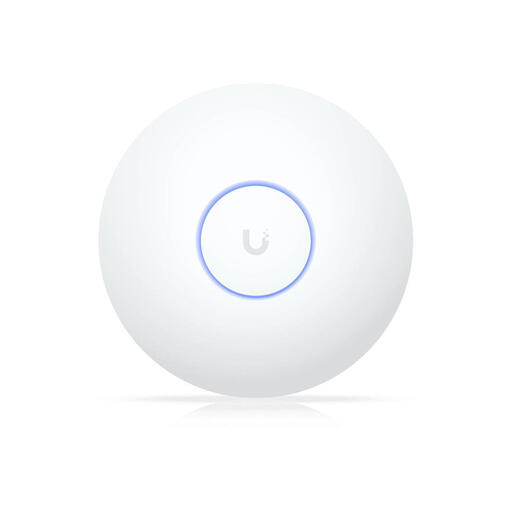
Ubiquiti UniFi AP U7 Long-Range access point

Ubiquiti UniFi AP U7 Long-Range

A good fit if you’re looking for a standalone access point rather than a mesh kit. This model requires a compatible PoE+ power supply (802.3at) and management through UniFi Network.

Joybuy

ASUS ZenWiFi BD4 dual-band Wi-Fi 7

ASUS ZenWiFi BD4 dual-band Wi-Fi 7

A mesh option for anyone looking to use Wi-Fi in several areas. The product name indicates dual-band (2.4 GHz/5 GHz) and Wi-Fi 7 (802.11be).

Joybuy

TP-Link AX1800 Whole Home Mesh Wi-Fi 6 system, 2-pack

TP-Link AX1800 Whole Home Mesh Wi-Fi 6 (2-pack)

A good fit if you’re looking for mesh coverage in several reading areas. The product name indicates a pack of two and Wi-Fi 6.

Joybuy

Frequently asked questions

Do you need to replace your provider’s modem if you want to use your own router?

No, not always: a separate Wi-Fi access point can be used with your existing equipment if the device you choose supports that setup. If you want to connect your own modem directly, ask your provider for the settings you’ll need. ACM ConsuWijzer states that a provider cannot refuse a suitable and secure device simply because of its brand or model.

Can older tablets benefit from Wi-Fi 6?

An older tablet can connect if the router supports the tablet’s Wi-Fi standard, but it won’t automatically benefit from the improvements offered by Wi-Fi 6. The Consumers’ Association advises checking which standards your devices support.

What maintenance does your own router need?

Install firmware updates for the correct hardware version and use automatic updates if your router offers them. VeiligInternetten recommends keeping your router up to date; if you use your own equipment, also check who is responsible for providing updates.

What rules apply to routers sold in the Netherlands?

In the Netherlands, radio equipment must meet the applicable European requirements and carry a CE marking. The Dutch Authority for Digital Infrastructure states that, since 1 August 2025, RED 3.3 cybersecurity requirements have also applied to radio equipment with an internet connection where those requirements are relevant. Check the exact version being offered.

Do your statutory rights end when the manufacturer’s warranty expires?

No, the end of a manufacturer’s warranty doesn’t automatically mean your statutory rights end too. According to ACM ConsuWijzer, there is no fixed statutory warranty period in the Netherlands; what you can expect from a product depends on the product and the circumstances. If the product is faulty, the retailer is your point of contact for an appropriate solution.
