
Manual writer working with lots of chapters
You regularly rearrange sections and want to move quickly between main headings and subheadings. Microsoft Support and LibreOffice Help describe features for working with headings and document structure.


Start by choosing a word processor that lets you use heading styles, navigate between headings and update the table of contents. Microsoft Support explains how to navigate using heading styles in Word, while LibreOffice Help recommends using built-in heading styles for a table of contents. Then choose a desktop format that suits your screen setup, workspace and software, and check the exact configuration, licence and peripherals you’ll need.
You regularly rearrange sections and want to move quickly between main headings and subheadings. Microsoft Support and LibreOffice Help describe features for working with headings and document structure.
You want to view a document alongside, for example, software or reference material. Check that the ports suit your screen setup; Acer and Apple list the connections available on the configurations described here.
You want to keep using familiar programs, your screen and your input devices. So check the operating system, connections and what’s included with the exact configuration.
Start with your word processor’s features, then decide what screen setup, software compatibility and complete workspace you need.
| What to consider | What to look for when buying | Who is this important for? |
|---|---|---|
| Document structure | Test multi-level heading styles, navigation between headings and how to update the table of contents in the word processor you plan to use. | If you often rearrange chapters, you’ll want to manage headings clearly; around 36% of consumers put document structure first for this reason. |
| Screen setup | Compare the number and type of video outputs on the configuration with your screens, and check which cables you’ll need. | If you want to view a document and reference material at the same time, a suitable screen setup can help; around 29% of consumers prioritise this kind of workspace. |
| Software compatibility | Check that the programs and licences you need are compatible with the supported versions of Windows or macOS. | If you rely on specific programs, check they’re available for the operating system you’re choosing before you buy; around 21% of consumers put compatibility first. |
| Complete workspace | Calculate the combined cost of the computer, software licence, screen and input devices; if you have an older PC, check the operating system’s support status. | If you want to keep your whole workspace within budget, look beyond the computer itself; around 14% of consumers make total cost their top priority. |
Heading styles, navigation and a table of contents are features of your document software. A more powerful computer won’t fix an unsuitable document workflow.
Before choosing a desktop, try the heading levels you need, moving sections and updating the table of contents in the program you plan to use.
A compact computer doesn’t automatically come as a complete set with a screen, cables and input devices; what’s included varies by configuration.
Compare offers using the same checklist: computer, screen connections, screen, keyboard, mouse and document software.
Microsoft Support reports that standard support for Windows 10 ended on 14 October 2025. A PC may still work, but that doesn’t mean it will continue to receive standard security support.
For an older or refurbished desktop, check which operating system is installed and what support or upgrade options apply to it.
The Aspire TC-1785 is a tower option for a fixed Windows workspace; the details below apply to part number DT.BLNEH.006.
The Pro Mini 400 G9 is a compact business Windows range; the configuration reviewed is 6D494EA#ABH.
The Mac mini is a compact macOS option for use with a separate screen; the details below apply to the M6 base configuration reviewed.
This selection includes compact desktops, towers and an all-in-one for a dedicated writing space. Check that the connections, software and components you need suit your workspace for each configuration.
 Image unavailable
A compact macOS desktop for anyone whose document software runs on macOS; check that all the programs you need are compatible.
Listed in the product name: 16GB and 512GB SSD.
 Image unavailable
A compact Windows option for anyone putting together a multi-screen workspace; check that the listed outputs suit your screens.
The product name lists 4C/4T, up to 3.7 GHz, Wi-Fi 5, Bluetooth 4.2 and LAN. Outputs: HDMI 2.0, Type-C and DP 1.4.
 Image unavailable
A compact desktop for a multi-screen desk setup; check that the connections suit your preferred configuration.
The product name lists support for output to three 4K screens, USB 4.0, HDMI 2.1 and 2.5G Ethernet.
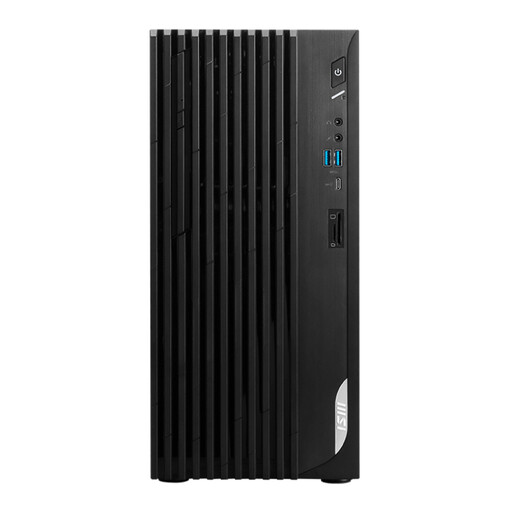 Image unavailable
A tower for a fixed Windows workspace; check that the available video outputs suit your monitor.
The product name lists 8GB DDR4 and a 512GB SSD.
 Image unavailable
An all-in-one for anyone who wants the screen to be part of the computer; check the screen specifications and what’s included with this configuration.
The product name lists QHD, 120Hz, 16GB LPDDR5X, a 1TB SSD and Windows 11 Home.
Start with your word processor’s features: the heading styles and navigation described here are document features. Microsoft Support explains headings in Word’s Navigation pane, while LibreOffice Help describes built-in heading styles for a table of contents. Neither source lists a separate graphics card as a requirement for these features.
Use the built-in heading styles, then check the navigation and table of contents in your document. Microsoft Support explains how to link heading styles to a multilevel list; LibreOffice Help recommends using built-in heading styles and updating the table of contents after making changes.
Don’t assume that Windows 11 includes a Word licence. Check the software included and the licence for the exact offer; Microsoft lists the Microsoft 365 apps available with each subscription plan.
When you buy online from a business, you generally have 14 days to change your mind, according to the Government of the Netherlands; exceptions and conditions may apply. For employees who work with screens for more than two hours a day, Arboportaal describes workplace requirements, including that the screen and keyboard must not be attached to one another. This is not a general product specification for every private buyer.