
Manager of large photography projects
You want to import, find and store your photos separately with ease. So look at storage, connections and your back-up routine, not just processing power.


Choose according to your workflow. For planning and organising files, the right connections and a good storage and back-up setup are important. For RAW editing, you’ll also need to consider memory and your software’s requirements. A compact desktop takes up less desk space, while a tower may offer more configuration options. With either, remember to factor in your monitor, peripherals and separate back-up storage.
You want to import, find and store your photos separately with ease. So look at storage, connections and your back-up routine, not just processing power.
You organise and edit lots of photos on the same desktop. Choose memory, an SSD and any GPU features to suit the software you use. The recommendation of 16 GB RAM mentioned here applies to Lightroom Classic, not every workflow.
You want a permanent workspace without a large computer case. Compare compact desktops and towers based on the monitors, card reader and external storage you need, and check which components you already have.
Choose this option if: you have limited desk space, want to use macOS and have compatible peripherals or are happy to buy them separately.
Bear in mind: the Mac mini M6 base configuration we looked at has a 256 GB SSD; Apple also lists configurable storage options. Check whether it will suit your files.
Choose this option if: you want to manage photo folders locally, connect several devices or use Windows. The HP OmniDesk configuration we looked at has 32 GB RAM and a 1 TB SSD.
Bear in mind: a tower takes up more space, and the specifications of one HP model don’t necessarily apply to the whole range.
Choose this option if: you want to tailor the memory and storage configuration to your work in advance.
Bear in mind: with Dell, changing the configuration may affect other specifications. Check the full details of the exact model you choose.
| Buying concern | What to look for | Who considers this more important? |
|---|---|---|
| Storing and organising photos | Choose storage to suit your photo folders and check the connections for a card reader and external storage. You’ll still need a separate back-up. | If I want to keep the originals safe, I won’t rely solely on the internal drive; around 36% of consumers prioritise file management and preserving photos. |
| Selecting and editing | Check your software’s requirements. For Lightroom Classic version 14.1 and later, released in December 2024, Adobe recommends 16 GB RAM or more. | When I edit lots of RAW photos as well as planning, I choose a computer to suit my editing software; around 29% of consumers prioritise photo editing. |
| Space and connections | Make a list of your monitors, card reader, drives and cables. Check the connections on the exact desktop configuration. | If my home office has limited space, I want to know whether my monitors and devices will connect to the computer; around 21% of consumers prioritise a compact workspace and suitable connections. |
| Configuration and components needed | Check the exact model, the components you’ve chosen and what you already have for your workspace. Consider any additional warranty separately from your statutory rights. | I want to know in advance which configuration and peripherals I need; around 14% of consumers prioritise their chosen configuration and complete setup. |
Adobe distinguishes between originals stored locally and back-ups. Lightroom Classic doesn’t include automatic file back-up, so a large internal drive won’t protect your photos from being lost.
Arrange separate storage for copies of your original photos and working files.
You’ll need separate storage for these copies.
Configurations can vary within the same product range. Lenovo, for example, lists models with different SSD capacities; with Dell, changing the configuration may also affect other specifications.
Before buying, check the full model name, product number and components you’ve selected.
A monitor, input devices, card reader and external storage may be part of your setup, but they aren’t necessarily included with the computer.
Check what you already own and which components you still need.
A monitor, input devices, card reader or external storage may need to be bought separately.
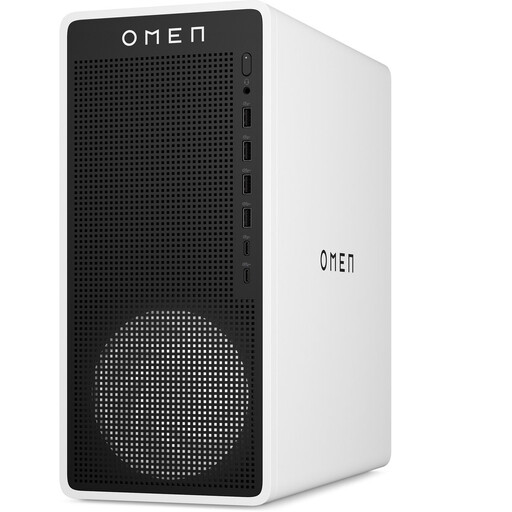
The OmniDesk 16L mentioned here is a Windows desktop for a permanent workspace.
The Mac mini M6 is a compact macOS desktop for a workspace with external monitors.
The ThinkCentre neo 50t Gen 6 is a business Windows tower.
The Dell Pro Tower QCT1255 is a configurable Windows tower.
The ExpertCenter D5 Mini Tower D501MER is a compact tower worth comparing if you’re looking for upgrade options.
This selection includes Windows desktops and compact desktops for local file storage, connecting peripherals and creating a smaller workspace.
 No image available
The listed storage and connections are useful if you keep project files locally and want to connect several devices.
16 GB RAM and a 1 TB SSD.
HDMI, three DisplayPort connections and USB ports, including USB-C.
Windows 11 Home; 16-litre case.
 No image available
Its compact size may suit a desk with limited space; check that the listed specifications meet the needs of your software and devices.
8 GB DDR4 RAM and a 256 GB SATA SSD.
Dimensions: 105 × 113 × 45 mm.
Two HDMI outputs, a Type-C video output and four USB ports.
Windows 11.
 No image available
A compact option for a workspace with external monitors; check whether the storage will suit your photo folders.
16 GB memory and a 256 GB SSD.
The product description lists support for up to three external monitors.
No image available
A compact option for a workspace with external monitors; compare the storage with the size of your photo files.
16 GB memory and a 512 GB SSD.
The product description lists support for up to three external monitors.
No image available
This compact configuration has more memory than the 16 GB models listed; choose according to your software and files.
24 GB memory and a 512 GB SSD.
The product description lists support for up to three external monitors.
Not for this workflow alone. First check the programmes and features you use. Adobe lists specific GPU requirements for certain displays and accelerated AI features in Lightroom Classic, but these don’t automatically apply to diary or file management.
No. Adobe distinguishes between originals stored locally and catalogue management, and says that Lightroom Classic doesn’t include file back-up. So make sure you also keep a separate copy of your original photos.
Check what you already have and which components are included with the computer you choose. Compare the connections on the exact configuration with your monitors and peripherals; you’ll also need separate storage for a copy of your wedding photos stored locally.
No. According to the Dutch government, there is no fixed statutory warranty period for a consumer purchase in the Netherlands. If a product is faulty, the seller must offer an appropriate solution; a manufacturer’s warranty or additional cover is separate. For a business purchase, check which terms apply to that transaction.
No. According to the Dutch Data Protection Authority, recognisable people in images are personal data, and processing them for business purposes requires an appropriate GDPR legal basis. Which basis applies depends on the specific processing. For photos kept solely for personal use within a very limited circle, the personal or household exemption may apply.