Choose a desktop based on the most demanding task in your walking report. Text and slides mainly call for suitable software and screen connections, while photos and especially video editing may require a different configuration. Adobe recommends 32 GB RAM or more and a GPU with at least 4 GB VRAM for Premiere on Windows and Intel Macs; this recommendation does not automatically apply to a report containing only text and slides. A mini PC with a separate screen, an all-in-one and a Windows desktop each offer a different type of workspace. Check the exact configuration, your software and what you already have.
Which desktop option is right for you?
Creating text and slides
Are you mainly writing up a walk and putting together slides for a client? Check that your apps and screen connections are suitable. Apple Netherlands describes the Mac mini as a computer for use with a separately chosen screen.
Editing walking photos
If photos are an important part of your report, check the requirements of your photo-editing software and think about which screen you want to view them on. Adobe’s Photoshop requirements depend on the version you use.
Editing walking videos
Are you also editing video for the presentation? Check the configuration against the requirements of your editing app. Adobe recommends 32 GB RAM or more and a GPU with at least 4 GB VRAM for Premiere on Windows and Intel Macs.
What should you look for when choosing?
Mini PC with a separate screen
Suitable if: you already have a suitable screen or want to choose the computer and screen separately.
Bear in mind: you’ll need a screen, input devices and suitable connections to create a complete workspace.
All-in-one
Suitable if: you also need a screen and want to set up the computer and screen as one workspace.
Bear in mind: the screen and computer come as a single purchase; check the screen specification and connections of the exact model.
Windows desktop
Suitable if: you use Windows software and want to choose a separate screen or need a specific configuration.
Bear in mind: configurations vary by model; Adobe’s recommendation of 32 GB RAM or more for Premiere applies to Windows systems running the app.
| What to consider |
What to check before buying |
Who will find this important? |
| Report and presentation |
Check that your presentation app works with the operating system and that the video output is compatible with your screen. |
I want to create the report and client slides, and show them on the presentation screen. Around 31% of consumers put text and presentations first. |
| Photo editing |
Check which version of your photo-editing software you use. For Photoshop 27.x, Adobe recommends at least 8 GB RAM, with 16 GB or more recommended. |
If my report includes lots of photos, I want to view them on my chosen screen and make sure my computer meets my software’s requirements. Around 31% of consumers prioritise photo editing. |
| Video editing |
Establish whether you’ll actually be editing video and which app you’ll use. For Premiere on Windows and Intel Macs, Adobe recommends 32 GB RAM or more and a GPU with at least 4 GB VRAM. |
I want to make sure my configuration is suitable for the app I’ll use to edit the walking video. Around 23% of consumers put video editing first. |
| Complete workspace |
Check what’s included with the exact configuration and plan a separate backup location for your files. |
Before the client presentation, I want to know whether I’ll need a screen or anything else, and where my files will be stored separately. Around 15% of consumers prioritise a complete workspace. |
Common buying pitfalls
-
Assuming a desktop with 16 GB RAM is automatically suitable for video editing
Adobe recommends more memory for Premiere on Windows and Intel Mac systems than it does for Photoshop 27.x.
First establish whether you’ll be editing video, then compare the exact configuration with the requirements of your chosen app.
-
Assuming a mini PC’s price or size makes it a complete workspace
A Mac mini uses an external screen, while an iMac has a built-in screen.
Make a list of what you already have and check what’s included with your chosen computer, including the screen connections you’ll need.
-
Keeping work files only on the internal SSD
Internal storage is not the same as a separate backup. Microsoft describes File History for backing up to an external drive or network location; Apple describes Time Machine with external storage.
Set up a backup and check that the relevant files are included before your presentation.
-
Confusing a two-year warranty with the full statutory guarantee
The Netherlands Authority for Consumers and Markets says that Dutch statutory guarantees do not have a fixed two-year term.
Keep your proof of purchase and contact the seller if something goes wrong. If you’re buying on behalf of a business, check separately which terms apply.
Brands to consider
Apple
The Mac mini is an option with a separately chosen screen; the iMac combines the computer and screen.
- For the specified iMac configuration, Apple Netherlands lists a built-in 24-inch screen.
- For the Mac mini, check the exact memory and storage configuration, and factor in a suitable external screen.
Dell
The Pro Micro and Pro Slim are compact Windows desktops designed for use with a separately chosen screen.
- Dell lists 16 GB RAM and a 512 GB SSD for the Pro Micro QCM1250 configuration.
- The processor in the Pro Slim QCS1250 varies by configuration, so check the one you’re considering.
Lenovo
The ThinkCentre M75q Gen 5 Tiny is a compact business Windows desktop.
- Lenovo says the SSD and memory modules in this product range can be accessed without tools.
- Lenovo lists support for up to three screens; check the configuration you’re considering and your software’s requirements.
HP
The Pro Mini 400 G9 is a compact desktop option for a workspace with a separate screen.
- For product number 6D494EA#ABH, HP specifies a Core i5-12500T, 16 GB RAM and a 512 GB SSD.
- Check that the specifications match the configuration you’re considering.
ASUS
The NUC 14 Pro+ is a mini PC option for which you choose a separate screen.
- ASUS says the casing in this product range can be accessed without tools.
- Check whether the exact NUC configuration comes as a complete computer and what else you’ll need.
Joybuy products
This selection includes compact desktops with a separate screen and all-in-one PCs for writing up and presenting a walking report.
 No image available
Mac mini with Apple M6 chip, 24 GB and 512 GB SSD
Suitable for a Mac workspace where you choose your own screen.
12-core CPU and 12-core GPU; 24 GB memory and 512 GB SSD. An external screen and a suitable display connection are required.
View at Joybuy
 No image available
Acer Aspire C24-A WI5418 NL All-in-One
Suitable if you want to set up the computer and screen as one workspace.
23.8-inch Full HD IPS screen, Intel Core 5 120U, 16 GB DDR5, 1 TB PCIe NVMe SSD and Windows 11 Home.
View at Joybuy
 No image available
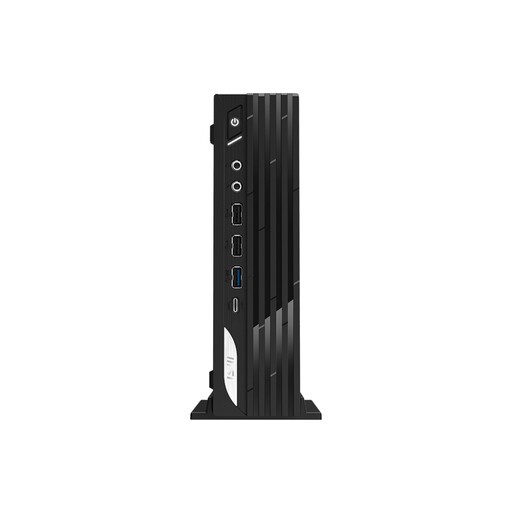
MSI Pro DP21 14M-1042EU
Suitable if you’re looking for a compact Windows desktop to use with a separately chosen screen.
Intel Core i7-14700, 16 GB DDR5, 1 TB SSD and Windows 11 Pro. HDMI and DisplayPort are listed; a separate screen is required.
View at Joybuy
 No image available
MSI Modern AM273Q AI 1UM-058EU
Suitable if you want an integrated computer and screen setup.
27-inch all-in-one with 1 TB SSD and Windows 11 Pro.
View at Joybuy
 No image available
Lenovo Yoga AIO 27IAH10 F0J2001DNY
Suitable if you’re looking for an integrated workspace for your report and presentation.
27-inch QHD screen with 120 Hz, Intel Core Ultra 7 255H, 16 GB LPDDR5X, 1 TB SSD and Windows 11 Home.
View at Joybuy
Frequently asked questions
Do I automatically need 32 GB RAM for this report?
No, it depends on the software and the material you’re working with. Adobe recommends 16 GB RAM or more for Photoshop 27.x; its recommendation of 32 GB or more for Premiere applies to Windows and Intel Mac systems and is not a general requirement for a report containing only text and slides.
How can I back up my files before the presentation?
Microsoft’s File History lets you copy folders to an external drive or network location. On a Mac, Time Machine can automatically back up your files to connected external storage. Then check that your report files are included in the backup.
What cancellation period and guarantee apply to online purchases?
According to the Netherlands Authority for Consumers and Markets, consumers who buy online generally have up to 14 days after delivery to change their mind, subject to statutory exceptions. Dutch statutory guarantees do not have a fixed two-year term for every desktop; what matters is what you can reasonably expect from the product. If you’re buying on behalf of a business, you cannot automatically assume these consumer rights apply.
What product safety requirements should I check in the Netherlands?
The Dutch government says that applicable electrical and electronic devices must meet European product requirements and carry the required CE marking. Check the specific device and, where applicable, its power supply; a general product listing does not automatically confirm that the item supplied complies.


