
Voice-over narrator editing audio
You’re mainly recording a voice-over for your walk and want to edit recordings, clips and reference materials locally, with everything easy to manage. Audacity Support explains how to save and edit projects.


Recording and editing voice-overs alone doesn’t necessarily call for a separate, powerful graphics card. Start by choosing a computer that suits your audio software, local project storage and equipment. If you’ll be editing footage too, match the whole configuration to your software and resolution. Adobe recommends 16 GB RAM for HD and 32 GB or more for 4K in Premiere.
You’re mainly recording a voice-over for your walk and want to edit recordings, clips and reference materials locally, with everything easy to manage. Audacity Support explains how to save and edit projects.
You’re collecting recordings and reference files, and need enough project storage and a workable back-up plan. Bear Audacity Support’s storage advice in mind when working on active Audacity projects.
You’re editing footage too, so you’ll need to match your desktop to the resolution and requirements of your chosen video software. Adobe recommends different amounts of RAM for HD and 4K in Premiere.
Suitable for: mainly recording or editing voice-overs, with a suitable monitor and audio equipment.
Bear in mind: a small case doesn’t tell you anything about internal storage, ports or upgrade options.
Suitable for: anyone editing walking footage as well as narration, and wanting to match the configuration to their software before buying.
Bear in mind: the Dell and Lenovo models reviewed have 16 GB RAM and a 512 GB SSD. Integrated graphics don’t guarantee that every 4K workflow will be suitable.
Suitable for: anyone who wants to use macOS and already has, or wants to choose, a separate monitor and input devices.
Bear in mind: Apple’s listed base configuration has a 256 GB SSD. Compare this capacity with your local source files and software.
| What to consider | What to check before buying | Who should prioritise this? |
|---|---|---|
| Voice-overs and audio projects | Check that your editing software works with the computer, and that you have the audio connections and local project storage you need. | If I’m mainly recording and editing narration, I want my software and equipment to work well together. Around 36% of consumers prioritise voice-overs and audio editing. |
| Local source files and projects | Check the SSD capacity of the exact model and plan where you’ll store active projects, source files and back-ups. | If I have lots of recordings and reference files, I want to leave room for my projects and back-ups. Around 29% of consumers prioritise local files and storage. |
| Editing walking footage too | Note your software, version and resolution, then compare the full configuration with the software requirements. Adobe recommends 16 GB RAM for HD and 32 GB or more for 4K in Premiere. | If I’m editing footage as well as audio, my desktop needs to suit my software and resolution. Around 21% of consumers prioritise video editing. |
| Workspace and connections | Compare the ports on the exact model with your monitor and other devices, and check which peripherals you’ll need. | If my workspace is small or already set up, I want to connect the devices I have. Around 14% of consumers prioritise their workspace and connections. |
Audacity Support advises against storing active projects on external drives, USB sticks or network storage, as the software needs fast, uninterrupted access.
Allow space on your computer for active projects and use a separate back-up plan for your work.
An active editing project may need extra internal storage.
Adobe distinguishes between HD and 4K for Premiere: it recommends 16 GB RAM for HD and 32 GB or more for 4K. The full configuration and your workflow also matter.
Compare the requirements for the version you actually use with the full computer configuration on offer.
If you know which software and resolution you’ll use, you may need a different configuration.
A small case doesn’t tell you whether a monitor, input devices, storage and the ports you need are included with that model.
Make a list of the devices you already have and compare them with what’s included and the ports on the exact model.
You may still need a monitor, input devices, storage or connection accessories.
The Dutch Government points out that you may only use other people’s copyrighted text, music, photos and films with the creator’s permission. Privacy rules may apply to identifiable people in footage; the Dutch Data Protection Authority explains this.
Check the rights and intended distribution before including other people’s material or identifiable individuals in your finished work.
The Tower ECT1250 is a configurable Windows tower worth comparing for mixed editing.
The ThinkCentre neo 50t Gen 6 13BB0028EZ is a Windows tower with specified components.
The Mac mini M6 is a compact macOS desktop that lets you choose your monitor and peripherals separately.
The ProDesk 4 Mini G1i E59BQEA#ABH is a compact Windows model to compare with tower PCs.
NUC systems are an option if you’re looking for a compact Windows workstation.
This selection includes Windows desktops for editing footage as well as compact Mac mini models with macOS. Before choosing a configuration, compare the storage, software and resolution with your own project.
 No image available
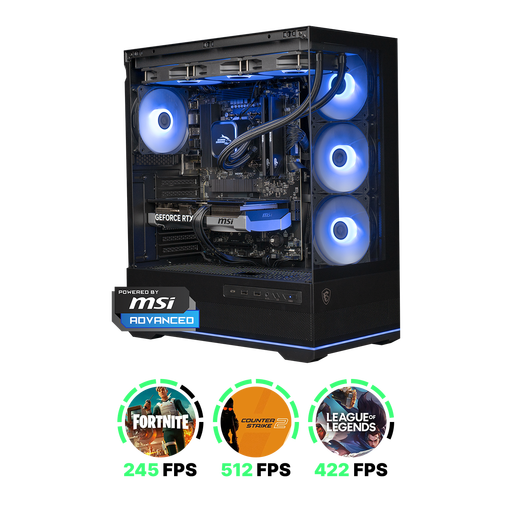
A Windows desktop worth comparing if you want to edit video as well as audio; match the configuration to your software and resolution.
Ryzen 7 7800X3D, GeForce RTX 5070, 16 GB DDR5 and 1 TB NVMe storage.
For 4K in Premiere, Adobe recommends 32 GB RAM or more; this model lists 16 GB.
 No image available
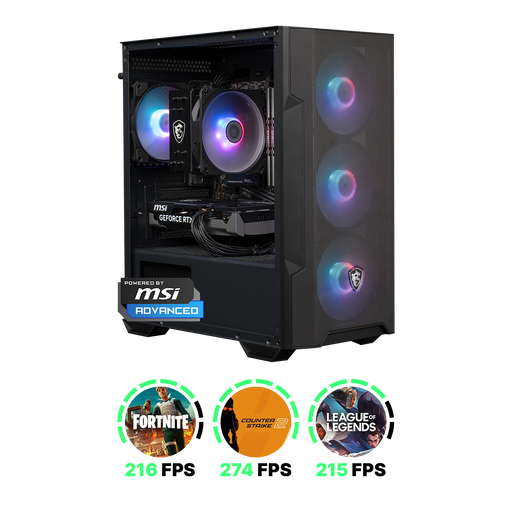
A Windows desktop worth comparing for mixed editing; check your chosen software’s requirements before deciding based on a single component.
Ryzen 5 5500, GeForce RTX 5060, 16 GB DDR4 and 1 TB NVMe storage.
For 4K in Premiere, Adobe recommends 32 GB RAM or more; this model lists 16 GB.
 No image available
This Windows desktop is worth comparing for video editing; check that the listed configuration suits your software and workflow.
GeForce RTX 5060 Ti 8 GB, 16 GB DDR4 and 480 GB NVMe PCIe SSD.
Windows 11 Home is pre-installed but not activated. For 4K in Premiere, Adobe recommends 32 GB RAM or more; this model lists 16 GB.
 No image available
A compact macOS desktop worth comparing if you want this working environment; check your software requirements and consider the peripherals you already own.
M6 chip with 12-core CPU and 12-core GPU, 16 GB memory and 256 GB SSD.
If you have lots of local source files, the listed SSD capacity is worth considering. For 4K in Premiere, Adobe recommends 32 GB RAM or more; this model lists 16 GB.
No image available
A compact macOS desktop worth comparing if you want this working environment; check that it works with your editing software and peripherals.
M6 chip with 12-core CPU and 12-core GPU, 16 GB memory and 512 GB SSD.
For 4K in Premiere, Adobe recommends 32 GB RAM or more; this model lists 16 GB.
Not for audio editing alone. First choose your recording and editing software, then check which connections and local storage you need. If you’re also editing video in Adobe Premiere, compare the requirements for the version and workflow you use with the full configuration.
Save active projects to local storage. Audacity Support advises against using external drives, USB sticks and network storage for active projects, as they need fast, uninterrupted access. You should also make a separate back-up of your work.
Check the file format and the instructions for your version of Audacity. Audacity Support says FFmpeg is needed to import and export various formats, including M4A and WMA.
Not simply because you own the files. The Dutch Government says you may only use other people’s copyrighted text, music, photos and films with the creator’s permission. Privacy rules may apply to identifiable people, so consider the footage in question and how you intend to share it.
It depends on factors including your software and resolution. Adobe recommends 16 GB RAM for HD and 32 GB or more for 4K in Premiere. Check the other requirements for your software version and editing workflow too.