Start by thinking about where to place the screen: position it at right angles to the window if possible, and choose a monitor suited to the lighting conditions. A faster computer won’t solve reflections. Then match the memory, storage and graphics capabilities to your editing software and HD or 4K projects. A compact desktop saves space, while a tower may offer more configuration options; the specifications mentioned are not comparative performance tests.
Who is this setup for?
Video editor working beside a bright window
You want to assess clips and colours without distracting reflections. For you, screen placement matters more than extra processing power. EIZO recommends positioning your desk parallel to the window where possible.
Editor of 4K holiday videos
You match memory, graphics capabilities and storage to your editing software and the complexity of your projects. Adobe recommends 32 GB RAM or more for 4K and above in its Windows system requirements for Premiere.
Video editor short on desk space
You’re looking for a compact computer, but also want to position the screen properly in relation to the window, independently of the computer. When choosing, allow space for both the computer and a separate monitor.
What should you look for when choosing?
First decide where the screen will go and how much the incoming light affects you. Then compare the configuration with your editing software, project resolution and the space you need for video files.
| What to consider |
What should you check? |
Who does this matter more to? |
| Screen beside the window |
Check the coating, adjustability and video connections of your chosen monitor. See whether you can position the screen at right angles to the window. |
I want to assess on-screen details properly without reflections getting in the way of editing. Around 33% of consumers say limiting light from the window is their main concern when buying. |
| Editing capability |
Compare the CPU, RAM and GPU configuration with the requirements of your software and project. Adobe recommends 32 GB RAM or more for 4K and above in its Windows system requirements for Premiere. |
For larger or more complex 4K projects, I want to match the configuration to my software without automatically paying for extra capacity I don’t need. Around 27% of consumers prioritise editing capability. |
| Storage for video files |
Check the SSD capacity of the exact model you’re choosing, and think about how much source footage you want to keep locally. |
I want to keep my source clips and projects locally, so I need to know in advance how much storage space my files will require. Around 20% of consumers say space for video files is their main concern when buying. |
| Desk space |
Measure the space available for the computer and monitor. Also check what’s included with the computer and which display connections are available. |
At a small desk, I need space for both the computer and screen, while still being able to position the screen properly in relation to the window. Around 20% of consumers prioritise a compact setup. |
Things to watch out for when buying
-
Choosing a fast desktop to solve sunlight problems
Bright light and reflections are to do with your workspace and screen, not the computer’s processing speed.
First decide where to position the screen in relation to the window. Bear in mind that you may need to buy a suitable monitor or window blinds separately.
-
Assuming a product range has just one fixed configuration
A model range may include different options for memory, storage and graphics capabilities. The name alone doesn’t tell you which configuration you’re buying.
Compare the full specifications of the exact model with your editing software’s requirements.
-
Treating a compact computer as a complete editing setup
With a Mac mini, you choose the external screen separately. The base storage in a particular configuration may also not be enough for your entire video archive.
Budget for the monitor separately and decide in advance how much video footage you want to keep locally.
-
Confusing the manufacturer’s warranty with your statutory rights
A manufacturer’s warranty and the seller’s legal responsibility are not the same thing. The Dutch government states that the Netherlands has no fixed statutory warranty period.
Keep your proof of purchase and report any fault to the seller.
Brands to compare
Apple
Mac mini M6: a compact macOS desktop with an external display of your choice.
- Apple lists hardware acceleration for H.264, HEVC and ProRes on the M6, and offers various memory and storage options.
- These are Apple’s specifications, not an independent speed test. Assess your chosen configuration and separate screen individually.
Dell
Tower ECT1250: a configurable desktop for comparing individual components across different models.
- Dell offers a choice of processor, memory and SSD. The configuration described has 16 GB RAM, a 512 GB SSD and integrated Intel UHD Graphics 730.
- Don’t assume a product range is suitable for a particular 4K project without checking; compare the chosen configuration with your software requirements.
HP
OMEN towers: a Windows option if you’re looking for a model with more memory and a discrete graphics card.
- For the OMEN 35L GT16-1680nd, HP lists 32 GB RAM, a 2 TB SSD and a Radeon RX 9070 XT with 16 GB of graphics memory.
- These are specifications for this particular model, not proof of an advantage across all OMEN models or of editing performance.
Lenovo
ThinkStation P3 Tower Gen 2: a configurable workstation alternative.
- Lenovo offers a wide range of configurations, including models with integrated graphics and either 8 GB or 32 GB RAM.
- The workstation label alone doesn’t confirm that every model is suitable for 4K video editing.
BenQ
The PD2706U is an example of a separate 4K screen with an anti-glare coating, suited to a bright workspace.
- BenQ lists a resolution of 3840 × 2160 pixels, a typical brightness of 350 nits and, among other things, the Rec.709 colour mode.
- These manufacturer specifications don’t guarantee a reflection-free picture in direct sunlight; screen placement still matters.
Joybuy products
The desktops and mini PCs below are suited to video editing and a range of desk setups. Check the configuration of each model and whether you’ll need a separate monitor.
 No image available
RGB Gaming PC, RTX 5060, Ryzen 5
A tower worth comparing if you’re looking for a desktop with a discrete graphics card; choose a configuration to suit your editing software.
The product name lists 16 GB and a 480 GB SSD.
View at Joybuy
 No image available
Panoramic Gaming PC, Ryzen 7 5700X
A tower worth comparing if you want to factor a discrete graphics card into your choice of video-editing computer.
The product name lists a GeForce RTX 5060 Ti with 8 GB, 16 GB DDR4 RAM and a 480 GB NVMe PCIe SSD.
View at Joybuy
 No image available
Apple Mac mini M6, 12-core CPU and 12-core GPU
Suited to a compact desk setup; you’ll need a separate display to use it as an editing workstation.
This configuration has 24 GB memory and a 512 GB SSD. Apple lists hardware acceleration for H.264, HEVC and ProRes on the M6.
View at Joybuy
 No image available
FIREBAT F1 Mini PC, Ryzen 5 7640HS
A compact option worth comparing if desk space is a priority.
The product name lists 24 GB LPDDR5 RAM, a 512 GB PCIe 4.0 SSD, Radeon 760M graphics and output to three 4K displays.
View at Joybuy
 No image available
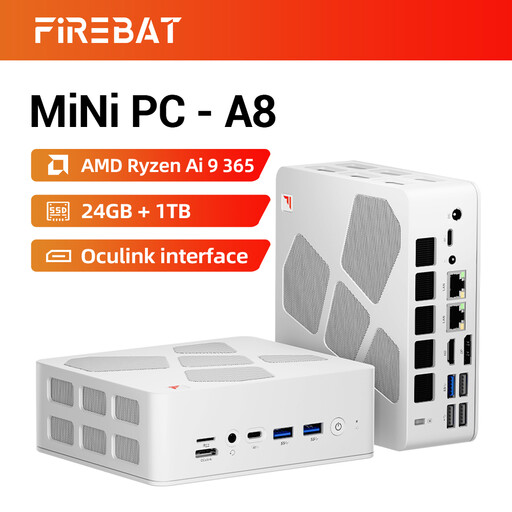
FIREBAT A8 Mini PC, Ryzen AI 9 365
A compact desktop worth comparing if you have limited space for the computer itself.
The product name lists 24 GB DDR5 RAM, a 1 TB PCIe 4.0 SSD, Radeon 880M graphics and output to four 4K displays.
View at Joybuy
Frequently asked questions
Beside a bright window, should I prioritise a more powerful PC or a different screen?
Deal with the incoming light first: position the screen at right angles to the window if possible, and use blinds if needed. Check the screen coating too; extra processing power won’t solve reflections.
Do I need 32 GB RAM for every holiday video?
No, it’s not a general requirement. Adobe recommends 16 GB RAM for HD and 32 GB or more for 4K and above in its Windows system requirements for Premiere. Check the requirements for your software and the type of project you’re editing.
What should I check when connecting my computer and monitor?
Compare the video outputs on your chosen desktop with the inputs on your monitor, and consider how you want to position it in relation to the window. For exact connection instructions, refer to the documentation for the models you’ve chosen.
What are my rights to returns and warranties when buying online in the Netherlands?
For eligible distance purchases by consumers, a 14-day cooling-off period applies in many cases; check the exceptions and the seller’s information. According to the Dutch government, there is no fixed statutory warranty period for all products. If there’s a fault, contact the seller.


