Start with your editing software and the format of your footage. Then decide how much memory, graphics power and fast storage you need. A compact Mac may suit a macOS workflow, while a configurable Windows tower gives you more choice over the components. A more powerful workstation is worth considering mainly for larger projects with lots of layers or effects; extra capacity alone doesn’t prove it will save you time on this film.
Who is this desktop guide for?
Editors committed to specific software
Your project needs to work with the editing software you already use. Before choosing a desktop, check its operating system and the requirements for your exact software version. Adobe and Lenovo both stress that the hardware you need depends on your software and workflow.
Editors with demanding timelines
Are you working with 4K footage, multiple layers or effects, and need to export before your portfolio review? Compare the memory, GPU and fast storage with your editing software’s requirements, rather than relying on the processor name alone. For Premiere on Windows, Adobe recommends 32 GB RAM or more for 4K and above.
Editors with lots of source footage
If you keep your footage, project files and cache locally, you’ll also need room for the export. Compare SSD capacity and consider whether a separate fast working drive for media and cache would suit your editing setup; Adobe describes this as a storage layout for Premiere.
What should you look for when choosing?
Compact Mac desktop
A good fit if: you want to use macOS and your chosen editing software, have limited desk space and can connect a separate display.
Bear in mind: Mac mini configurations vary in memory and SSD capacity, so don’t choose one based on its compact case alone.
Configurable Windows tower
A good fit if: you use Windows editing software and want to choose the components of a standalone tower and monitor to suit your needs.
Bear in mind: configurations within the same workstation range can vary considerably. Check the full specification and what else you’ll need.
More powerful editing workstation
A good fit if: your project genuinely involves lots of video layers, effects or large files, and your software can make use of the extra capacity.
Bear in mind: more memory or graphics power doesn’t prove this tulip film will be finished faster. Remember to allow for a display and working drives too.
| What to consider |
What to check before buying |
Who should prioritise this? |
| Software compatibility |
Check the programme, version, project format and any required plug-ins for the configuration you’re considering. |
If I want to finish an existing editing project, my current software needs to run on it. Around 25% of consumers put software compatibility first. |
| Editing and export |
Check the resolution, codec and number of video layers; compare the CPU, RAM and GPU with your editing software’s recommendations. For Premiere on Windows, Adobe recommends 32 GB RAM or more for 4K and above. |
If I need a workable preview and export before the review, I look at the requirements of my own project. Around 25% of consumers give editing and export time top priority. |
| Storage for footage |
Work out how much space you need for source files and exports, then check how much SSD space will be left. Consider whether a separate fast drive for media and cache would suit your setup. |
If I want to keep my footage, cache and final export locally, the storage needs to suit my files. Around 20% of consumers put project storage first. |
| Display for reviewing footage |
Check whether you already have a monitor, which display outputs are available and what your colour workflow requires from a screen. |
If I want to assess the colours in my tulip film properly, my entire display setup matters. Around 15% of consumers make reviewing footage their top priority. |
| Complete editing setup |
Compare the configuration you’ve chosen and factor in any missing components and required software; check the current total price before ordering. |
If I need a complete editing setup, not just a computer, I want to know in advance which components I already own. Around 15% of consumers put the total cost first. |
Buying pitfalls
-
Focusing only on the processor or the word ‘workstation’
Configurations within a product range can vary, and the hardware you need also depends on your software and footage.
Compare the full specification you’re considering with your editing software’s requirements and the files you want to work on.
If your internal storage isn’t enough, you may need an additional fast working drive.
-
Comparing computers as if they include a complete editing setup
A desktop and the displays and input devices you need may be separate parts of your setup.
Check what you already own and compare complete setups before choosing a configuration.
Brands to compare
Apple
The Mac mini is a compact option for a macOS editing setup; the Mac Studio is another model to compare for a more demanding workflow.
- Apple lists hardware-accelerated processing for H.264, HEVC and ProRes on both product ranges reviewed.
- Memory and SSD capacity vary between Mac mini configurations. Consider your separate display setup too; specifications aren’t an independent performance test.
HP
The HP Z2 Tower G1i is a Windows workstation to compare if you’re looking for a dedicated GPU and plenty of memory.
- The C69C6EA#ABH configuration reviewed lists 64 GB RAM, a 1 TB SSD and an NVIDIA RTX 2000 Ada with 16 GB graphics memory.
- These specifications apply to that configuration. HP’s claims about performance and cooling aren’t an independent test using this tulip film.
Lenovo
The ThinkStation P3 Tower Gen 2 is a configurable Windows tower to compare with other workstations.
- The 30HT00CWEZ configuration reviewed lists 64 GB RAM and an NVIDIA RTX PRO 2000 Blackwell.
- Memory and graphics specifications vary between configurations. Check the details of the configuration you’re actually choosing; performance claims are made by the manufacturer.
Dell
The Precision 5860 Tower is a configurable professional Windows workstation to compare with other options.
- The model range can be a useful point of comparison if you’re considering a tower for editing work.
- Don’t assume the specifications of one configuration apply to every version available in the Netherlands; check the details of your chosen configuration separately.
Joybuy desktops for video editing
This Joybuy selection includes configurable Windows towers and compact Mac desktops for editing setups. Compare the listed configuration with your software, project files and any display or storage needs.
 No image available
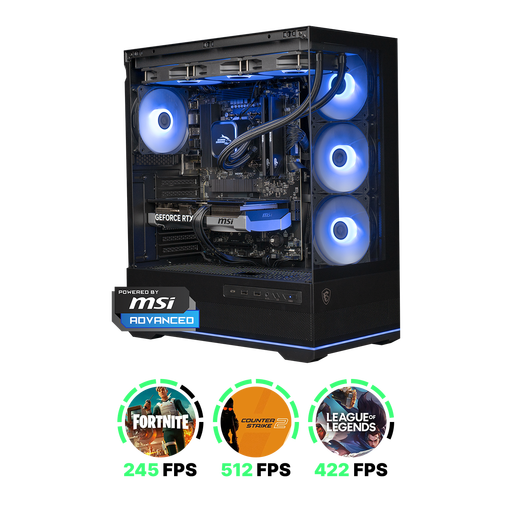
Shark Ultimator R700 Gaming PC
May suit a Windows editing workflow; compare the full configuration with your editing software and project requirements.
Ryzen 7 7800X3D, RTX 5070 with 12 GB, 16 GB DDR5 and 1 TB NVMe storage. Windows 11 Home is listed. According to the product description, the charger isn’t included as standard and must be purchased separately.
View at Joybuy
 No image available
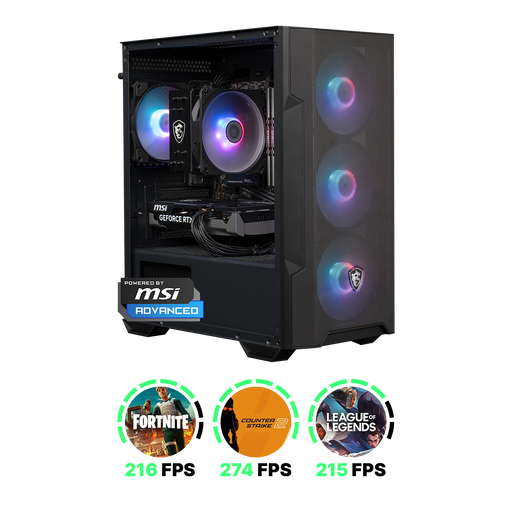
Shark Max Bite R501 Gaming PC
May suit a Windows editing workflow; check that the configuration meets your software’s requirements and suits the size of your project.
Ryzen 5 5500, RTX 5060 with 8 GB, 16 GB DDR4 and 1 TB NVMe storage. Windows 11 Home is listed. According to the product description, the charger isn’t included as standard and must be purchased separately.
View at Joybuy
 No image available
Panoramic PC, Ryzen 7 5700X
May suit a Windows setup; check compatibility and the full configuration for your own editing software.
GeForce RTX 5060 Ti with 8 GB, 16 GB DDR4 and a 480 GB NVMe PCIe SSD. Windows 11 Home is pre-installed but not activated.
View at Joybuy
 No image available
Apple Mac mini M6, 16 GB, 256 GB SSD
Suited to a compact macOS setup if this configuration meets your editing software and project needs; bear the available storage in mind.
M6 chip with 12-core CPU and 12-core GPU, 16 GB memory and 256 GB SSD. The product description lists support for up to three external displays.
View at Joybuy
No image available
Apple Mac mini M6, 16 GB, 512 GB SSD
Suited to a compact macOS setup if this configuration meets your editing software and project needs; compare the SSD space with the size of your source files.
M6 chip with 12-core CPU and 12-core GPU, 16 GB memory and 512 GB SSD. The product description lists support for up to three external displays.
View at Joybuy
Frequently asked questions
Do I need 32 GB RAM for every tulip film?
No, it isn’t a universal requirement for every editing programme or HD project. For Premiere on Windows, Adobe recommends 32 GB RAM or more for 4K and higher resolutions. Check the requirements for your own software version and footage.
How should I set up storage for editing?
For Premiere, Adobe recommends fast SSD or NVMe storage and describes using separate drives for the system, cache and media as a way to maximise speed. If internal space is limited, a fast external drive may be an option; check the connections and keep a separate backup of important files too.
What if a desktop I bought online isn’t suitable or breaks too soon?
For online consumer purchases in the Netherlands, you generally have a cooling-off period of up to 14 days after delivery, although there are exceptions. You’re also entitled to a legal guarantee if, under normal use, the product doesn’t do what you could reasonably expect. ACM ConsuWijzer explains these rights; check whether you’re buying as a consumer and whether an exception applies.
Can I use existing music in my portfolio film?
According to the Dutch government, you need the creator’s permission to use copyright-protected music. Making a copy for personal use doesn’t give you permission to distribute or make that copy public. Check the rights before sharing or showing your film.


