What should you look for?
Start with your software and the type of video footage you’ll be working with. Then check whether the storage and the rest of your setup are right for your project.
| What to consider |
What should you check? |
Who is this important for? |
| Total cost of your setup |
Check what’s included with the exact configuration and whether the features in your chosen editing software are suitable for your project. |
As a student, I want to know what else I’ll need besides the computer and whether I need paid software features for my project; around 40% of consumers are most concerned about the total cost of a usable editing setup. |
| Editing performance |
Compare your software’s recommended requirements with the configuration. Adobe recommends 16 GB of RAM for HD and 32 GB or more for 4K and above in Premiere on Windows. |
If you work with 4K footage or more demanding effects, you’ll want to match the system memory to your editing software; around 30% of consumers prioritise editing performance. |
| Room for your files |
Compare the storage in the exact model with your footage and project files, and consider where you’ll keep a separate copy. |
If I want to keep source footage and project files on the computer, the available SSD space matters; around 20% of consumers say storage capacity is their main concern. |
| How it fits your workspace |
Check the dimensions, monitor ports and cables you’ll need. Also see whether a keyboard and mouse are included. |
If you’re short on space or want to keep using your existing equipment, the desktop needs to fit your workspace and connect to your monitor; around 10% of consumers prioritise how well it fits their workspace. |
Desktop options on Joybuy
This selection includes Windows desktops, a compact Mac mini and an all-in-one desktop. Compare the configurations listed with your editing software, files and available monitor and peripherals.
 No image available
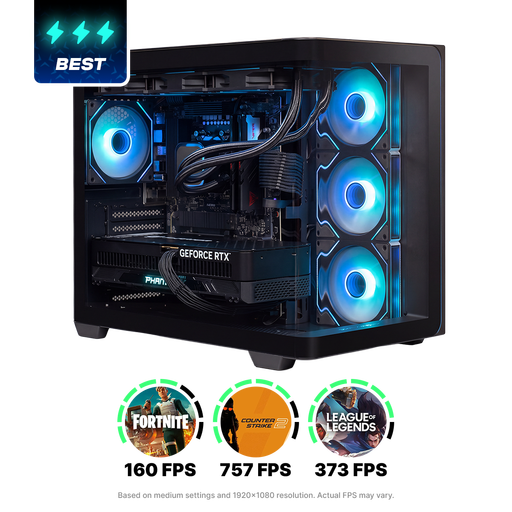
Almighty Shark R900 desktop PC
A Windows desktop to compare if you’re looking for a dedicated graphics card and plenty of internal storage for your editing work.
RTX 5090; Ryzen 9; 32 GB RAM; 2 TB SSD.
Joybuy
 No image available
ASUS ROG G700TF-07265F666W
This Windows desktop is worth comparing if 32 GB of RAM and a dedicated graphics card suit your editing software.
Intel Core Ultra 7 265F; 32 GB DDR5; 1 TB SSD; NVIDIA GeForce RTX 5070 with 12 GB; Windows 11 Home.
Joybuy
 No image available
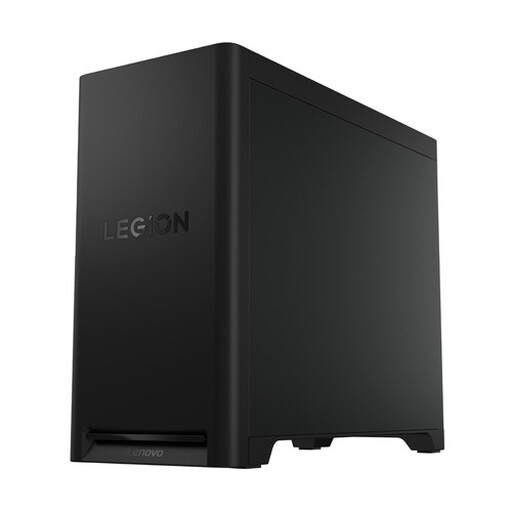
Lenovo Legion T5 30IAX10
A Windows desktop to add to your shortlist if you’re looking for 32 GB of RAM and 1 TB of internal storage.
Intel Core Ultra 7; 32 GB DDR5; 1 TB PCIe 4.0 SSD; NVIDIA GeForce RTX 5070; Windows 11 Home.
Joybuy
 No image available
Apple Mac mini M6, 24 GB, 512 GB SSD
A compact macOS desktop worth considering if your editing software runs on macOS and your monitor and peripherals are compatible.
Apple M6 chip with 12-core CPU and 12-core GPU; 24 GB of memory; 512 GB SSD. For Premiere on Windows, Adobe recommends 32 GB of RAM or more when working with 4K and above; check the requirements of your own software.
Joybuy
 No image available
Lenovo Yoga AIO 27IAH10 F0J2001DNY
An all-in-one to compare if you’re looking for a desktop with a built-in screen and an included wireless keyboard and mouse set.
27-inch QHD 120Hz screen; Intel Core Ultra 7 255H; Intel Arc 140T Graphics; 16 GB LPDDR5X; 1 TB SSD; Windows 11 Home. Adobe recommends 32 GB of RAM or more for Premiere on Windows when working with 4K and above.
Joybuy
Frequently asked questions
Do I need to buy a powerful 4K desktop straight away for a cooking tutorial?
Not necessarily: choose based on your editing software, source footage and effects. Adobe recommends 16 GB of RAM for HD and 32 GB or more for 4K and above in Premiere on Windows.
What should I check before setting up the desktop?
Check that your monitor is compatible with the available connections and whether a keyboard and mouse are included. The Acer Nitro N50-660 configuration we looked at doesn’t include a keyboard or mouse.
Do I need the paid version of DaVinci Resolve for a tutorial in Ultra HD?
Not just for a project up to 3840 × 2160 at 60 frames per second: Blackmagic Design lists this as a feature of the free version. Check separately whether your project requires specific Studio features.
Who should I contact about a fault with a desktop bought in the Netherlands?
Report a fault to the seller. According to the Dutch Government, there is no fixed statutory guarantee period in the Netherlands; your statutory rights are separate from any manufacturer’s guarantee or additional cover you’ve bought.
Can I use existing music or images in my tutorial and show it at the exhibition without permission?
Don’t assume that you can. The Dutch Government says that permission is generally required to use copyright-protected work. An educational exception for screenings in class doesn’t automatically apply to an exhibition; check which rights, licences or applicable exception cover your specific use.
What if identifiable people appear in my tutorial or in footage from the exhibition?
If an organisation films identifiable visitors, colleagues or pupils at an event, or publishes footage of them, the Dutch Data Protection Authority says it needs a lawful basis under the GDPR. Before screening or publishing, discuss with the school which footage will be used and what lawful basis and information requirements apply. Consent is one possible lawful basis, but not the only one.


