
Editor working with demanding footage
If you edit 4K footage or use several effects, for example, you’ll want your memory, graphics and software to work well together. For Premiere 26 on Windows, Adobe recommends 32 GB of RAM or more for 4K.


Start with your editing software, and the resolution and codec of your footage. Then choose memory, graphics and storage to suit that workflow. A compact Mac may fit an existing macOS workflow and a smaller desk, while a configurable Windows tower gives you more choice of components. Adobe recommends 32 GB of RAM or more for 4K in Premiere 26 on Windows, but that isn’t a universal requirement for every film.
If you edit 4K footage or use several effects, for example, you’ll want your memory, graphics and software to work well together. For Premiere 26 on Windows, Adobe recommends 32 GB of RAM or more for 4K.
If you need to deliver your film before a client presentation, allow time for exporting and checking it on the presentation display. Adobe points out that hardware encoding isn’t available with every export setting.
If you keep camera files and project versions, decide in advance how much space your working SSD needs and where you’ll keep a separate copy of irreplaceable media. Adobe also explains how to recover saved project versions after a crash.
First choose between a compact Mac setup and a configurable Windows tower. Then compare the exact configuration with your software, footage and presentation setup.
Choose this if: your editing software runs on macOS, you want a compact workspace and the memory and SSD configuration you choose suits your source footage.
Bear in mind: you’ll need a separate display and may need extra storage for media. Apple lists hardware acceleration for formats including H.264, HEVC and ProRes, but this doesn’t guarantee export times for your project.
Choose this if: you use Windows software or want more choice over memory, graphics and internal storage.
Bear in mind: components vary by configuration. Lenovo, for example, lists a ThinkStation P3 Tower Gen 2 configuration with 8 GB of RAM and integrated graphics. So check the exact product number and selected components.
| What to consider | What should you check? | Who is this important for? |
|---|---|---|
| Smooth editing | Note down your software version, source resolution, codec and effects. For Premiere 26 on Windows, Adobe recommends 16 GB of RAM for HD and 32 GB or more for 4K. Also compare the exact graphics configuration with the software requirements. | If you work with high-resolution footage or several effects, you’ll want a timeline that’s practical to work with. Around 31% of consumers give editing performance their highest priority. |
| Exporting for your presentation | Check the required file format and resolution, and how you’ll connect to or transfer the file to the playback system. Adobe notes that some export settings don’t support hardware encoding. | If you need to show a client your film at a set time, you’ll want to test the exported file in advance. Around 25% of consumers prioritise a playable film delivered on time. |
| Space for project media | Compare the SSD capacity of the exact configuration with the space your source footage, software and cache need. Also decide whether you need a separate media drive and an additional backup. | If you keep lots of footage and project versions, you’ll want to manage them easily. Around 25% of consumers prioritise media management. |
| Software and equipment | Check that your editing software and version work with the operating system you choose. Also compare codec support and connections with your display and external storage. | If you want to keep using your existing software, camera files and equipment, you’ll want to make sure everything works together first. Around 19% of consumers make compatibility their top priority. |
A product range can include configurations with different components. According to Lenovo, the ThinkStation P3 Tower Gen 2 configuration with product number 30HTCTO1WWNL1 has 8 GB of RAM and integrated graphics. That won’t necessarily suit every demanding editing workflow.
Compare the full product number and components of the configuration you choose with your software and source footage requirements.
Upgrading the memory, graphics or storage later may involve extra work.
Source files, cache and exports all take up space on top of your software. For Premiere, Adobe recommends a fast internal SSD for the application and cache, and a separate fast drive for media.
Decide in advance how much footage you need to keep active locally, and plan a separate copy of irreplaceable footage and projects.
A separate external media drive also needs space, a connection and extra management.
According to Adobe, hardware encoding depends on the export settings you choose. A film that plays smoothly in your editing software hasn’t necessarily been checked on the system your client will use to watch it.
Allow time for a test export and check the picture, sound and playback on the presentation system you plan to use.
Mac mini M6 for a compact macOS workspace.
The Z2 Tower G1i is a configurable Windows workstation range.
ThinkStation P3 Tower Gen 2 for anyone looking for a Windows tower with a choice of configurations.
Pro Max Tower T2, model FCT2250, as a configurable Windows desktop.
These desktop options range from a compact Mac and mini PC to Windows gaming desktops. Compare the listed components and operating system with your editing workflow.
 No image available
A compact Mac desktop to consider if your editing workflow runs on macOS.
12-core CPU, 12-core GPU, 24 GB memory and 512 GB SSD.
 No image available
A Windows desktop to consider if your editing setup also depends on a dedicated graphics card.
32 GB DDR5, 1 TB NVMe SSD and Windows 11 Trial.
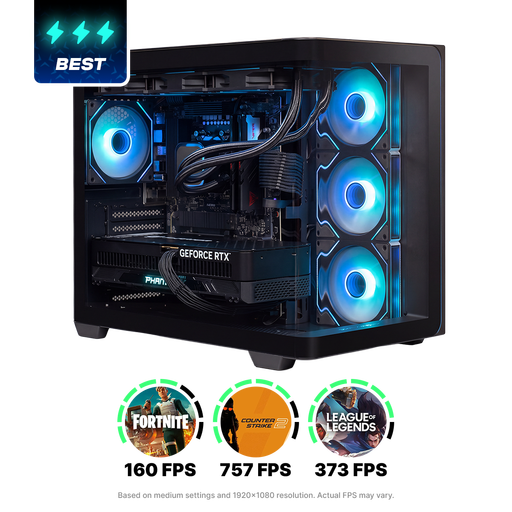 No image available
A gaming desktop to consider if the listed SSD capacity gives you plenty of room for local project files.
Ryzen 9, 32 GB RAM and 2 TB SSD.
 No image available
A compact mini PC to consider if you’re looking for plenty of local memory and SSD storage. Check that the operating system is compatible with your editing software.
GB10, 128 GB RAM, 4 TB SSD and NVIDIA DGX OS.
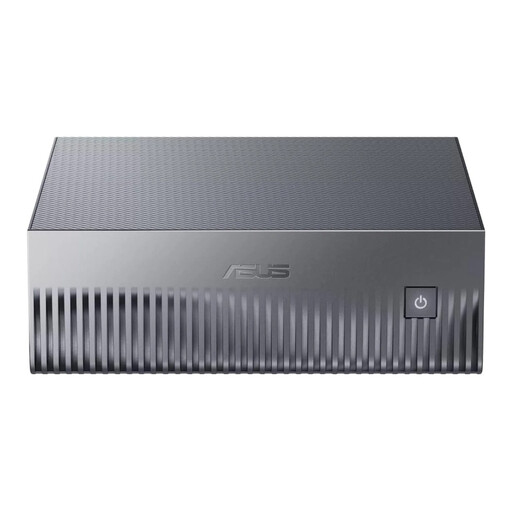 No image available
A mini PC to consider if you want a compact setup. Check the software and connection requirements for your editing work.
128 GB LPDDR5x-SDRAM and 1 TB SSD.
No. For Premiere 26 on Windows, Adobe recommends 32 GB of RAM or more for 4K and 16 GB for HD. Start by considering your software, source footage and project complexity. This recommendation isn’t a general requirement for every editing project.
If you use Premiere, you can create proxies: lighter copies of video files to edit with. Check in advance that a proxy workflow suits your footage. Adobe notes that proxies can only be created for video clips without subtitles.
Check where Premiere stores project versions and Auto-Save or Recovery Projects versions, and make a separate copy of irreplaceable source files too. Adobe explains how to recover saved project versions after a crash; this isn’t the same as backing up all your camera files.
For a consumer purchase, the seller must resolve a faulty product under ACM ConsuWijzer guidance, for example by repairing or replacing it. Online consumer purchases often come with a 14-day cooling-off period after delivery, although there are exceptions. If you’re buying for a business, don’t assume that consumer rights apply; check the contract terms.
If people are identifiable in professional or commercial footage, the GDPR may apply. The Dutch Data Protection Authority says that an organisation needs a lawful basis under the GDPR to create and publish images; consent is one possible example, but it isn’t automatically the only lawful basis. What’s permitted for this footage and screening depends on how it’s used and the applicable lawful basis.