What should you look for when choosing?
First compare your software and source files with the computer’s configuration. Then work out how much storage you need and which components you want to choose yourself.
| What to consider |
What should you check? |
Who should consider this? |
| Storage and versions |
Take stock of your source footage, cache, any proxies and exports. Adobe recommends separate drives for your system, cache and media. |
If you keep lots of versions, you’ll also need room for your source files and finished work. Around 36% of consumers prioritise storage and version management. |
| Editing and playback |
Compare your software, codec, resolution and effects with the full configuration. For Premiere on Windows, Adobe recommends 32 GB RAM or more and a GPU with at least 4 GB VRAM. |
If you mainly want to know whether a computer is suitable for the software and footage you use, focus on its editing configuration; around 29% of consumers make this their top priority. |
| Configuration and upgrades |
Check the full model number, installed memory, graphics card and SSD. Also look at the configuration options available for that model. |
If you want to choose components carefully or upgrade later, compare the full model rather than just the range name. Around 21% of consumers prioritise configurability. |
| Software and workspace |
Check that your software and plug-ins work with the operating system, and compare the ports with your existing monitor and peripherals. |
If you want your desktop to work with your existing software and workspace, check that they’re compatible before you buy. Around 14% of consumers start by considering how well it fits their own workflow. |
Joybuy product picks
Joybuy product picks relevant to this topic. Check each model’s operating system, components and storage to make sure they suit your software and files.
 No image available
Gaming desktop PC Ryzen 7 7800X3D
If you use Premiere on Windows, the listed 32 GB RAM meets Adobe’s recommendation of 32 GB or more; this recommendation doesn’t guarantee editing speed.
The product name lists 32 GB DDR5, a 1 TB SSD and a GeForce RTX 5080 with 16 GB graphics memory.
Windows 11 is listed as a trial version. Check which software and licensing terms apply to your use.
View at Joybuy
 No image available
ASUS ROG G700TF-07265F666W
For Premiere on Windows, the listed 32 GB RAM meets Adobe’s recommendation of 32 GB or more; the editing experience you get will also depend on your files and workflow.
The product name lists an Intel Core Ultra 7 265F, 32 GB DDR5, a 1 TB SSD and a GeForce RTX 5070 with 12 GB memory.
Windows 11 Home is listed; also check the ports and components included with the model you choose.
View at Joybuy
No image available
ASUS ROG G700TF-05225F170W
If you use Premiere on Windows, the listed amount of RAM meets Adobe’s recommendation of 32 GB or more; also check that the other components suit your source files.
The product name lists an Intel Core Ultra 5 225F, 32 GB DDR5, a 1 TB PCIe 4.0 SSD and a GeForce RTX 5070 with 12 GB memory.
Windows 11 Home is listed. Compare the full configuration with your editing software.
View at Joybuy
 No image available
NVIDIA DGX Spark Founders Edition
Before choosing, check that your editing software works with the listed DGX OS; memory capacity alone doesn’t determine whether a system suits your workflow.
The product name lists 128 GB RAM and a 4 TB SSD.
View at Joybuy
 No image available
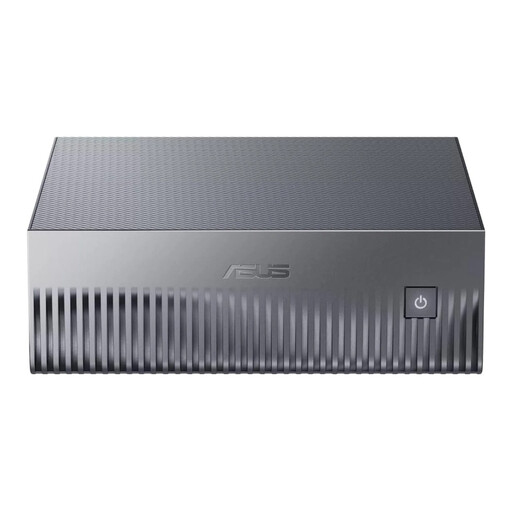
ASUS Ascent GX10 GX10-GG0003BN
Before choosing this mini PC, compare its operating system and software compatibility with your editing workflow.
The product name lists 128 GB LPDDR5x memory and a 1 TB SSD.
View at Joybuy
Frequently asked questions
Should you only keep your Premiere project versions?
No. Adobe describes Auto Save as saving versions of the project file; these files are much smaller than source video. So make separate plans for your source footage and important exports, and check where your copies are stored.
What can you do if demanding footage doesn’t play smoothly?
If you use Premiere, you could try the proxy workflow described by Adobe: edit with lighter copies, then switch back to the originals for the final export. Also check that your desktop’s configuration suits your software and files.
Will you need any other equipment with a compact desktop?
That depends on the model you choose and your workspace. Compare the available ports with your existing equipment and check what’s included with the desktop. A compact case alone doesn’t tell you whether your editing setup is complete.
Are you automatically entitled to a two-year legal guarantee in the Netherlands?
No. According to the Dutch Government, there is no fixed statutory guarantee period in the Netherlands: you’re entitled to a product that works properly, and what you can reasonably expect depends, among other things, on the product and the sales information. If there’s a problem, contact the seller; a manufacturer’s guarantee may provide additional cover.
Can you always return a desktop bought online within 14 days?
Not always. According to the Dutch Government, when you buy remotely from a business, you can often change your mind within 14 days, but there are exceptions. Before placing your order, check which terms apply to your purchase.


