
Editor using two screens
You want to organise your timeline, source footage and preview clearly across your screens. So check that the desktop supports both screens at the same time and has connections that work with your monitors.


Choose a desktop based on the resolution and complexity of your edits: a setup for HD and simple edits won’t necessarily be suitable for 4K, lots of effects or intensive colour grading. Then check that the computer can support both monitors at the same time, has the right connections and audio input, and offers enough storage. Manufacturer specifications aren’t a performance test for your editing software.
You want to organise your timeline, source footage and preview clearly across your screens. So check that the desktop supports both screens at the same time and has connections that work with your monitors.
For 4K footage or more demanding effects, memory, graphics capabilities and fast storage all matter. Adobe recommends 32 GB RAM or more for 4K and above in Premiere. Check the requirements for the software and version you use.
If you record your commentary directly in your editing software, check the audio input and input channel settings. Also leave room for recordings, project files and media cache; Adobe describes fast storage as part of the video-editing workflow.
Start with your source footage and editing software, then check the screens, audio and storage you’ll need for your complete setup.
| What to consider | What should you check? | Who is this important for? |
|---|---|---|
| Connecting two screens | Check that the exact configuration supports both monitors at the same time, and that the ports match your screens’ connections and resolutions. | If you want the timeline on one screen and your footage on the other, check the connections for both monitors first. For around 33% of consumers, having a practical two-screen editing setup is the main reason to buy. |
| Performance for your video | First, consider the resolution, codec, effects and editing software you use. For Premiere on Windows, Adobe recommends 16 GB RAM for HD and 32 GB or more for 4K and above. Check your software’s GPU requirements too. | If you edit 4K footage or use lots of effects, choose memory and a GPU to suit that workload. Around 27% of consumers put editing requirements first. |
| Commentary and project storage | Check whether your microphone or audio interface can connect to a suitable audio input, and where you’ll store your video files and media cache. Adobe recommends fast storage for video editing. | If you record spoken commentary and store your projects on the same desktop, check both the audio input and available storage. Around 20% of consumers prioritise this combination of recording and file storage. |
| Space and a complete setup | Check the desktop’s dimensions and connections, and see which items you still need, such as monitors, a keyboard, a mouse and audio equipment. | If you have limited desk space or are building your editing setup from scratch, consider the complete equipment you need rather than just the computer. Around 20% of consumers prioritise space and a suitable complete setup. |
The ports need to match your monitors, and the desktop must support both screens at the same time at your chosen resolution.
Compare the specifications of the exact desktop with those of both monitors, and check that you have the right cables or adapters.
You may need suitable cables or adapters to connect your screens.
The right configuration depends on your resolution, effects and editing software. A specification on its own doesn’t prove how smoothly your editing will run.
First, identify your source resolution, codec, effects and editing software, then compare their requirements with the desktop configuration.
Source videos, project files and media cache all need to be stored somewhere. Internal SSD capacity varies by configuration.
Estimate how much space your files will need and check whether you want to store them internally or on suitable external storage.
A smaller internal SSD may mean you need separate storage for your video files.
Monitors and input devices aren’t included as standard with every configuration. You’ll also need a suitable input for recording audio directly.
Check what’s included and make a list in advance of the monitors, input devices and audio equipment you want to use.
The Mac mini is a compact option for a macOS setup with multiple external screens.
The OmniDesk tower configuration reviewed is worth comparing if you’re looking for more memory and storage.
The ThinkCentre Neo 50q Gen 5 Tiny is a small Windows desktop to consider if desk space is a priority.
The Tower Plus is a tower option to compare if your editing software uses a dedicated graphics card.
The ExpertCenter D7 Mini Tower is an upgradable tower range to compare if you’re considering a larger case.
These product picks include compact Mac mini configurations and desktop PCs with dedicated graphics cards. Compare the memory, storage and connections with your editing software and screens.
 No image available
A compact desktop option for a workspace with external screens; the product information states that it supports up to three external screens.
This version has 16 GB memory, a 512 GB SSD and HDMI and Thunderbolt 4 connections.
No image available
A compact desktop option if you want to use external screens in a small workspace; the product information states that it supports up to three external screens.
This version has 24 GB memory and a 512 GB SSD.
 No image available
This tower is worth comparing if your editing setup needs a dedicated graphics card; the specifications alone don’t predict editing speed.
The version listed has 32 GB DDR5 memory, a GeForce RTX 5080 with 16 GB and a 1 TB NVMe SSD. The operating system is listed as Windows 11 Trial.
 No image available
A tower option to compare if you’re looking for a dedicated graphics card and plenty of storage; check that the configuration meets your editing software’s requirements.
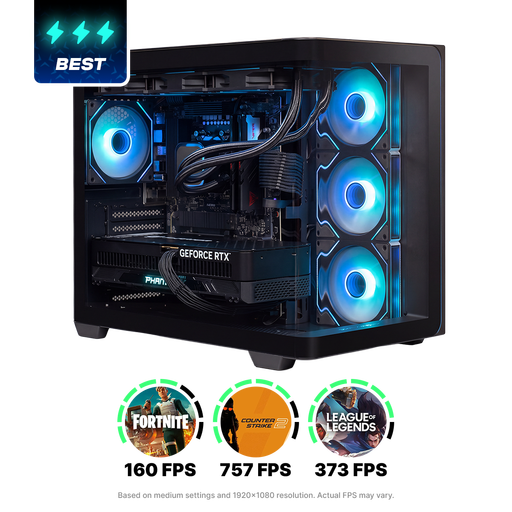
The version listed has 32 GB DDR5 memory, an RTX 5090 with 24 GB video memory and a 2 TB NVMe SSD.
 No image available
This desktop PC is worth comparing if you want a dedicated graphics card in your editing setup; check that it works with your software and monitors.
The version listed has 32 GB DDR5 memory and a 1 TB SSD. Windows 11 Home is listed.
Connect both monitors to outputs that the desktop you’ve chosen supports at the same time. In Windows, you can detect and arrange displays; in Premiere, you can drag panels to the second screen and save the layout as a workspace.
Yes, as long as your computer has a working audio input. Choose the correct input channel in the audio hardware settings and check the level before recording.
Check that the monitors, suitable cables, microphone or audio interface and any storage you need are right for your setup and included. For the ThinkCentre Neo 50q Gen 5 reviewed, Lenovo states that the monitor, keyboard and mouse are optional and sold separately.
For a consumer purchase in the Netherlands, the statutory guarantee covers what you could reasonably expect from the product, according to ACM ConsuWijzer. Online purchases generally come with a 14-day cooling-off period after delivery, subject to exceptions. Check which terms apply to your purchase.
Not automatically: recognisable people in footage are personal data, and publication must comply with privacy rules, according to the Dutch Data Protection Authority. According to the Dutch Government, you need permission to use other people’s copyright-protected music outside the private-copying exception for personal use.