Choose a desktop based on your editing software, video resolution, and the space and equipment you already have. A mini PC suits a compact setup with a separate monitor, an all-in-one combines the computer and screen, while a tower gives you configuration options. Adobe recommends 16 GB of RAM for HD and 32 GB or more for 4K in Premiere; this is not a performance test of any particular computer.
Which desktop is right for you?
Student editing holiday clips
If you mainly edit shorter videos and also use your computer for studying, start by choosing your editing software and checking the resolution of your source files. Adobe recommends 16 GB of RAM for HD media in Premiere; the Consumentenbond also discusses memory and storage options for video editing in its laptop buying guide.
Student with a small desk
If you need to keep your computer footprint small, compare a mini PC with an all-in-one. A mini PC needs a separate monitor and input devices; HP lists an integrated 27-inch QHD screen for the HP OmniStudio 27-cw0674nd reviewed here.
Student editing in 4K
For 4K projects, it’s important to compare the exact computer configuration with your editing software’s requirements. Adobe recommends 32 GB of RAM or more for 4K and higher resolutions in Premiere; that recommendation alone doesn’t tell you how quickly a particular model will process your project.
What should you consider when choosing?
Start with your editing software and source resolution. Then decide whether you can use an existing monitor and what else you’ll need for a complete workstation.
Compact mini PC
Best for: a small desk, a suitable existing monitor and software that works with the operating system you choose.
Bear in mind: you’ll need a separate monitor and input devices. Also check that the memory in the exact configuration suits your plans.
All-in-one
Best for: an integrated computer-and-screen setup if you don’t already have a suitable monitor.
Bear in mind: the screen is part of the computer you choose, so check that its resolution and configuration suit the way you’ll use it.
Configurable tower
Best for: a desk with room for a computer case and a separate monitor, if you want to tailor the components to your editing software in advance.
Bear in mind: check the complete configuration you’ve chosen. Component options can affect the price and delivery date.
| Buying concern |
What to check |
Who should consider this? |
| Editing performance |
Check the current requirements for your software, operating system and source resolution, along with the memory in the exact configuration. Adobe recommends 16 GB of RAM for HD and 32 GB or more for 4K in Premiere. |
I want a configuration that suits my HD or 4K files without paying for unnecessary features; around 33% of consumers prioritise suitable editing performance. |
| Desk space and equipment |
Measure the space available and check which monitor, keyboard, mouse and connections you already have. |
With a small desk, I want to know whether my existing monitor will do or whether I’ll need one; around 27% of consumers prioritise desk space. |
| Complete setup |
Make a list of the computer configuration, any peripherals you’re missing, the storage you want and the software you need. Compare offers on a like-for-like basis. |
I want to know in advance what else I’ll need to use the computer; around 20% of consumers prioritise the total cost of their setup. |
| Storage and keeping files safe |
Compare SSD capacity and expansion options with the size of your project files. Also plan a separate backup and check which folders it will include. |
I want enough space for projects and a separate way to keep my videos safe; around 20% of consumers prioritise storage and keeping files safe. |
Avoid common buying mistakes
-
Assuming a 4K connection means smooth 4K editing
A display connection doesn’t tell you whether the complete configuration meets your editing software’s requirements. Adobe recommends 32 GB of RAM or more for 4K in Premiere.
Check the full configuration and the requirements of the software you actually use. Assess the display output and editing hardware separately.
-
Comparing only the computer and SSD
A mini PC may need a separate monitor and input devices. Local storage also isn’t a separate backup of your original videos and exports.
Make a list of everything you need for your workstation and decide where you’ll keep your project files and backups.
You may still need to arrange a monitor, peripherals, extra project storage or a backup solution.
-
Assuming you can always replace the memory later
FIREBAT states that the R3’s LPDDR4 memory is non-removable. Dell offers different memory configurations for the Tower ECT1250.
Before buying, check whether the exact configuration can be upgraded, especially if you plan to work on more demanding projects later.
If a fixed memory configuration no longer suits your workflow, you may need to replace the computer.
Brands to compare
Apple
The Mac mini is a compact macOS option with a separate monitor. Check that your editing software supports macOS.
- For the M6 base configuration reviewed here, Apple specifies 16 GB of unified memory and a 256 GB SSD.
- These specifications aren’t an independent measure of editing speed; check that the storage and peripherals suit the way you’ll use it.
HP
The OmniStudio all-in-one is an option if you’re looking for an integrated computer-and-screen setup.
- According to HP, the OmniStudio 27-cw0674nd reviewed here has a 27-inch QHD screen, 32 GB of RAM, a 1 TB SSD, and a wireless mouse and keyboard.
- These components don’t prove how quickly a particular video edit will be processed.
Dell
The Dell Tower ECT1250 is a Windows tower with configuration options including memory and graphics card choices.
- Dell offers memory options including 16 GB and 32 GB, as well as an optional dedicated graphics card.
- Check all the selected components together: Dell says configuration changes can affect the price and delivery date.
FIREBAT
The R3 is a compact Windows option for anyone short on space who already has a monitor setup.
- FIREBAT lists non-removable LPDDR4 memory, two M.2 SSD connections, and HDMI, DisplayPort and USB-C ports for the R3.
- Check the exact memory and storage configuration; these product-line specifications alone don’t show how it will perform with your editing projects.
Desktop options at Joybuy
These desktop options range from compact Mac minis to gaming PCs. Before choosing a configuration, compare each model with your editing software’s requirements, the space available on your desk and the storage you need.
 No image available
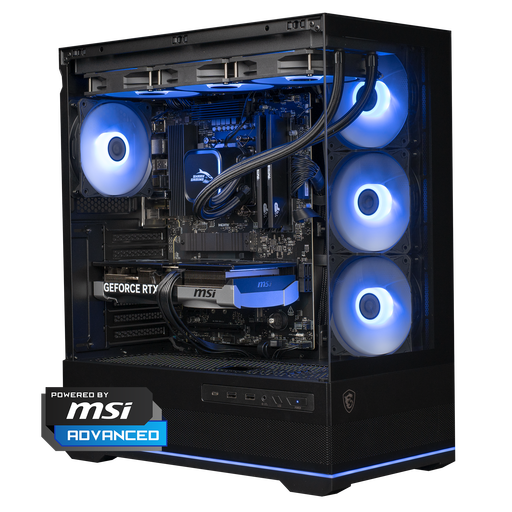
Shark Ultimator R700 Gaming PC, RTX 5070, R7, 16 GB, 1 TB, Powered by MSI
You can compare the listed 16 GB with Adobe’s recommendation for HD media in Premiere; check the full configuration against your editing software.
The product information lists an RTX 5070, R7, 16 GB of memory and a 1 TB NVMe SSD.
Joybuy
 No image available
Panoramic Gaming PC, AMD Ryzen 7 5700X, GeForce RTX 5060 Ti 8 GB, 16 GB DDR4, 480 GB NVMe PCIe SSD
You can compare the listed 16 GB with Adobe’s recommendation for HD media in Premiere; check that the configuration suits your software and files.
The title lists an AMD Ryzen 7 5700X, GeForce RTX 5060 Ti with 8 GB, 16 GB DDR4 and a 480 GB NVMe PCIe SSD.
Joybuy
 No image available
Mac mini, Apple M6 chip, 12-core CPU and 12-core GPU, 16 GB, 256 GB SSD
This compact Mac mini is an option if you have a separate monitor. Check that your editing software supports macOS and that the storage suits your projects.
The title lists an Apple M6 chip with a 12-core CPU and 12-core GPU, 16 GB of memory and a 256 GB SSD.
Joybuy
No image available
Mac mini, Apple M6 chip, 12-core CPU and 12-core GPU, 16 GB, 512 GB SSD
This compact Mac mini is an option if you have a separate monitor. Check that your editing software supports macOS and that the storage suits your projects.
The title lists an Apple M6 chip with a 12-core CPU and 12-core GPU, 16 GB of memory and a 512 GB SSD.
Joybuy
 No image available
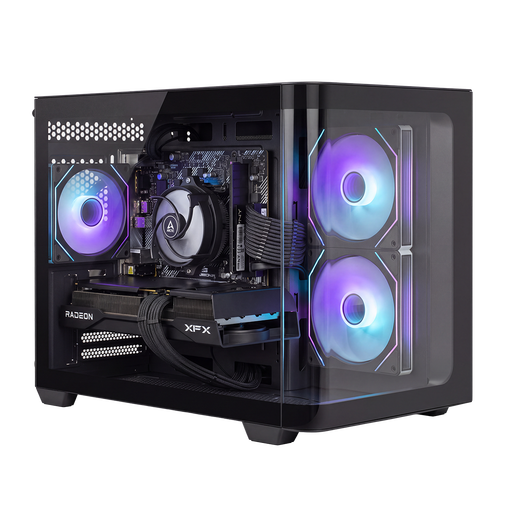
Shark Bloodlust R700 Gaming PC, RX9070, R7, 16 GB, 1 TB
You can compare the listed 16 GB with Adobe’s recommendation for HD media in Premiere; check the full configuration before choosing it for a specific workflow.
The title lists RX9070, R7, 16 GB of memory and 1 TB of storage.
Joybuy
Frequently asked questions
Do I always need 32 GB of RAM for holiday videos?
No. For the version of Premiere reviewed, Adobe recommends 16 GB of RAM for HD media and 32 GB or more for 4K and higher resolutions. If you use other software, check its requirements; Adobe’s recommendation for Premiere doesn’t automatically apply to every editing programme.
How can I stop my edited videos from disappearing?
Keep a separate backup and check that it includes your project folders. Microsoft says that File History can include the default Videos library and any custom libraries you’ve set up; check that your project locations are being backed up.
What are my rights if a desktop I bought online is faulty or unsuitable?
When you buy as a consumer in the Netherlands, the seller must resolve the issue under the legal guarantee if a product doesn’t perform as you could reasonably expect under normal use. Online purchases usually come with a cooling-off period of up to 14 days after delivery; check which exceptions apply to your purchase. ACM ConsuWijzer explains these rights.
What can I do with my old computer when I buy a new one?
According to the Dutch Government, a shop must take back your old device free of charge when you buy a similar new one. Ask the shop how to hand in your computer.


