Choose a desktop based on your source footage and editing software: a short HD reel doesn't automatically need the same configuration as 4K footage with multiple layers or effects. Also check that your chosen model can run two screens at once, and that its memory and storage suit your projects. For Premiere on Windows, Adobe recommends 16 GB of RAM for HD and 32 GB or more for 4K.
Who is this desktop for?
Volunteer working with 4K footage
Edits demanding source footage or multiple layers and wants to check in advance that the memory, graphics card and storage are suitable for the software they use. For Premiere on Windows, Adobe recommends 32 GB of RAM or more for 4K.
Editor using two screens
For example, you might want the timeline on one screen and a large video preview on the other. Check that your chosen desktop can run both screens at once and has the right connections.
Creator making a short HD reel
Looking for a compact desktop for lighter editing and doesn't automatically want to assume a powerful 4K configuration is needed. For Premiere on Windows, Adobe recommends 16 GB of RAM for HD.
What should you look for when choosing?
Compact Mac desktop
Suitable for: anyone who wants to edit on macOS, has limited desk space and can decide on their screen and storage configuration in advance.
Bear in mind: Adobe's stated RAM recommendation for 4K applies to Premiere on Windows. Assess a Mac against the requirements of the macOS app you use.
Configurable tower or workstation
Suitable for: anyone using a more demanding Premiere workflow who needs an appropriate memory and GPU configuration. For 4K on Windows, Adobe recommends 32 GB of RAM or more and 8 GB of GPU memory.
Bear in mind: for a configurable model, check the final specifications and screen outputs of the configuration you choose.
Compact Windows desktop
Suitable for: anyone making a modest HD project and looking for a compact computer. For Premiere on Windows, Adobe recommends 16 GB of RAM for HD.
Bear in mind: 16 GB is not Adobe's recommendation for 4K. If the internal SSD is small, allow for space for footage and cache files.
| What to consider |
What should you check? |
Who is this important for? |
| Editing performance |
Compare your resolution, codec, software and effects with that software's memory and GPU requirements. Adobe's recommendations of 16 GB for HD and 32 GB or more for 4K apply to Premiere on Windows. |
I edit 4K footage or work with multiple layers and want to match the configuration to my editing workload. Around 29% of consumers prioritise editing performance. |
| Two-screen setup |
Check for two video outputs that can be used simultaneously, the connections and the supported resolution of both screens. |
I want to use the timeline and video preview side by side and need to know whether my screens will work at the same time. Around 29% of consumers prioritise a two-screen setup. |
| Storage space |
Compare the internal SSD capacity with the size of your footage and projects. If needed, plan for fast additional storage and a separate backup. |
I want enough space and fast access for footage, project files and cache. Around 24% of consumers prioritise storage and file management. |
| Right-sized configuration |
Match the specifications to HD or 4K and check the complete model you've chosen, including any screens, cables and storage you need. |
I'm making a short reel and don't want to choose a configuration with capabilities my editing work doesn't require. Around 18% of consumers prioritise a suitable model that isn't unnecessarily powerful. |
Common buying mistakes
-
Assuming a second port guarantees support for two screens
The desktop model you choose, its video outputs and the screens' inputs all determine whether you can use both screens at once.
Before buying, compare the exact model with both monitors and check the connections and supported resolutions. Then set up the video preview in your editing software.
You may need a suitable cable or adapter.
-
Allowing for storage only for the editing app
Footage, project files and media cache also take up space. Adobe recommends fast SSD or NVMe storage for editing files.
Estimate how much space your footage and projects will need, and plan for a separate backup too. A backup doesn't replace your working drive.
-
Using Premiere's minimum requirements as buying advice for 4K
Adobe distinguishes between HD and 4K, and recommends higher specifications for 4K in Premiere on Windows.
First, work out your resolution and workflow. You don't automatically need a powerful workstation for a simple HD reel, but don't judge 4K performance by the minimum installation requirements alone either.
-
Confusing an additional manufacturer's warranty with your statutory rights
The Dutch government distinguishes between statutory rights and additional warranties, and advises contacting the seller if there's a problem.
Check what cover an additional plan provides, and remember that its terms are separate from your statutory rights.
Brands to compare
Apple
The Mac mini M6 is a compact macOS desktop for anyone who wants to decide on their screen and storage configuration in advance.
- Apple states that it supports up to three external screens and hardware acceleration for formats including H.264, HEVC and ProRes.
- The stated media support isn't a measure of editing speed. Match the memory and storage to the app and files you're using.
Lenovo
The ThinkCentre neo 55q Gen 6 is a compact Windows option for lighter editing where two screens are needed.
- For the Dutch model shown, Lenovo lists 16 GB of RAM, a 256 GB SSD and support for up to three independent screens.
- Its 16 GB matches Adobe's Premiere recommendation for HD on Windows, but not its recommendation for 4K.
HP
The Z2 Tower G1i is a configurable workstation option for editing, where the model you choose needs to offer enough memory and GPU capacity.
- For the Dutch model C69C6EA#ABH, HP lists 64 GB of RAM, a 1 TB SSD and an RTX 2000 Ada with 16 GB.
- These specifications don't show how the workstation will handle a particular stage reel. Check the screen outputs on the model supplied.
Dell
The Pro Max Tower T2 is a Windows tower whose configuration should be assessed for the specific model you choose.
- Dell lists a range of processor and power supply options.
- Changing the configuration may result in different specifications. Check the memory, GPU and screen outputs on the final model.
Joybuy desktops for video editing
These product choices focus on compact desktops and mini PCs for an editing setup with a second screen. Check that the connections on each model suit your monitors.
 No image available
Apple Mac mini M6, 12-core CPU and GPU, 24 GB, 512 GB SSD
A compact desktop for anyone who wants to edit on macOS; Apple states that it supports up to three external screens.
M6 chip, 12-core CPU, 12-core GPU, 24 GB memory and 512 GB storage.
Joybuy
 No image available
ACEMAGIC E3B Mini Desktop, AMD Ryzen 5 7430U, 16 GB, 512 GB SSD
A mini desktop for a compact workspace; check whether the stated connections support two screens at once.
16 GB LPDDR4X memory, 512 GB SATA SSD, HDMI 2.0, DisplayPort 1.4b and USB-C 4K; Windows 11 Pro.
Joybuy
 No image available
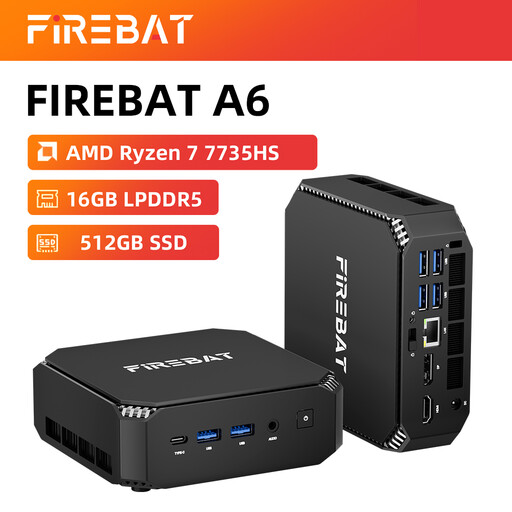
FIREBAT A6 Mini PC, Ryzen 7 7735HS, Radeon 680M, 16 GB, 512 GB SSD
The product name states that this compact mini PC can output to three screens; check that its connections suit your monitors.
AMD Ryzen 7 7735HS, Radeon 680M, 16 GB RAM and 512 GB SSD.
Joybuy
 No image available
SOYO M5 Mini PC, Ryzen 4300U, 16 GB, 512 GB SSD
The product name states that this mini PC can output to three screens; check that its connections and resolutions suit both screens.
AMD Ryzen 4300U, 16 GB LPDDR4, 512 GB SSD and Windows 11 Pro; the product name states that it supports output up to 4K at 60 Hz.
Joybuy
 No image available
FIREBAT F1 Mini PC, Ryzen 5 7640HS, 24 GB, 512 GB SSD
The product name states that this compact mini PC supports output to three screens.
AMD Ryzen 5 7640HS, Radeon 760M, 24 GB LPDDR5 memory and 512 GB PCIe 4.0 SSD.
Joybuy
Frequently asked questions
How do you use a second screen for a large video preview in Premiere?
Turn on Mercury Transmit in the playback preferences and select the connected second screen. Adobe describes this as a separate display for the programme output; your desktop must also be able to run the screen.
Is 16 GB of RAM enough for video editing?
For Premiere on Windows, Adobe recommends 16 GB for HD and 32 GB or more for 4K. So, first consider your source footage and software. This Windows specification isn't a universal requirement for every editing app.
Where should you store footage and cache files?
Adobe recommends fast SSD or NVMe storage for media and describes a separate SSD for the media cache as a performance-focused setup. If internal storage is limited, consider using a fast external drive for media and cache.
What are your rights when buying a desktop online in the Netherlands?
According to the Dutch government, consumers buying online from a business often have 14 days to change their mind; exceptions and the seller's status are important. Your statutory guarantee is the right to a product that meets reasonable expectations, and there is no fixed statutory time limit for it in the Netherlands. If there's a problem, contact the seller.


