
Editor with lots of source footage
You collect lots of workshop footage and want to plan for space and speed for active media, cache and a separate copy of the originals. Adobe recommends fast storage for video media.


Start with the codec and resolution of your footage, your editing software, and the space needed for your source material, cache and working files combined. A compact Mac may suit you if your software runs on macOS and you plan your storage carefully; a Windows tower is an option if you want to upgrade components later. For Premiere on Windows, Adobe recommends 32 GB RAM or more for 4K and higher resolutions, but this is not a general minimum requirement for every film or editor.
You collect lots of workshop footage and want to plan for space and speed for active media, cache and a separate copy of the originals. Adobe recommends fast storage for video media.
You want to navigate footage smoothly, so you should consider memory, codec support and the potential use of proxy files together, rather than looking at the processor alone. Adobe describes proxies as lighter copies of source files.
You expect to do more demanding editing or work on future projects, and are weighing up graphics capabilities and expandability against the size of the computer you need.
A good fit if: your editing software runs on macOS and you have limited desk space. Apple lists Mac mini M6 configurations with 16 or 24 GB unified memory and 256 or 512 GB of starting storage.
Trade-off: with large source files, you’ll need a considered plan for working media and copies on the internal storage.
A good fit if: you edit on Windows and want the option to upgrade storage, memory or graphics hardware. The HP Z2 Tower G1i configuration reviewed has 32 GB RAM, a 1 TB SSD and an RTX 2000 Ada with 16 GB of video memory.
Trade-off: check the components in each configuration; extra capacity isn’t automatically necessary for every editing project.
A good fit if: you want to stick with a Mac workflow and expect your projects or effects to need more capability. For the Mac Studio (2025) with M4 Max, Apple lists 36 GB unified memory and a 512 GB SSD.
Trade-off: match the storage and configuration to your project; without details about your files, it’s not possible to say whether this more powerful option is necessary.
First, work out which limitation has the biggest impact on your editing: storage space, timeline and source format, or room to upgrade later. Then compare the specific configurations, not just the model names.
| What to consider | What should you check? | Who should pay most attention? |
|---|---|---|
| Storage for large source files | Add together the size of your originals, project files and expected cache; check the SSD capacity and connections for additional storage. | If I collect lots of workshop footage, I want enough space for active media and a separate copy of the originals. Around 36% of consumers put storage space first. |
| Timeline and source codec | Make a note of the codec, resolution and editing software you use; compare these with the requirements of the exact configuration and check whether a proxy workflow would suit you. | If my timeline needs to remain workable with the original source format, I look beyond the processor alone. Around 29% of consumers prioritise their timeline and codec. |
| Effects and upgrades | Check whether your software uses the GPU and which components in your chosen configuration can be upgraded later. | If I expect to use more demanding effects or want to upgrade later, I weigh that flexibility against the size of the computer. Around 21% of consumers prioritise effects or future upgrades. |
| Complete workstation setup | Check which peripherals and storage you already have and which additional components you need. | If I still need to set up my editing space, I want to assess the whole setup rather than one desktop specification. Around 14% of consumers put their complete workstation setup first. |
The space you need depends on your source files, projects and cache. Adobe recommends fast storage for active video media; the listed SSD capacity alone doesn’t tell you how much space your project will need.
Add up the size of your own files and plan for working storage and a separate copy of the originals.
You may need additional storage for active media and a separate copy.
Configurations within the same product range can differ in memory and storage. A dedicated graphics card doesn’t prove that every editing project needs that level of capacity.
Compare the full model number and specific components with the requirements of your editing software.
A different configuration may need different memory, storage or graphics components.
For consumer purchases in the Netherlands, statutory rights are separate from any warranty period stated by the seller or manufacturer. ACM ConsuWijzer explains that statutory protection depends on what you could reasonably expect from the product.
Keep your proof of purchase and assess any fault in light of what you could reasonably expect from the desktop. This applies to consumer purchases; business purchases need to be considered separately.
The Mac mini M6 is designed for a compact macOS workstation, while the Mac Studio (2025) M4 Max is a more powerful compact option. Configurations differ in memory and SSD capacity.
The Dutch HP Z2 Tower G1i configuration C69C7EA#ABH is a Windows workstation with 32 GB RAM, a 1 TB SSD and an RTX 2000 Ada with 16 GB of video memory.
The ThinkStation P3 Tower Gen 2 is a tower range with various configurations available in the Netherlands.
The Precision 3680 is a tower workstation range with options for servicing and replacing components.
This selection includes compact Mac desktops and Windows desktops for editing. Compare the exact configuration with your software, source files and desired scope for future upgrades.
 Image unavailable
A compact Mac desktop to consider if your editing software runs on macOS; plan carefully for storage if you work with large source files.
Apple M6 chip, 12-core CPU, 12-core GPU, 16 GB memory and 256 GB SSD.
Image unavailable
A compact Mac desktop to consider for a macOS editing setup; bear the available internal storage in mind when working with large source files.
Apple M6 chip, 12-core CPU, 12-core GPU, 16 GB memory and 512 GB SSD.
Image unavailable
A compact Mac desktop to consider if you use macOS software; match the memory and storage to your own editing workflow.
Apple M6 chip, 12-core CPU, 12-core GPU, 24 GB memory and 512 GB SSD.
 Image unavailable
A Windows desktop to compare if your editing setup calls for 32 GB memory and a dedicated graphics card.
Intel Core Ultra 7 265F, 32 GB DDR5, 1 TB SSD, NVIDIA GeForce RTX 5070 with 12 GB and Windows 11 Home. For Premiere on Windows, Adobe recommends 32 GB RAM or more for 4K and higher resolutions; this recommendation applies to that software and situation.
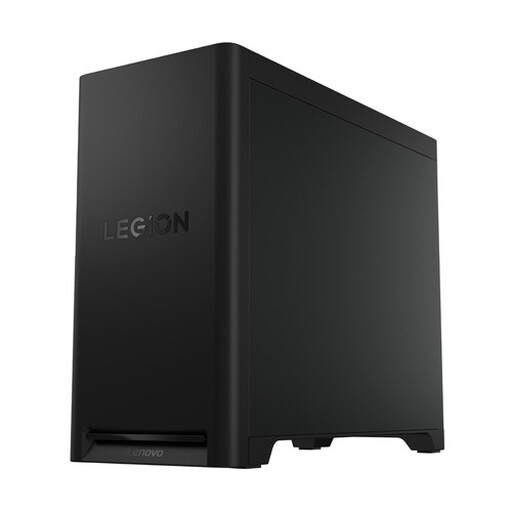 Image unavailable
A Windows desktop to consider if you edit on Windows and are factoring upgrade options into your choice.
32 GB DDR5, 1 TB PCIe 4.0 SSD and NVIDIA GeForce RTX 5070. The product description lists space for up to three M.2 SSDs and one 3.5-inch drive, with support for up to 64 GB memory.
No, not simply because you’re working with large source files. For Premiere on Windows, Adobe recommends 32 GB RAM or more for 4K and higher resolutions; also check your software, resolution and workflow.
Premiere can create proxy files: lighter copies to edit with, while keeping the originals for the final export. Adobe describes this as a workflow, not proof that it makes every desktop suitable; remember to allow space for the extra files too.
Not necessarily. Adobe recommends fast storage for active media; organise your media and cache around the drives, connections and space available.
No. ACM ConsuWijzer explains that statutory protection depends on what you could reasonably expect from the product and exists alongside a seller’s or manufacturer’s warranty. This applies to consumer purchases; assess business purchases separately.