
Editors with lots of source footage
You need enough space and a practical setup for camera files, cache and exports. For Premiere, Adobe recommends using separate drives for your system, cache and media wherever possible.


Start with the resolution and codec of your footage, your editing software, and the space needed for source files, cache and exports. An expandable Windows tower suits you if you want to add storage and components later. A Mac Studio is an alternative if macOS and its stated media features suit your workflow, but large projects call for a considered choice between internal and external storage. Adobe’s Premiere specifications are guidelines for that software, not a general desktop speed test.
You need enough space and a practical setup for camera files, cache and exports. For Premiere, Adobe recommends using separate drives for your system, cache and media wherever possible.
Compare the memory, graphics card and any proxy files with your project’s resolution and software. For Premiere, Adobe recommends 32 GB RAM or more for 4K or higher.
You expect to work on more projects and want the option to add storage or components. To do that, compare an expandable tower with a compact desktop whose storage you choose upfront.
First, note the resolution and codec of your footage, along with your editing software. Then compare the storage, memory and graphics capabilities of the exact configuration against that workload.
| What to consider | What should you look for? | Which consumers is this for? |
|---|---|---|
| Space for source files | Work out how much space your footage takes up and check the storage capacity and connections on the configuration you’re considering. Remember to allow room for cache and exports too. | If I want to keep lots of camera files locally, storage is top of my list. Around 36% of consumers give storage their highest priority. |
| Editing playback | Compare the resolution of your footage with the desktop’s memory; for Premiere, Adobe recommends 32 GB RAM or more for 4K or higher. Also check whether your software supports proxy files. | For anyone who wants to keep the timeline manageable when working with high-resolution footage, memory and a suitable workflow matter. Around 29% of consumers prioritise editing playback. |
| Codec and effects processing | Check which codecs your camera uses and which media features your software and chosen configuration support. A listed feature on its own doesn’t tell you how quickly a complete project will be processed. | If my camera files or effects need specific processing features, I want to check they work with my software first. Around 21% of consumers give codec and effects processing their highest priority. |
| Upgrades and your workstation | Check the storage bays, expansion slots and included components on the exact configuration. Allow for any extra storage or peripherals you’ll need for your workstation. | If you’re planning for future projects and want to add components later, look beyond the included configuration. Around 14% of consumers prioritise expandability and their complete workstation setup. |
Source footage, cache and exports all take up storage space. So even a system drive that looks spacious on its own may not have enough room for your entire editing project.
Work out how much space your footage takes up in advance, and decide where your media and cache will be stored while you edit.
You may also need a fast media or backup drive.
The resources you need depend on the resolution, software and effects you use. A requirement for a different workload won’t automatically be right for your 4K project.
Compare the exact desktop configuration with the requirements for your software and footage. Consider proxy files if your software supports that workflow.
A proxy workflow needs extra storage and an additional step to create the lighter copies.
A product range may offer several storage and configuration options, while the version you order may include only some of them. Peripherals may also be sold separately.
Before buying, check the full model code, the list of components and which accessories are actually included.
The Mac Studio is a compact macOS desktop to consider if its stated media features suit your editing workflow.
The HP Z2 Tower range is a Windows workstation option to consider if you want to compare internal expansion capabilities.
The ThinkStation P3 Tower Gen 2 is a configurable Windows workstation option.
The Precision 7960 Tower is a configurable workstation option for anyone who values room to expand.
The ROG G700 is a Windows tower alternative; compare the full model code and components with the requirements of your film project.
These desktops are options to compare for video editing with large source files. Check the storage, memory and stated Windows version for each configuration.
 No image available
An option to compare if you’re looking for a desktop with the stated 32 GB DDR5 and 1 TB NVMe SSD.
The product name states Windows 11 Trial; check whether this version suits your needs.
 No image available
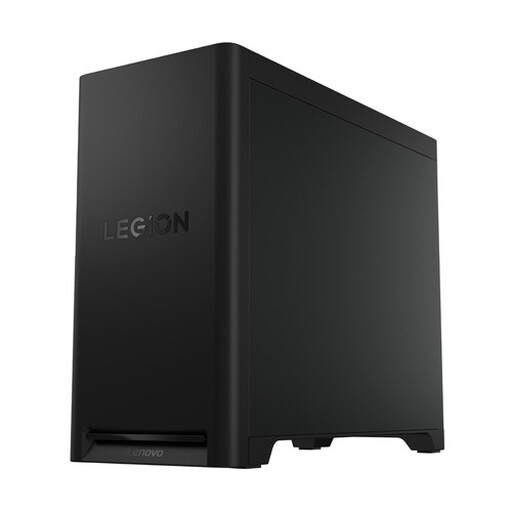
Compare this configuration if the 32 GB memory and 2 TB storage stated in the name suit your project needs.
The product name states Windows 11 Home.
 No image available
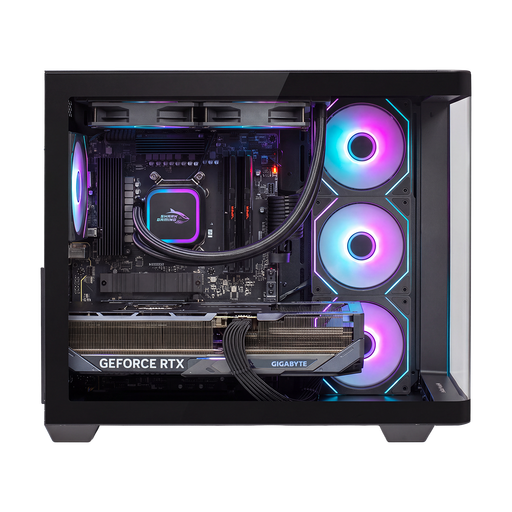
An option to compare if you’re looking for 32 GB DDR5 and the stated 1 TB PCIe 4.0 SSD.
The product name states NVIDIA GeForce RTX 5070 and Windows 11 Home. The description mentions support for up to three M.2 SSDs and a 3.5-inch drive; check the connections on the configuration you choose.
For Premiere, Adobe recommends 32 GB RAM or more for 4K or higher. Compare that guideline with the resolution, software and effects used in your project.
In Premiere, you can use proxy files: lighter copies to edit with. Keep the original media for the final export and allow storage space for both. Also check whether your clips are eligible for this proxy feature.
Not necessarily. Wherever possible, Adobe recommends using separate fast drives for your system, cache and media. If you’re working with two drives, Adobe says the cache and media can share one drive.
According to the Dutch government, the seller must provide a solution if a product is faulty. The Netherlands has no fixed statutory guarantee period, and a manufacturer’s guarantee doesn’t replace your statutory rights. For a business purchase, you should check the applicable terms separately.
No. According to the Dutch government, the 14-day cooling-off period often applies to distance purchases made by consumers, but there are exceptions. Check whether the specific purchase is covered by the rules; for example, a purchase from a private individual isn’t covered.