
Editors with lots of source footage
You want to keep large originals, working files and a separate backup organised before choosing a desktop.


Choose a desktop based on your editing software, source codec and the space you need for originals, working files and backups. File size alone doesn’t determine which processor or graphics card you need. An upgradeable Windows tower suits you if you want to change components internally, while a Mac Studio is a compact option if macOS fits your workflow. Always compare the specific configuration you’re considering.
You want to keep large originals, working files and a separate backup organised before choosing a desktop.
You want your own footage to play smoothly on the timeline, so you’re comparing hardware and the option to create proxies.
You expect future film projects to need more storage or different components, so you’re comparing specific tower configurations.
Start with a representative clip: note its resolution, codec and the editing software you use. Then work out how much space you’ll need for originals, working files and backups before choosing a desktop form factor.
| What to consider | What should you check? | Who is this most important for? |
|---|---|---|
| Space for files | Add up the size of your original footage and working files. Check the SSD capacity, connections for external storage and your separate backup plan. | If I want to keep large original files and working files, I want to know in advance what kind of storage setup will suit me. Around 33% of consumers prioritise space for project files. |
| Timeline playback | Compare your codec, resolution and editing software with the specific configuration. Also check whether your software supports a proxy workflow. | When I edit footage in its original format, I want to know whether it will play smoothly on the timeline. Around 27% of consumers say timeline playback is their top priority. |
| Room to upgrade | For a tower, check the upgrade options for the specific model. With a compact desktop, plan for external storage if needed. | If I want to accommodate future projects with different storage or components, I look for flexibility. Around 20% of consumers prioritise upgrade options for future projects. |
| Total cost and aftercare | Compare your chosen configuration, along with any storage and peripherals you may need. Also check the seller, returns policy and warranty terms. | I want to assess the complete editing setup and its terms in advance, not just the desktop. Around 20% of consumers prioritise the total cost and aftercare. |
Configurations can vary within a product range. For example, Dell lists different memory and graphics options for the Pro Precision 7 T1, including versions with 8 GB of memory or integrated graphics.
Compare the components actually selected with your source footage and editing software, rather than relying on the product range name alone.
You may need a different memory, storage or graphics configuration. Check your options before ordering.
A ThinkStation P3 Tower Gen 2 configuration shown by Lenovo combines 48 GB of memory with a 256 GB SSD. Memory and storage are separate specifications.
Check the SSD capacity and work out how much space your own original files will need.
If the internal storage isn’t enough, you’ll also need to plan a suitable internal or external storage setup.
Adobe describes proxies as editing files and originals as the source for the final export. Proxies aren’t a substitute for a separate backup.
Plan where to store your originals, proxies and backup files, and keep the originals available for the final export.
A proxy workflow takes extra time to create and manage files, and uses additional storage space.
The Mac Studio is a compact macOS desktop worth comparing if macOS and its connections suit your editing workflow.
The HP Z2 Tower G1i is a tower worth comparing if upgrade options and specific configuration choices matter to you.
The Dell Pro Precision 7 T1 is a configurable Windows workstation tower. Compare the components actually selected.
The ThinkStation P3 Tower Gen 2 is a tower worth comparing for its specific configuration and service.
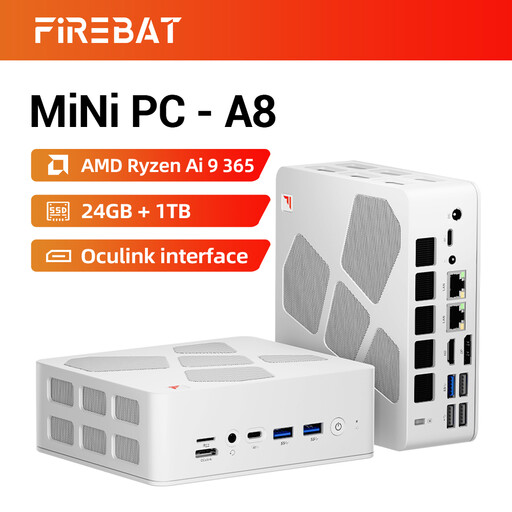
The Joybuy pick below is a compact desktop worth comparing if local space for source footage and working files is a consideration.
 No image available
The listed 1 TB SSD makes this model worth comparing if you want to store source footage and working files locally. Whether that capacity is enough depends on the size of your project.
The product name lists 24 GB DDR5 memory, a 1 TB PCIe 4.0 SSD and Radeon 880M graphics.
Not just because of the file size. Compare a representative clip and your editing software with the configuration you’ve chosen. Adobe describes proxies as one possible way to work with 4K footage or higher when timeline playback is difficult, while keeping the originals available for the final export.
Keep your original media, create proxies using a workflow supported by your editing software, then switch back to the originals for the final export. Adobe describes proxies as an editing aid; they don’t replace a backup.
No. According to the Dutch government, there is no fixed statutory warranty period in the Netherlands: you’re entitled to a product that works properly, and the solution depends on the circumstances. Treat any manufacturer’s warranty as a separate commercial term.
Not always. The Dutch government says that, in many cases, a 14-day cooling-off period applies to distance purchases, but there are exceptions. Check the terms that apply to the specific purchase.
There’s no general yes or no when it comes to recognisable passers-by without considering the circumstances of the recording and publication. For music protected by someone else’s copyright, the Dutch government says you need the creator’s permission to use it outside the private-copying exception for personal use. Check image and music rights separately before publishing your film.