Who is this desktop guide for?

Interviewer handling lots of revisions

Want to find earlier edits without mixing up project files and source footage? Adobe explains how Premiere handles auto-save and project file versions; Apple Support explains how to back up to an external storage device with Time Machine. Plan for both: version management and a backup separate from your working drive.

Creator working on demanding video edits

If you work with 4K footage or effects, compare the configuration with the requirements of your editing software and your own files. Adobe recommends 32 GB RAM or more for Premiere on Windows when working with 4K and higher resolutions; this recommendation applies to that software and workflow.

Editor with limited workspace

If you’re looking for a compact desktop, factor in your monitor, the connections you need and external storage too. Apple UK publishes Mac mini configurations; check that the memory and SSD configuration meets your needs.

What should you look for when buying?

Compact Mac desktop

A good fit if: you want to use macOS, have limited desk space and can connect a monitor and external storage separately.

Trade-off: internal storage varies by configuration; project versions on the same drive are no substitute for a separate backup.

Configurable Windows tower

A good fit if: you want to tailor the memory, storage and graphics hardware to your editing software and source files.

Trade-off: a product range name doesn’t tell you whether the configuration you choose meets your software’s requirements; check the connections and storage too.

What to consider What should you check? Who is this important for?
Editing performance Compare your editing software and version, resolution and codec with the specifications of the exact configuration. Adobe recommends 32 GB RAM or more for Premiere on Windows when working with 4K and higher resolutions. If you want a desktop that can handle demanding footage or effects, suitable performance comes first. Around 31% of consumers say editing performance is their top buying priority.
Project versions Check where your software saves versions, and also back up your project files and any media you need. Adobe says Premiere automatically saves every five minutes by default and keeps the latest 20 project file versions; you can change this setting. If you want to restore earlier edits and keep the associated source footage, plan a separate way to store each. Around 31% of consumers say preserving revisions is their top priority.
Storage for media and cache Estimate the size of your source files and exports, then compare it with the internal SSD capacity. Adobe recommends fast storage and suggests using separate drives for the system, cache and media. If you work with lots of interview footage or cache files, you’ll want enough fast working space and to know which external storage you can connect. Around 25% of consumers prioritise storage for media and cache.
Workspace and connections Count your monitors, external drives and other peripherals. Check the ports on the exact configuration and make sure there’s room for the desktop and storage. If you want a desktop that fits your desk and existing peripherals, check its size and connections in advance. Around 13% of consumers say workspace and connections are their top buying priority.

Buying pitfalls

  • Mistaking automatically saved project versions for a complete backup

    Saving project file versions doesn’t automatically back up the associated source footage somewhere separate from your working drive. Adobe explains Premiere’s version history; Apple Support explains how to back up to an external storage device using Time Machine.

    Plan for both version management and a backup of your project files and required media in a separate location.

  • Choosing an entry-level model based on the product range name alone

    Configurations within a product range can vary, and requirements also depend on your software, resolution and files. Adobe makes a distinction between its recommendations for HD media and for 4K and higher when using Premiere.

    Before you decide, compare the exact configuration with your editing software, resolution and codec.

  • Comparing only the internal SSD capacity

    Source footage, cache and backups each serve a different purpose. A large internal drive alone doesn’t give you a separate backup, or tell you whether you can connect external storage at your desk.

    Plan your storage for media, cache, project versions and backups in advance, and check which connections you’ll need.

Brands to consider

Apple

The Mac mini is a compact macOS desktop for a workspace with external monitors and storage. Apple UK publishes several memory and SSD configurations; check the one you’re buying.

  • The range includes compact desktops with configurable memory and storage options.
  • An entry-level model won’t necessarily have enough room for your interview files, so factor in external storage too.

Dell

The Dell Pro Max Tower T2 is a configurable Windows tower. Dell UK lists a range of processor and power supply options.

  • You can compare the available configurations component by component.
  • Changing the configuration can change the specifications; the product range name doesn’t prove that every model is suitable for 4K editing.

Lenovo

The ThinkStation P3 Tower Gen 2 is a technical option for an expandable workspace. Lenovo documents memory, SSD and expansion slot options.

  • The documented options can help you compare expansion possibilities.
  • Listed options and maximum capacities don’t automatically describe the specification of every computer sold individually.

HP

HP positions the Z2 Tower G1i for creative and video workflows, and lists options for expandable memory and storage.

  • The range offers configurable memory and storage options.
  • Possible configurations aren’t an independent performance test and don’t confirm which model is available locally.

PCSpecialist

PCSpecialist offers configurable PCs for video editing, with a range of processor, graphics, memory and SSD options.

  • You can tailor the choice of components to your intended editing workflow.
  • Check the final parts list; a configuration description isn’t an independent performance measurement.

Joybuy products for video editing

This selection includes a compact desktop and desktop PCs with various memory and storage configurations. Compare the exact model with your editing software and plan storage for source footage, cache and backups.

Apple Mac mini M6, 12-core CPU and 12-core GPU, 24 GB memory, 512 GB SSD

Apple Mac mini M6, 12-core CPU and 12-core GPU, 24 GB, 512 GB SSD

A compact macOS desktop for a workspace where you connect your monitor and any external media drive separately.

This model has 24 GB memory and a 512 GB SSD. The product description lists Thunderbolt 4, USB-C and HDMI; check that these connections suit your monitor and storage.

View at Joybuy

Gaming desktop PC Ryzen 7 7800X3D, GeForce RTX 5080, 32 GB DDR5, 1 TB NVMe SSD

Gaming Desktop PC Ryzen 7 7800X3D, GeForce RTX 5080, 32 GB DDR5, 1 TB NVMe SSD

A desktop PC to consider if you’re looking for a configuration with 32 GB memory and NVMe storage for your editing files.

The product description lists 16 GB graphics memory for the RTX 5080. The title lists Windows 11 Trial; check which software and licence are right for your needs. Adobe recommends 32 GB RAM or more for Premiere on Windows when working with 4K and higher, but that memory specification alone doesn’t determine whether the whole configuration is suitable.

View at Joybuy
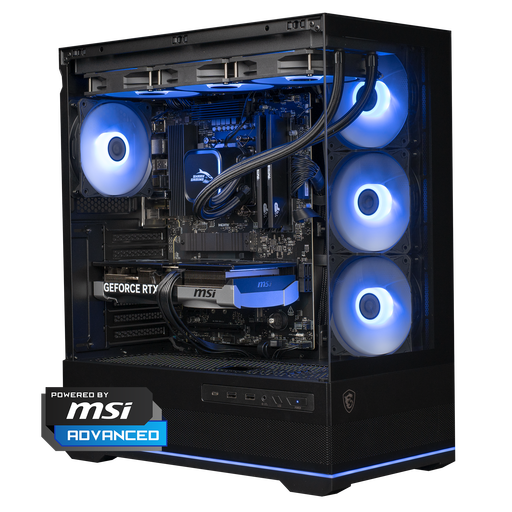
Shark Ultimator R700 Gaming PC, RTX 5070, R7, 16 GB DDR5, 1 TB NVMe SSD

Shark Ultimator R700 Gaming PC, RTX 5070, R7, 16 GB DDR5, 1 TB NVMe SSD

Compare this model if you’re weighing up a desktop PC with 16 GB memory and 1 TB NVMe storage against your editing software’s requirements.

The product description lists an RTX 5070 with 12 GB graphics memory. Adobe recommends 16 GB RAM for HD media and 32 GB or more for 4K and higher when using Premiere, so the right configuration also depends on your resolution and software.

View at Joybuy
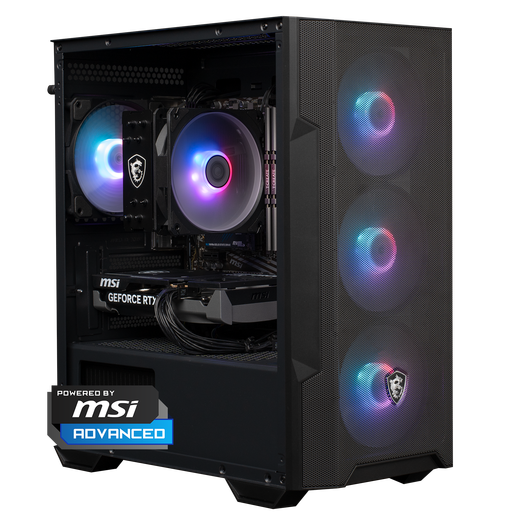
Shark Max Bite R501 Gaming PC, RTX 5060, R5, 16 GB DDR4, 1 TB NVMe SSD

Shark Max Bite R501 Gaming PC, RTX 5060, R5, 16 GB DDR4, 1 TB NVMe SSD

Consider this desktop PC if you want to weigh up 16 GB memory and 1 TB NVMe storage against the requirements of your editing software and source footage.

The product description lists an RTX 5060 with 8 GB graphics memory. Adobe recommends 16 GB RAM for HD media and 32 GB or more for 4K and higher when using Premiere, so check your own resolution and workflow.

View at Joybuy
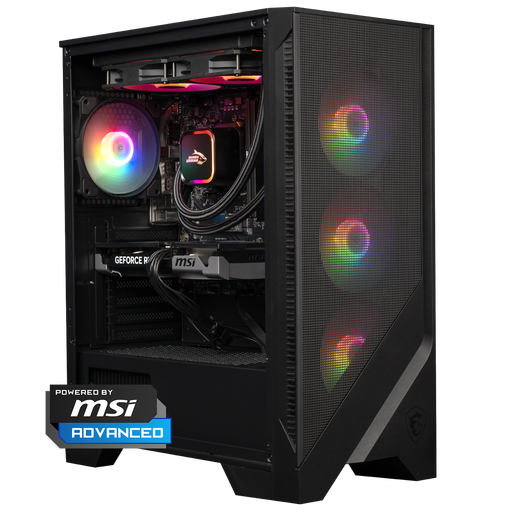
Shark Bloodlust R500 Gaming PC, RTX 5060 Ti, R5, 16 GB DDR5, 1 TB NVMe SSD

Shark Bloodlust R500 Gaming PC, RTX 5060 Ti, R5, 16 GB DDR5, 1 TB NVMe SSD

Compare this model if you’re looking for 16 GB memory and a 1 TB NVMe SSD for your editing files.

The product description lists an RTX 5060 Ti with 8 GB graphics memory. Adobe recommends 16 GB RAM for HD media and 32 GB or more for 4K and higher when using Premiere; choose a configuration suited to the resolution and settings you use.

View at Joybuy

Frequently asked questions

Is auto-save enough to keep all versions of the interview safe?

No. Auto-save doesn’t automatically keep the source videos in a separate location too. Adobe explains how Premiere saves project file versions; you should also back up the media you need somewhere separate from your working drive. On a Mac, you can use Time Machine with an external storage device for this.

Do source files and cache need to be on the same drive?

Not necessarily. Adobe recommends using separate fast drives for the system, cache and media where possible in Premiere; if you have only two drives, Adobe says cache and media can share one. Check which setup works with your storage and connections.

What are my warranty rights when buying a desktop in the Netherlands?

When you buy as a consumer, the product must meet the standard you could reasonably expect. According to the Dutch government, there is no fixed statutory warranty period in the Netherlands; a manufacturer’s warranty or an extended warranty you buy is in addition to your statutory rights. If there’s a fault, contact the seller.

Can I publish an identifiable creator interview online without permission?

First consider which legal basis applies to the publication. The Dutch Data Protection Authority says that under the GDPR, consent is required in most cases to publish personal data online, with exceptions including strictly personal use and separate rules for journalistic use. The legal basis for a particular interview is separate from your choice of desktop.
