What should you look for?
Start with your editing software and source footage, then plan your storage and choose a desktop that suits your workspace.
Compact Mac desktop
A good fit if: you want to use macOS, have limited desk space and choose a suitable memory and storage configuration upfront.
Bear in mind: a smaller internal SSD may make a plan for external media storage more important.
Upgradeable Windows desktop
A good fit if: you need a specific Windows configuration or options for internal storage and future upgrades.
Bear in mind: the name of a workstation range doesn’t tell you which GPU, SSD or ports the specific model actually has.
| What to consider |
What to look for |
Who should pay particular attention? |
| Source footage and project versions |
Work out how much space you’ll need for recordings and archives. For Premiere, Adobe recommends planning storage carefully for your system, cache and media. |
If you want to reopen your source footage and different edits later, pay particular attention to the storage space required for each project. Around 36% of consumers prioritise storage and version management. |
| Editing performance |
Check your software, version, resolution and the effects you intend to use. For Premiere on Windows, Adobe recommends 16 GB of RAM for HD media and 32 GB or more for 4K and above. |
If you work with 4K or lots of effects, you’ll want to match the configuration to your software’s workload. Around 29% of consumers prioritise editing performance. |
| Software and equipment |
Check that your editing software supports the operating system and that the ports are suitable for your monitor and media drive. |
If you want to keep using your existing software, monitor and drives, check that they’ll all work together before you buy. Around 21% of consumers prioritise software and ports. |
| Workspace and complete setup |
Compare the full desktop setup, including the monitor and any additional storage you need. Lenovo states that the display is sold separately for the ThinkStation P3 Tower. |
If you want to put together an editing setup that suits your desk and requirements, look beyond the computer case alone. Around 14% of consumers prioritise their workspace and the total cost of their purchase. |
Joybuy products for video editing
This Joybuy selection includes compact desktops and desktop PCs with configurations for a range of storage and video-editing needs.
 No image available
Apple Mac mini M6, 24 GB, 512 GB SSD
A compact macOS desktop if you want a small workspace and external media storage suits your editing plan.
Configuration: 12-core CPU, 12-core GPU, 24 GB unified memory and 512 GB SSD.
View at Joybuy
 No image available
ASUS ROG G700TF-07265F666W, Core Ultra 7 265F
This Windows desktop could be worth considering if you use Premiere with 4K media. Make sure it also suits your software version and editing workload.
Configuration: Intel Core Ultra 7 265F, 32 GB DDR5, 1 TB SSD and NVIDIA GeForce RTX 5070 with 12 GB. For Premiere on Windows, Adobe recommends 32 GB or more of RAM for 4K and above, and 8 GB of GPU memory.
View at Joybuy
No image available
ASUS ROG G700TF-05225F170W, Core Ultra 5 225F
A Windows desktop to compare if you use Premiere with 4K media. Check that the full configuration suits your editing software and projects.
Configuration: Intel Core Ultra 5 225F, 32 GB DDR5, 1 TB PCIe 4.0 SSD and NVIDIA GeForce RTX 5070 with 12 GB. For Premiere on Windows, Adobe recommends 32 GB or more of RAM for 4K and above, and 8 GB of GPU memory.
View at Joybuy
 No image available
NVIDIA DGX Spark Founders Edition, GB10, 128 GB, 4 TB SSD
A compact desktop with a 4 TB SSD. Before you buy, check that your editing software is compatible with the listed operating system.
Specifications: NVIDIA GB10 processor, integrated Blackwell GPU, 128 GB LPDDR5X, 4 TB SSD and NVIDIA DGX OS.
View at Joybuy
 No image available
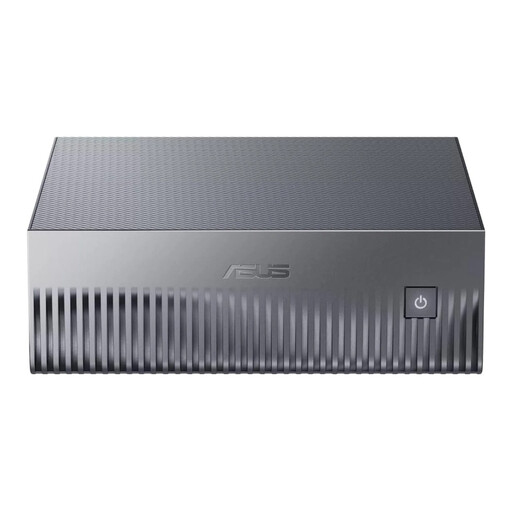
ASUS Ascent GX10 GX10-GG0003BN, GB10, 128 GB, 1 TB SSD
Its compact size could suit a small editing workspace. Check which operating system and software compatibility requirements apply to your needs.
Configuration: 128 GB LPDDR5x, 1 TB SSD and NVIDIA Blackwell graphics.
View at Joybuy
Frequently asked questions
Do I need to buy 32 GB of RAM for every theatre showreel?
No, it depends on your software and source footage. For Premiere on Windows, Adobe recommends 16 GB of RAM for HD media and 32 GB or more for 4K and above. So first, consider which software and image quality you’ll be using.
How can I keep multiple edits ready for further changes?
Keep the project and the necessary source media as well as your exports. Adobe explains how Premiere’s Project Manager gathers or copies media from selected sequences. Before archiving, check the estimated disk space and which clips and sequences are included.
Where should I store my media and cache?
For Premiere, Adobe recommends fast storage for media and, where possible, a separate fast SSD for the cache. If you use two drives, Adobe also describes a setup where the cache and media share a drive. Choose the option that suits the drives you have.
Am I always entitled to a two-year warranty on a desktop in the Netherlands?
No. ACM ConsuWijzer explains that statutory consumer rights don’t come with a fixed two-year period: the product must work as you could reasonably expect. The seller is your point of contact if there’s a fault. If you’re buying on behalf of an organisation, check the contract, as consumer rules don’t necessarily apply to business purchases.
Can a theatre group always return a computer ordered online within 14 days?
No. ACM ConsuWijzer says consumers generally have a 14-day cooling-off period when buying online, subject to exceptions. The period runs until 14 days after the product is delivered. According to Ondernemersplein, the statutory cooling-off period doesn’t apply to a business purchase by an entrepreneur. So check who is named as the buyer in the contract.


