
Teachers who read and write at the same time
You want to keep pupils’ work open on one screen while writing feedback on the other. Dell Netherlands recommends matching the computer’s ports and the cables for both monitors.


Choose a desktop only after checking that it can run both your monitors at the same time and that its video outputs match the inputs on both screens. A ready-to-use business mini desktop means less assembly, while a Kit gives you more flexibility but requires you to check details such as memory, storage and the operating system. If you’ll be working with pupils’ data, check the requirements with your school’s IT team, and make sure both screens will fit comfortably in your workspace.
You want to keep pupils’ work open on one screen while writing feedback on the other. Dell Netherlands recommends matching the computer’s ports and the cables for both monitors.
A compact desktop can free up desk space, but you’ll still need room to position both screens so they’re easy to use. The Arboportaal outlines things to consider when setting up a workstation with a display screen.
You’ll want to know whether the desktop is compatible with school software and policies for pupils’ data. The Dutch Data Protection Authority outlines schools’ responsibility to put appropriate technical and organisational measures in place.
First check that the desktop can run both monitors at the same time. Then consider school policies, your workspace setup and what comes with the configuration you’ve chosen.
A good fit if: you want a compact, permanent workspace without having to choose the memory, storage and operating system yourself.
Keep in mind: check that the ports on the exact configuration match both monitors; peripherals may be sold separately.
A good fit if: you or your school’s IT team want to choose the components and configuration yourselves.
Keep in mind: a Kit may not include memory, storage or a pre-installed operating system; check the exact configuration.
| What to consider | What should you check? | Who is this important for? |
|---|---|---|
| Two screens | Check that both screens can run at the same time, along with the desktop’s video outputs, both monitors’ inputs and any cables or adapters you’ll need. | I want to see pupils’ work and my feedback at the same time; around 33% of consumers say using two screens simultaneously is their main buying concern. |
| Pupils’ data and school software | Ask your school’s IT team which software, accounts, storage locations and security settings are approved, and check that the operating system is supported. | If I work with feedback that includes pupils’ data, I want the computer to meet school requirements; around 27% of consumers prioritise school management and data protection. |
| Workspace comfort | Measure the space available for both screens and check that you can position and adjust them appropriately. | At a permanent workstation, I want to position both screens comfortably for reading and typing; around 20% of consumers prioritise their workspace setup. |
| Complete configuration | For the exact configuration, check whether the operating system, memory, storage, monitors and input devices are included. | I want to know in advance which components I’ll still need before I can get started; around 20% of consumers focus mainly on how complete the configuration is. |
The desktop’s video outputs, the monitors’ inputs and support for running both screens simultaneously all need to be compatible. The number of ports alone doesn’t tell you whether your setup will work.
For the exact desktop configuration, check the complete connection setup for both monitors, including any cables or adapters you’ll need.
An incompatible port may mean you need a suitable cable, adapter or monitor.
Configurations of the ASUS NUC 14 Pro differ: the specification page says that the Kit does not come with a pre-installed operating system, memory or storage.
Check the components included with the exact configuration and compare what you’ll still need to install or add.
A Kit may need extra components and installation before you can use it.
A compact computer won’t automatically make room for two screens; both monitors also need to fit comfortably in your workspace.
Measure the space available and plan how you’ll position and connect the screens before you buy.
The features below apply to the specific product lines and configurations mentioned. Always check that your chosen configuration suits your screens and school environment.
The ThinkCentre neo 50q Gen 5 is a compact business desktop. Lenovo’s details here refer specifically to configuration 13B9007CEZ.
The HP Pro Mini 400 G9 is a compact business desktop; the product details mentioned here refer to configuration 9H6Z2ET#ABH.
The NUC 14 Pro is available as a Mini PC or a Kit. ASUS specifies which components are included with the Kit.
Dell Pro Micro is a compact business desktop range; the Dutch configuration described here has the model number QCM1250.
These mini PCs and compact desktop options are designed for a workspace where you want to view pupils’ work and your feedback on separate screens. For each model, check that it can run both monitors simultaneously and that its video ports match your screens.
 No image available
The product description lists two HDMI outputs, Type-C video and support for multiple screens. Check that the exact ports can run both your monitors at the same time.
The product name lists Windows 11, 8 GB DDR4 and a 256 GB SATA SSD. Check in advance which of the listed processor options applies to the configuration you’ve chosen.
 No image available
The product details list HDMI and USB-C for multi-screen setups. Check that these ports can run both your screens at the same time and that the system is compatible with your school software.
The product name lists 128 GB RAM, a 4 TB SSD and NVIDIA DGX OS. These specifications alone don’t confirm that it’s suitable for school use.
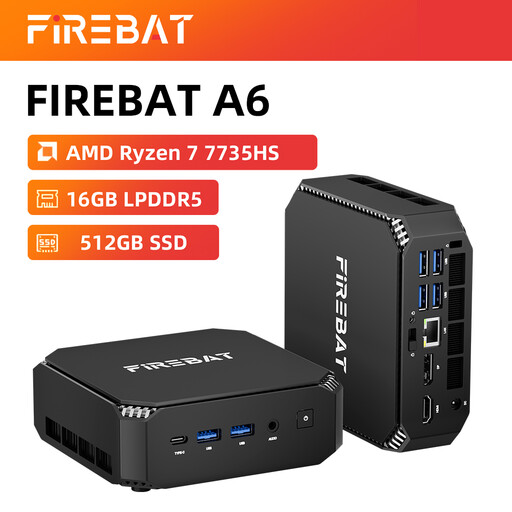 No image available
The product name lists support for three displays. Check the ports and simultaneous display support for your two monitors.
The product name lists 16 GB RAM and a 512 GB SSD.
 No image available
The product description lists HDMI, DisplayPort and Type-C video outputs, as well as support for three screens. Check that the connection setup is compatible with your monitors.
The product name lists Windows 11 Pro, 16 GB LPDDR5 and a 512 GB SSD.
 No image available
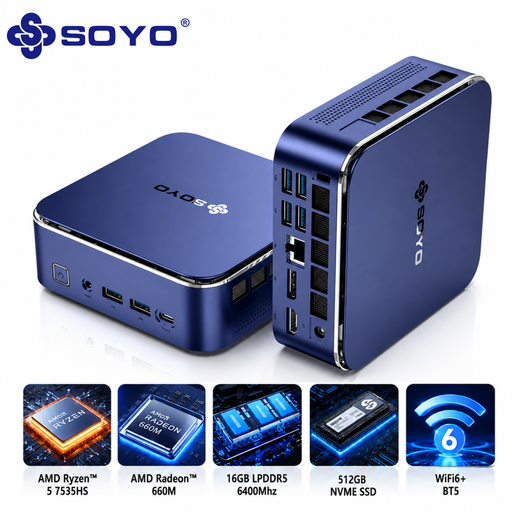
The product name and description list support for three displays. Check that the exact video outputs are suitable for your two monitors.
The product name lists 16 GB RAM, a 512 GB SSD, Wi-Fi 6 and Bluetooth 5.2.
Once both monitors are receiving a video signal, you can identify them in Windows display settings and drag them into position. Microsoft Support explains how to make the screen layout match your physical setup.
Buying your own computer doesn’t automatically mean you’re allowed to use it to process pupils’ data. The Dutch Data Protection Authority says schools must be able to demonstrate the technical and organisational measures they have in place. Ask your school’s IT team which devices, accounts and storage methods comply with school policy.
For the exact desktop configuration, check that it can run both screens at the same time, then compare its video outputs with the inputs on both monitors. Dell Netherlands also recommends checking the cable type for each monitor and the corresponding ports on the computer.
Regular support for Windows 10 ended on 14 October 2025. Microsoft says additional security updates may be available under certain conditions as a temporary option. Before using the system with pupils’ data, check the update provision for the configuration you’ve chosen and your school’s IT requirements.
Check whether you can position both screens appropriately in your workspace. The Arboportaal outlines employers’ obligations around safe display screen work and lists specific requirements for employees who work at a screen for more than 2 hours a day.