
Teachers marking and comparing work
You want to view pupils’ work on one screen and a rubric, feedback or admin on the other. How useful this is depends on having two suitable screen connections and a layout that works for you.


Start by checking the ports on the exact desktop configuration. It needs to support two screens and match the inputs on your monitors. Acer lists HDMI and DisplayPort for the Veriton 2000 Mini configuration DT.R4ZEH.001; Lenovo lists the same connection types for the ThinkCentre M70q Gen 5. Then check that the configuration is suitable for your school’s software, how the school manages pupil data and what else you need for a complete workstation.
You want to view pupils’ work on one screen and a rubric, feedback or admin on the other. How useful this is depends on having two suitable screen connections and a layout that works for you.
You want to use two monitors without taking up too much desk space with your computer. As well as the size of the case, consider where you can position the screens and whether they can be adjusted.
When marking work that includes pupil data, you’ll want to make sure the configuration, support and data protection arrangements are suitable for your school.
| What to consider | What should you check? | Who should pay particular attention? |
|---|---|---|
| Connections for two screens | Check the video outputs on the exact PC, the inputs on both monitors and the supported screen configuration. Dell Netherlands recommends matching the connections and cables to each monitor. | If I want to see assignments and marking information at the same time, both monitors need to be connectable. Around 29% of consumers put screen connections first. |
| Configuration for school software | Ask which applications and operating system versions the school uses, then compare these with the specifications of the configuration you’re considering. | If I want to use a browser, documents and school applications side by side, I need to know whether the configuration is suitable. Around 24% of consumers prioritise running applications simultaneously. |
| Pupil data and management | Before handling pupil data on the PC, discuss how it will be set up and managed in line with the school’s arrangements. | If I mark work that includes pupil data, I want to agree the procedures and management arrangements with the school. Around 18% of consumers prioritise data protection. |
| Workstation set-up | Check the available space, screen positions, adjustability and lighting. Discuss any relevant workplace health and safety requirements with your employer. | If I work at two screens for long periods, I need to be able to position them appropriately. Around 18% of consumers prioritise their workstation set-up. |
| Complete set-up and support | Check what’s included with the exact configuration and compare any accessories you still need, as well as the support terms. | If I need a complete workstation with two screens, I want to know what else I’ll need to arrange. Around 12% of consumers prioritise a complete package and suitable support. |
Using two screens requires both a computer that supports them and connections that match your monitors.
Before choosing, compare the outputs on the exact PC configuration with the inputs on both screens.
A desktop deal doesn’t automatically include monitors and input devices. Lenovo states that a screen, wireless keyboard and mouse are sold separately with the ThinkCentre M70q Gen 5.
Make a list of everything you need for a complete workstation in advance, then check what’s included in your order.
A product feature alone doesn’t prove that a set-up complies with the arrangements for processing pupil data. The Dutch Data Protection Authority points out that schools remain responsible for the personal data they process.
Agree your choice of device and how it’s set up with the school. Don’t assume that a product description confirms authorisation or compliance.
The Veriton 2000 Mini VN2595GT (DT.R4ZEH.001) is a compact Windows desktop configuration.
The ThinkCentre M70q Gen 5 Tiny is a compact business desktop range running Windows.
The Dell Pro Micro QCM1250 is a configurable, compact business desktop running Windows.
The HP ProDesk 4 Mini G1i is available in several compact desktop configurations.
A compact mini PC for marking work digitally across multiple screens. Always check that the connections on the exact configuration are suitable for your monitors.
 No image available
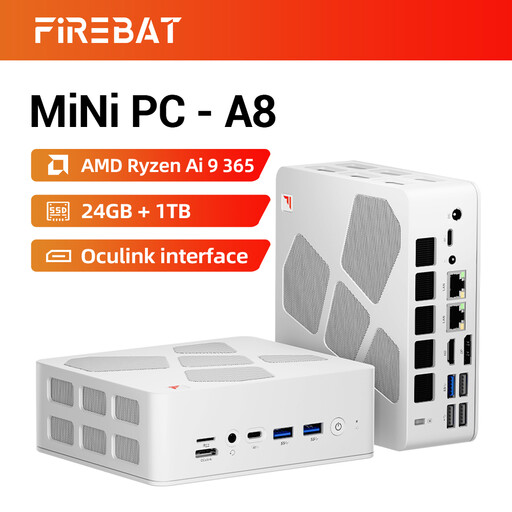
A compact mini PC to consider if you’re looking for a desktop for a multi-screen workstation. Check that the connections on this configuration are suitable for your monitors.
AMD Ryzen AI 9 365 (10-core/20-thread), 24 GB DDR5 memory and a 1 TB PCIe 4.0 SSD.
The product description states that it supports up to four 4K screens and lists HDMI 2.1 and USB4. Check which connections are suitable for both monitors.
Connect both monitors to suitable video outputs and set up the screen layout in Windows. Microsoft Support explains that you can adjust the settings for each connected display separately.
No, not necessarily. Lenovo states that a screen, wireless keyboard and mouse are sold separately with the ThinkCentre M70q Gen 5. So check what’s included in the exact order and which cables and monitors you’ll still need.
According to the Dutch Arboportaal, if you work at a screen for more than 2 hours a day, the screen and keyboard must not be attached to each other. Discuss the relevant requirements and your workstation set-up with your employer.
Check with the school first. The Dutch Data Protection Authority points out that the school remains responsible for processing and protecting pupil data, so ask which devices, accounts and procedures are permitted.
A manufacturer’s or seller’s warranty is in addition to your statutory rights. ACM ConsuWijzer explains the difference. Check the warranty terms, and if you’re buying on behalf of a school or organisation, don’t assume that information about consumer rights applies to your purchase.