
A writer who doesn’t want to lose travel notes
You want to be able to retrieve earlier versions of your writing and keep a copy outside your working storage. Setting up your back-up matters more to you than having extra processing power.


Start with the operating system and writing software that suit the way you work, then set up a separate offline back-up. On a Windows mini PC, you can use File History; on a Mac mini, you can set up Time Machine with a connected external drive. For either option, check the storage you need, the connections available and how to restore files.
You want to be able to retrieve earlier versions of your writing and keep a copy outside your working storage. Setting up your back-up matters more to you than having extra processing power.
You want to open and edit your travel journal locally, without needing a cloud connection to write. Choose software and an operating system that fit the way you already work.
As well as text, you store photos and want to work out in advance how much space you’ll need on your computer and on a separate back-up drive.
A good fit if: you want to keep using Windows programmes and copy files to external storage with File History. Microsoft Support explains how to use selected libraries for this.
Bear in mind: check that your travel journal folders are included and compare the storage capacity of each configuration.
A good fit if: you want to use macOS and a connected external drive for Time Machine fits the way you work.
Bear in mind: check that your writing software is available for macOS. Apple recommends using an external drive with at least twice the Mac’s storage capacity for Time Machine.
A good fit if: you want to compare a larger system or an integrated screen rather than a mini PC with a separate monitor.
Bear in mind: whichever type you choose, you’ll still need to check separately how to store files locally and back them up externally.
| What to consider | What should you check? | Who should give this more weight? |
|---|---|---|
| Restorable offline back-up | Choose an external drive with a suitable connection, set up the back-up and try restoring a file. | If you want to be able to recover your notes and photos after losing your working files, prioritise a tested copy stored outside your computer. Around 36% of consumers put recoverability first. |
| Writing locally | Check that your writing software and file formats work with the operating system you choose. Also decide which screen and keyboard you’ll use. | If you want to open and edit your journal without a cloud connection, your software and existing files need to work with your computer. Around 29% of consumers give writing locally top priority. |
| Space for photos and copies | Compare the size and expected growth of your photo archive with the internal SSD, and work out the capacity you need for a separate external back-up drive. | If you store lots of travel photos locally, you’ll want enough room for your archive and a separate copy. Around 21% of consumers put photo storage first. Apple recommends a back-up drive with at least twice the Mac’s storage capacity for Time Machine. |
| Complete workstation | Check which connections and accessories are included with the exact configuration, and what you already have. | If you have limited desk space, you’ll want to know whether the computer will fit and what else you need for your writing and back-up setup. Around 14% of consumers give a compact, complete workstation top priority. |
A second internal SSD isn’t a copy stored outside your working storage. If files on your computer are lost or damaged, a separate back-up gives you another way to recover them.
Plan external storage as a separate part of your setup and try restoring a file. The Digital Trust Center recommends testing a back-up by restoring data.
File History uses libraries; you may need to add a folder stored elsewhere to a library.
Check where your text and photos are stored, then test restoring a sample file. Microsoft Support explains how to add other folders to a library.
Microsoft ended standard support for Windows 10 on 14 October 2025. Separate options are available for eligible upgrades and extended security updates, but that doesn’t mean every computer has the same support options.
If you have an older desktop, check the exact version of Windows and which support option applies to that computer. For eligible devices, Microsoft lists extended security updates for consumers until 12 October 2027.
The configuration also determines which accessories are included. The HP configuration reviewed lists a mouse, while the Lenovo configuration reviewed doesn’t; you’ll need to choose an external drive for Time Machine separately.
Check the full configuration and make a list of the monitor, input devices and external storage you already have or still need.
The Mac mini is an option if you want to use macOS and Time Machine with external storage.
The ThinkCentre Neo 50q Gen 5 Tiny is a compact Windows option available in several configurable versions.
The ProDesk 4 Mini G1i is a compact Windows 11 Pro desktop worth comparing.
The Pro Essential PVM1265 is a compact Windows option with a specific configuration to compare.
This selection includes compact mini PCs and mini desktops for writing locally, including a barebone model. For each configuration, check the operating system, the connections you need and which components will suit your workstation.
 No image available
A compact Windows mini PC to compare if you want to write locally using Windows.
Windows 11; 8 GB DDR4; 256 GB SATA SSD; Bluetooth 5.2; Wi-Fi 5.
 No image available
A mini desktop to consider if you need local storage for travel documents and photos.
Windows 11 Pro; 16 GB LPDDR4X 3200MT/s; 512 GB M.2 2280 SATA SSD; HDMI 2.0, DP 1.4b and USB-C; 4K support.
 No image available
This mini PC is worth comparing if you need local storage for notes and photos.
16 GB RAM; 512 GB SSD; Wi-Fi 6; supports 4K and three displays; Bluetooth 5.2.
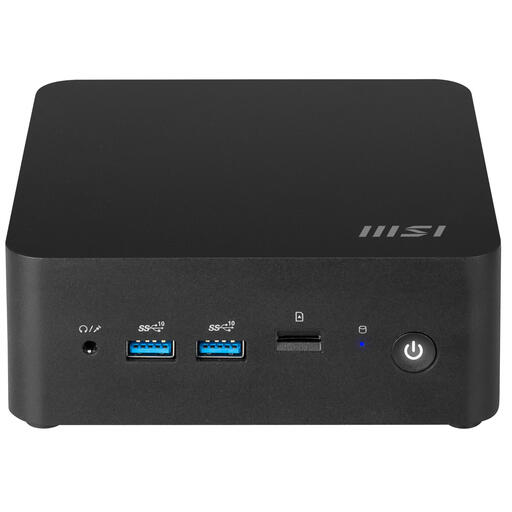 No image available
A barebone model to compare if you want to check the connections and components you’ll need before putting together your writing workstation.
Intel SoC; 0.84-litre case; four USB 3.2 Gen 1 Type-A ports and two Thunderbolt 4 ports.
No. A separate back-up is stored outside your working storage, for example on an external drive. Test that you can actually restore the files you need.
On Windows, you can use File History and check that your travel journal folder is in a monitored library; you can add folders stored elsewhere to one. On a Mac, you can set up a suitable external drive for Time Machine. In both cases, check your own folders and try restoring a file. Microsoft Support and Apple Support explain these features.
Apple recommends using an external drive with at least twice the Mac’s storage capacity. This is Apple’s advice for Time Machine, not a general minimum requirement for every back-up method.
As well as any retailer’s or manufacturer’s warranty, you have a statutory guarantee: a product must meet the expectations you can reasonably have when using it normally. ACM ConsuWijzer explains that, if a product is faulty, the seller must offer an appropriate solution at no cost. This doesn’t mean there’s one fixed warranty period for every desktop.
Having a copy for personal use doesn’t automatically give you permission to publish a photo. According to the Dutch government, you may generally only use someone else’s copyright-protected photos with the creator’s permission; you mustn’t distribute or make a private copy available to the public.