Start by choosing a desktop that suits your editing software, source footage and preferred workflow; you won’t necessarily need a workstation for every time-lapse. For Premiere on Windows, Adobe recommends 32 GB or more of RAM and 8 GB of GPU memory for 4K or higher, while proxies can make demanding source footage easier to edit. Allow time to check the export and connection to the presentation screen before your client presentation.
Who is this desktop guide for?
Editor with a looming deadline
Wants enough time to check the edit, export and final file before the client presentation. Weighs memory and storage against the cost of a more powerful configuration; proxies can help with demanding source footage. Adobe describes this proxy workflow for Premiere.
Creator working with demanding 4K footage
Needs space for original files, working files and cache, and wants to check whether the source footage will be smooth to edit. For Premiere on Windows, Adobe recommends 32 GB or more of RAM for 4K or higher. Proxies can be an alternative within your workflow, but they alone won’t determine whether a desktop can meet your deadline.
Editor with an existing workspace
Wants to match the desktop to their chosen editing software, screen and storage devices. Check the configuration of the exact model and your software’s requirements, rather than relying on the name of a workstation range.
What should you look for?
Start with your editing software and source footage, then check memory and storage. Finally, make sure the desktop is compatible with your presentation screen and deadline.
| What to consider |
What should you check? |
Who should prioritise this? |
| Editing and export |
Check your software and version requirements, the source resolution and codec, and whether you can use proxies. For Premiere on Windows, Adobe recommends 32 GB or more of RAM and 8 GB of GPU memory for 4K or higher. |
I want enough time to check the export before the presentation. Around 33% of consumers say editing and export are their main buying concern. |
| Storage for project files |
Compare the capacity of the configuration you’ve chosen with the space needed for your source files and working files. Adobe recommends a fast internal SSD for Premiere’s software and cache, plus additional fast storage for media. |
If I work with lots of original and working files, I want to know in advance where they’ll be stored. Around 27% of consumers say space for source footage and working files is their main buying concern. |
| Software and configuration |
Check the operating system, your software’s current requirements and the RAM and GPU configuration actually supplied. A product range name doesn’t tell you which components are included in the configuration you choose. |
I want to keep using my existing editing software without relying on the product name. Around 20% of consumers say software compatibility is their main buying concern. |
| Presentation screen and support |
Compare the desktop’s video outputs and display support with your planned presentation setup. Also check the service terms that apply to your purchase. |
I want to show the final video on the intended screen and know what support comes with my purchase. Around 20% of consumers prioritise compatibility with their presentation setup and suitable support. |
Common buying mistakes
-
Assuming every workstation in a range has the same configuration
Models in the same range can have different components. For example, the Lenovo ThinkStation P3 Tower Gen 2 base configuration reviewed lists 8 GB of RAM and integrated graphics.
Compare the exact product number and the RAM, GPU and SSD specifications supplied with your software and source footage requirements.
-
Counting only the storage used by the operating system
Source media, proxies and cache also take up space, so a desktop may leave you with less usable project storage than you expect.
Work out how much space you need based on your own files and workflow. Check where your media and cache will be stored.
-
Assuming consumer rights automatically apply to a business purchase
ACM ConsuWijzer says that using a product mainly or exclusively for business purposes doesn’t automatically entitle you to consumer protection.
Before buying, establish who is purchasing the desktop and what it will mainly be used for. For a business purchase, ask which contractual service terms apply.
Relevant brands to consider
Apple
The Mac mini is a compact option for a macOS workspace; the Mac Studio is a range to consider for a more powerful fixed editing setup.
- For the models reviewed, Apple lists media engines for formats including H.264, HEVC and ProRes.
- Memory and SSD capacity vary by model and configuration. The specifications don’t predict how quickly your project will export.
HP
The HP Z2 Tower G1i is a range of Windows workstations. HP says the range is suitable for tasks including HD and 4K video editing.
- The C69C6EA#ABH configuration reviewed lists 64 GB of RAM, a 1 TB SSD and an NVIDIA RTX 2000 Ada with 16 GB of video memory.
- These are the specifications for that configuration. HP’s suitability claim isn’t an independent performance test and doesn’t automatically apply to every Z2 Tower model.
Lenovo
The ThinkStation P3 Tower Gen 2 offers configurable Windows towers for anyone looking to tailor the components of a fixed workspace to their project.
- Lenovo describes configurations with NVIDIA RTX PRO graphics.
- The base configuration reviewed lists 8 GB of RAM and integrated graphics. Check the exact product number and components of the configuration you choose.
Joybuy products for editing
This Joybuy selection includes a compact Mac desktop, Windows desktops and an all-in-one PC. Compare the configuration and connections with your editing software, project files and presentation screen.
 No image available
Apple Mac mini M6, 24 GB, 512 GB SSD
Suited to anyone looking for a compact macOS desktop with connections for a fixed screen setup.
12-core CPU and 12-core GPU; 24 GB unified memory; 512 GB SSD; HDMI and three Thunderbolt 4 ports; supports up to three external displays.
View at Joybuy
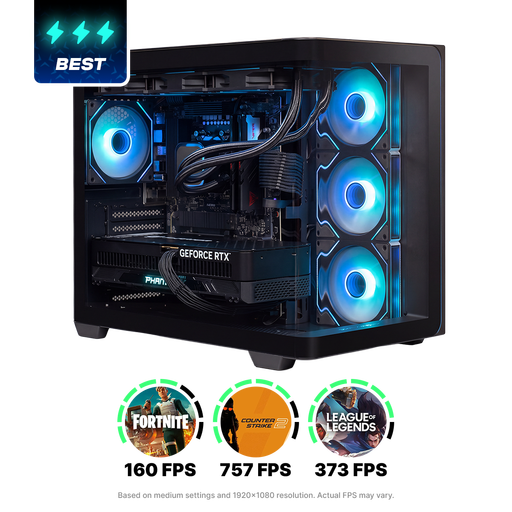 No image available
Almighty Shark R900, Ryzen 9 9900X3D, RTX 5090
A Windows desktop to consider if you’re looking for a configuration with specified memory, graphics card and internal storage.
32 GB memory; RTX 5090 with 24 GB of video memory; 2 TB NVMe SSD; Windows 11 Home. These specifications aren’t an export test for your time-lapse.
View at Joybuy
 No image available
ASUS ROG G700TF-07265F666W, Core Ultra 7 265F
This Windows desktop is worth comparing if you’re looking for an editing setup with 32 GB of memory and a 1 TB SSD.
32 GB DDR5; NVIDIA GeForce RTX 5070 with 12 GB of video memory; 1 TB SSD; Windows 11 Home.
View at Joybuy
No image available
ASUS ROG G700TF-05225F170W, Core Ultra 5 225F
Compare this Windows desktop with your editing software’s system requirements and the storage space your project needs.
32 GB DDR5; NVIDIA GeForce RTX 5070 with 12 GB of video memory; 1 TB PCIe 4.0 SSD; Windows 11 Home.
View at Joybuy
 No image available
MSI Modern AM273Q AI 1UM-058EU all-in-one PC
An all-in-one to consider if you’re looking for a desktop with a built-in screen. Check that its connections and screen setup suit your editing and presentation needs.
27-inch WQHD screen (2560 × 1440); 32 GB DDR5; 1 TB SSD; Intel Core Ultra 7 155H; Windows 11 Pro; Wi-Fi 6E.
View at Joybuy
Frequently asked questions
Do you always need to buy a powerful workstation for a harbour time-lapse?
No, not necessarily. Start by identifying your editing software, resolution and codec. Adobe describes a proxy workflow for Premiere, where you edit using lighter copies and switch back to the original files for the final export. That doesn’t prove that every less powerful desktop will meet your deadline.
What can you do if your timeline stutters?
You can create proxies in Premiere for compatible video clips. Keep the link to the original files for the final export and allow storage space for additional working files. Adobe also describes settings for managing the media cache.
Are you entitled to the same legal guarantee as a private buyer when buying for client work?
Not automatically. ACM ConsuWijzer says that using a product mainly or exclusively for business purposes doesn’t entitle you to consumer protection, even if you’ve entered into a consumer contract. Where consumer law does apply, the seller is responsible for the legal guarantee. For a business purchase, discuss the contractual service terms.
Which product regulations apply to a new desktop sold in the Netherlands?
According to the Dutch government, electrical and electronic equipment must meet the relevant European requirements. To demonstrate compliance, the manufacturer must affix the CE mark and draw up an EU declaration of conformity. A CE mark doesn’t tell you whether the computer is fast enough for your editing work.


