Choose a desktop based on your source files and editing software. For multiple camera angles and 4K, having enough memory, the right codec support and fast storage matters more than the ‘workstation’ label alone. Adobe recommends 32 GB RAM or more for 4K and above in Premiere; scene references also call for a well-organised project and useful markers. Check the storage, connections and any upgrade options for each configuration.
Who is this desktop advice for?
Editors working with multiple camera angles
If you’re editing a performance with multiple camera angles and possibly separately recorded audio, you’ll need to consider the number and layout of your source files. Adobe Premiere supports synchronising and editing footage from multiple cameras.
Editors who need to find scenes and references again
For a long recording, a clear project structure and markers make it easier to find important moments and revisions. Adobe describes markers as a way to identify points in clips.
Creators working on a demanding final edit
If you work with 4K footage, multiple audio tracks or effects, check the requirements of your chosen editing software version. Adobe recommends 32 GB RAM or more for 4K and above in Premiere.
What should you look for when editing a theatre recording?
Compact Mac desktop
Best for: those already using macOS who want to match the media engine listed to the codecs used in their recordings.
Keep in mind: factor in a monitor and any extra media storage. A media engine doesn’t guarantee that every codec or multicamera recording will play back smoothly.
Windows tower with a specified configuration
Best for: those using Windows who are looking for a configuration with plenty of memory, a large SSD and a dedicated GPU.
Keep in mind: check the configuration of the exact model. The specifications of one configuration don’t automatically apply to the entire product range.
Configurable Windows tower
Best for: those who want to tailor memory, graphics options and storage to their editing workflow.
Keep in mind: check which components are actually included in your chosen configuration and whether an option also changes other specifications.
| What to consider |
What should you check? |
Who is this important for? |
| Multiple camera angles |
Check the number of cameras, resolution, codec and your editing software’s requirements. Adobe recommends 32 GB RAM or more for 4K and above in Premiere. |
If I want to synchronise and edit different camera angles, I’ll start by checking my source files and software; around 36% of consumers make multicamera editing their top purchase priority. |
| Scenes and references |
Decide how you’ll mark scenes and revisions, and check which display connections are available on your chosen configuration. |
I want to find scenes and notes easily while editing; around 29% of consumers give scene references top priority. |
| Media storage |
Compare the SSD capacity with the size of your source files, and check the connections and scope for expansion. Adobe recommends fast storage for media and cache. |
When my recordings and project files take up a lot of space, I want to know in advance where they’ll fit; around 21% of consumers make storage their top priority. |
| Effects and finishing |
List the effects you use and compare the GPU and memory requirements with those of your exact software version. |
If I’m planning heavy effects or finishing work as well as cutting and synchronising, I want to match the specifications to those needs; around 14% of consumers choose this as their main consideration. |
Common buying mistakes
-
Mistaking a product range specification for the configuration you’re buying
A ThinkStation P3 Tower Gen 2 configuration may have integrated graphics and a 256 GB SSD, even though the product range includes configurations with NVIDIA graphics.
Make a note of the exact configuration number and check its memory, GPU and SSD.
A different GPU, more memory or extra storage may mean additional costs. Match these choices to your editing software and source files.
-
Focusing only on the processor and forgetting about media storage
Your source files and cache take up storage space as well as the operating system. The internal SSD capacity also affects how much room you have left for your project.
Work out how much space your own recordings take up, then check the SSD capacity, scope for expansion and connections.
You may need an extra fast internal or external drive for media and project files.
-
Assuming every graphics card or media engine will speed up every recording
According to Adobe, hardware-accelerated codec support depends, among other things, on the GPU and the format of your source files.
Check the codec used by your camera footage and its support in your editing software before choosing a configuration based on the GPU.
-
Confusing suitability for editing with permission to publish
A suitable computer doesn’t take care of copyright or the legal basis for processing personal data. The Dutch government notes that permission may be required to use protected material belonging to others; the Dutch Data Protection Authority explains the rules for identifiable people at events.
Before publishing, check the rights for any material you’ve used and, if identifiable people appear in the footage, the applicable legal basis for processing their data.
Brands to compare
Apple
The Mac Studio with M5 Max is a compact macOS option for weighing the listed media engine and display connections against the size of your video project.
- For the base configuration reviewed, Apple Netherlands lists 36 GB unified memory, a 512 GB SSD and hardware support for the specified video formats.
- Check that the storage and codec support suit your files; these specifications aren’t a measure of speed.
HP
The Z2 Tower G1i configuration reviewed is a Windows workstation option with a specified dedicated GPU.
- For configuration C69C6EA#ABH, HP Netherlands lists 64 GB RAM, a 1 TB SSD and an RTX 2000 Ada with 16 GB.
- These specifications apply to that configuration and don’t demonstrate editing performance across the whole Z2 range.
Lenovo
The ThinkStation P3 Tower Gen 2 is a configurable Windows tower; compare the exact configuration.
- Lenovo Netherlands lists configuration options and a model with 32 GB RAM and a 256 GB SSD.
- The configuration listed has integrated graphics. An NVIDIA graphics option in the product range doesn’t mean that card is included in this configuration.
Dell
The Pro Max Tower T2 is a Windows tower that can be configured with a choice of processor, graphics and case options.
- Dell describes several configuration options for the product range.
- Dell warns that a selected option may change other specifications, so review the full configuration you’ve chosen.
Joybuy desktops for editing
These Joybuy desktops come with different memory, graphics and storage configurations to compare with your source footage and editing software. Check the details and any limitations for each configuration.
 No image available
Desktop PC Ryzen 7 7800X3D with RTX 5080
The listed 32 GB DDR5 meets Adobe’s Premiere recommendation for 4K and above; the 1 TB NVMe SSD provides storage for media and project files.
The product details list 16 GB video memory. Windows 11 is listed as an evaluation version.
View at Joybuy
 No image available
ASUS ROG G700TF-07265F666W
The listed 32 GB DDR5 meets Adobe’s Premiere recommendation for 4K and above; the 1 TB SSD provides room for media and projects.
This configuration lists an RTX 5070 with 12 GB and Windows 11 Home.
View at Joybuy
 No image available
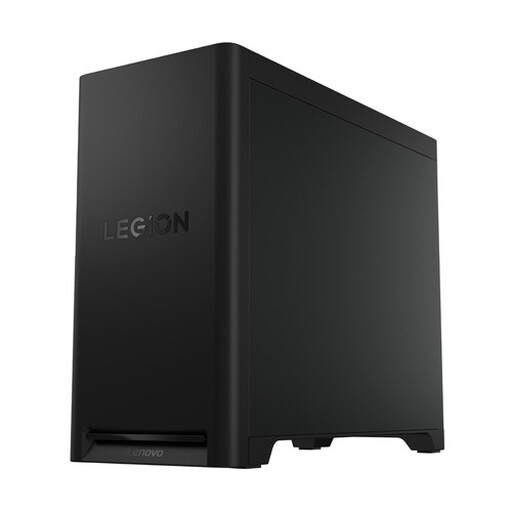
Lenovo Legion T5 30IAX10
The listed 32 GB DDR5 meets Adobe’s Premiere recommendation for 4K and above; this configuration has a 1 TB SSD.
The product name lists an RTX 5070. Check the configuration and your editing software’s requirements before making your choice.
View at Joybuy
 No image available
RGB Gaming PC with RTX 5060 and Ryzen 5
The listed 16 GB RAM matches Adobe’s Premiere recommendation for HD media; for 4K, Adobe recommends 32 GB or more.
This configuration lists a 480 GB SSD and support for triple-display output.
View at Joybuy
 No image available
Panoramic Gaming PC Ryzen 7 5700X
The listed 16 GB RAM matches Adobe’s Premiere recommendation for HD media; for Premiere with 4K and above, Adobe recommends 32 GB or more.
This configuration lists an RTX 5060 Ti with 8 GB and a 480 GB NVMe SSD.
View at Joybuy
Frequently asked questions
How do I know whether I need 32 GB of memory?
Start with your editing software and source resolution. For Premiere, Adobe recommends 16 GB RAM for HD media and 32 GB or more for 4K and above; this doesn’t guarantee smooth playback for every multicamera project.
How do I organise footage from multiple cameras and scene references?
Adobe Premiere can synchronise and edit footage from multiple cameras. Markers in source clips and on the timeline can help you find important moments and revisions again; check in advance that your files contain usable synchronisation material.
What can I do if large source files stutter during editing?
For suitable clips, you can create proxies in Premiere: lower-resolution copies to use while editing. Adobe lists limitations for certain clips, including clips with captions; make sure you also have fast storage available for media and cache.
What extra purchases and warranty rights should I check?
Check whether a monitor, extra storage and the support you want are included with your chosen configuration. According to the Dutch government, there’s no fixed statutory warranty period in the Netherlands; if a product is faulty, the seller must offer an appropriate solution. For online consumer purchases, you’ll generally have up to 14 days after delivery to change your mind, subject to legal exceptions.
Can I publish a theatre recording if I have a suitable computer?
Having a suitable computer doesn’t determine whether you’re allowed to publish. According to the Dutch government, you may need permission to use copyright-protected material belonging to others, unless an exception applies. If an organisation films or publishes footage of identifiable people at an event, the GDPR requires a legal basis, according to the Dutch Data Protection Authority. Check which rights and legal basis apply to your recording.


