Start with the footage’s codec and resolution, your editing software and the format your client can play. Then decide between a compact Mac mini, a Windows tower or a more powerful workstation. For 4K in Premiere, Adobe recommends 32 GB or more of memory; this is not a general minimum requirement for all editing. You’ll also need to allow for source files, cache, a separate copy and the connections available at the presentation venue.
Who is this buying guide for?
Editor working with demanding theatre footage
You edit 4K footage or use lots of effects, and want to know which memory, GPU and storage configuration suits your editing software. For 4K and above in Premiere, Adobe recommends 32 GB or more of memory.
Editor working to a presentation deadline
You need to organise source footage, project versions and a presentation-ready file. Adobe explains that Premiere saves project versions automatically, but this doesn’t replace keeping a separate copy of your source videos.
Creator with an existing workstation
You’re looking for a desktop that works with your current monitor, storage and macOS or Windows setup, so you can check in advance which components you already have and what else you’ll need.
What should you look for when buying?
First compare the editing demands and storage requirements of your project. Then check that you can connect your complete setup at the presentation venue.
| What to consider |
What should you check? |
Who is this most relevant to? |
| Editing demands |
Make a note of the resolution, codec, software version and effects. For 4K, Adobe recommends 32 GB or more for Premiere; compare the configuration with your software’s requirements. |
If I edit 4K footage or use lots of effects, I want to know whether the timeline will suit my workflow without unnecessarily powerful hardware. Around 36% of consumers make editing demands their top priority. |
| Storage and project retention |
Work out how much space you need for source footage, cache and project files, and plan to keep a separate copy of the source video. Adobe distinguishes between saved project versions and source media. |
With a deadline to meet, I want to be able to find and restore my footage and project, even if I move files. Around 29% of consumers prioritise keeping their media and projects safe. |
| Connecting at the presentation venue |
Ask about the video input, resolution, audio connection and preferred file format. Check the desktop’s ports and test the export on the equipment your client will use. |
If the client will watch the edit on their own screen and sound system, I want to know in advance that the export and connections will work. Around 21% of consumers make presentation compatibility their top priority. |
| Complete setup and service |
Include any separate monitor, extra storage and required connections in your comparison. Also check the terms of any service on offer; a Mac mini doesn’t include a monitor. |
I want to know which components I already have and what else I need for a complete setup. Around 14% of consumers prioritise the overall cost and support. |
Common buying mistakes
-
Assuming ‘workstation’ means a fixed configuration
Memory, graphics card and storage can vary between models in a product range or between offers. The name alone doesn’t tell you which specification you’re comparing.
Check the full model number and compare the specific configuration with your source files and editing software’s requirements.
-
Confusing project autosave with a backup of your footage
Premiere saves project versions to disk, but that doesn’t automatically copy your original theatre footage.
Keep the source files separately and, after moving them, check that the project can still access the media.
-
Comparing desktops on their own
A compact Mac mini or tower isn’t automatically a complete, tested presentation setup. You may still need a monitor or a suitable connection.
Compare the complete setup and test the picture, sound and export on the equipment your client will use.
Brands to compare
Apple
The Mac mini is designed for a compact macOS setup, while the Mac Studio is a separate range with more powerful configuration options.
- Apple Netherlands lists hardware acceleration for codecs including H.264, HEVC and ProRes on the Mac mini.
- Memory and SSD capacity vary by model. Codec specifications don’t predict editing speed, and you’ll need to allow for a separate monitor.
HP
The Z2 Tower is a Windows workstation range, with specific configurations and support options available to compare.
- For model C69C6EA#ABH, HP Netherlands lists Windows 11 Pro, 64 GB RAM, a 1 TB SSD and an RTX 2000 Ada with 16 GB. HP includes three years of on-site support with that offer.
- These specifications apply to that model only. They don’t mean that all HP desktops have the same configuration or perform better.
Lenovo
The ThinkStation P3 Tower Gen 2 is a Windows workstation range to compare with towers that have specific configurations.
- Lenovo Netherlands describes the product range as featuring Intel processors and an NVIDIA graphics card.
- Check the memory and storage of the exact model; the range name doesn’t confirm these specifications.
Dell
The Precision 5860 Tower is a configurable alternative if you need a specific Windows workstation setup.
- Dell Netherlands presents the Precision 5860 as a customisable workstation.
- Check the details of your chosen model directly, including the connections and peripherals you’ll need.
Joybuy product picks
The options below include compact Mac mini models and Windows desktops. Compare each configuration with your editing software, storage needs and presentation venue.
 Image unavailable
Apple Mac mini M6, 12-core CPU and GPU, 16 GB, 256 GB SSD
Suited to a compact macOS setup with an external monitor; check that the configuration works for your software and project.
M6 chip, 12-core CPU and 12-core GPU, 16 GB memory and 256 GB SSD. The description lists HDMI and support for up to three external monitors.
View at Joybuy
Image unavailable
Apple Mac mini M6, 12-core CPU and GPU, 16 GB, 512 GB SSD
A compact macOS option if you work with an external monitor; match the storage to your source footage and project.
M6 chip, 12-core CPU and 12-core GPU, 16 GB memory and 512 GB SSD. The description lists HDMI and support for up to three external monitors.
View at Joybuy
Image unavailable
Apple Mac mini M6, 12-core CPU and GPU, 24 GB, 512 GB SSD
Suited to a compact macOS setup with an external monitor; compare the memory and storage with the requirements of your editing project.
M6 chip, 12-core CPU and 12-core GPU, 24 GB memory and 512 GB SSD. The description lists HDMI and support for up to three external monitors.
View at Joybuy
 Image unavailable
Gaming desktop Ryzen 7 7800X3D, RTX 5080, 32 GB DDR5, 1 TB NVMe SSD
A Windows desktop with a dedicated graphics card; check that this model suits your editing software and project.
Ryzen 7 7800X3D, GeForce RTX 5080 with 16 GB graphics memory, 32 GB DDR5 and 1 TB NVMe SSD. The title lists Windows 11 Trial; check which Windows licence and activation you’ll need before buying.
View at Joybuy
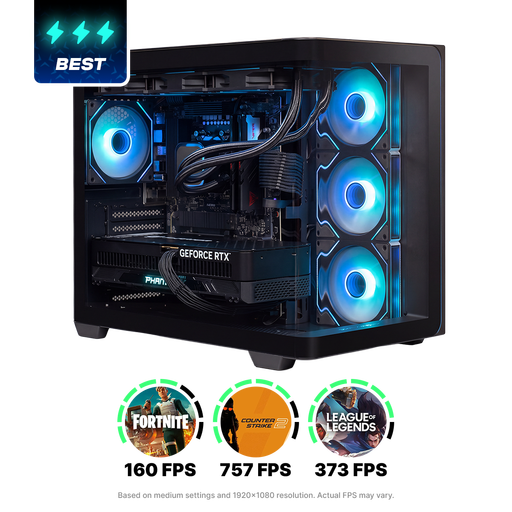 Image unavailable
Almighty Shark R900, Ryzen 9 9900X3D, RTX 5090, 32 GB DDR5, 2 TB NVMe SSD
A Windows desktop with a dedicated graphics card and internal storage; compare the configuration with the demands of your own workflow.
Ryzen 9 9900X3D, GeForce RTX 5090 with 24 GB graphics memory, 32 GB DDR5 and 2 TB NVMe SSD. The description lists Windows 11 Home.
View at Joybuy
Frequently asked questions
Do you definitely need a powerful 4K desktop for this footage?
Not without knowing the source files and editing workflow. Adobe distinguishes between Premiere specifications for HD and recommendations for 4K and above. For supported large video clips, proxies can let you edit using lower-resolution copies.
What should you check before moving a project to another drive?
Keep source files and project versions separately, then check that the project can still access the media after you move it. Adobe describes automatically saved project versions, but these don’t automatically keep your source videos safe.
Does consumer warranty law also apply to business purchases?
The Dutch government’s guidance on statutory guarantees covers consumer purchases and doesn’t necessarily apply to a business purchase. For business use, check your contract and the seller’s service terms.
Can you show recognisable visitors or performers in the client presentation?
This isn’t just a computer decision. According to the Dutch Data Protection Authority, a company or organisation needs a GDPR legal basis to use identifiable footage; consent is one possible legal basis, but it isn’t automatically given. Before showing the footage outside a domestic setting, also check the rights to the performance, music and recording.
Does a CE mark prove that a desktop is good for video editing?
No. The European Union describes the CE mark as the manufacturer’s declaration that the product complies with applicable EU product rules. It isn’t a test of video-editing performance.


