What should you look for in a desktop for teaching materials?
Start by checking whether you already have a suitable screen; this will determine how you put the rest of your setup together. Then check storage, software and the policies for files containing pupil data.
| What to consider |
What should you check? |
Who is this important for? |
| Keeping and restoring files |
Compare the SSD capacity of the exact model with the size of your files and how much you expect them to grow. Also decide how you’ll restore files and test the process. |
If I mainly want to keep, find and restore teaching materials, I look beyond storage capacity alone. Around 33% of consumers put file management first. |
| A suitable desk setup |
Check whether you already have a suitable screen and which screen, keyboard and mouse are included with the model you choose. |
If I have limited space or want to use my existing screen, I focus on how all the components will fit together on my desk. Around 25% of consumers prioritise their workspace first. |
| Software and equipment |
Check your school software’s requirements and compare the operating system and connections on the exact desktop with your devices. |
If I rely on specific school software or already have equipment, I want to know in advance whether it will work with the computer. Around 25% of consumers put compatibility first. |
| Protecting pupil data |
Ask which devices, accounts and storage locations your school allows for this work, and how access and recovery are managed. |
If I work with pupil data, my storage and how I use it must comply with my school’s policies. Around 17% of consumers make this their first purchasing priority. |
Joybuy products for an integrated workspace
These models are all-in-one desktops with a built-in screen, ideal if you want to combine your computer and screen in one dedicated home workspace.
 No image available
Lenovo Yoga AIO 27IAH10 F0J2001DNY, 27 inch
The built-in 27-inch QHD monitor combines the screen and computer in one dedicated workspace.
- QHD screen with 120 Hz
- Intel Core Ultra 7 255H
- 16 GB LPDDR5X memory
- 1 TB SSD
- Wireless keyboard and mouse set listed
View at Joybuy
 No image available
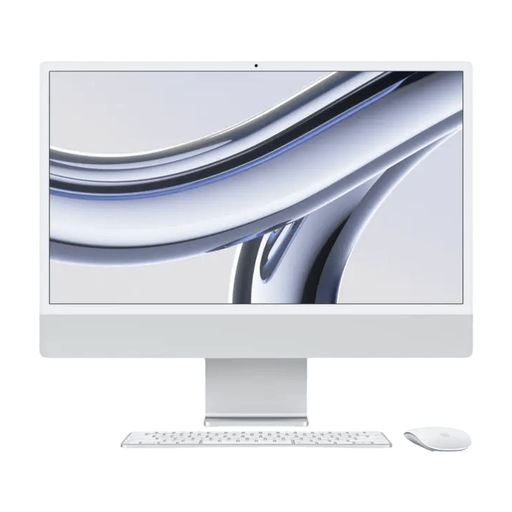
Apple iMac 24-inch M3, 16 GB, 512 GB, silver (2023)
The iMac combines the computer and screen in one setup for a dedicated workspace.
- 24-inch 4.5K screen
- M3 chip
- 16 GB memory
- 512 GB SSD
View at Joybuy
 No image available
Apple iMac 24-inch M3, 24 GB, 512 GB, yellow (2023)
The iMac combines the computer and screen in one setup for a dedicated workspace.
- 24-inch 4.5K screen
- M3 chip
- 24 GB memory
- 512 GB SSD
View at Joybuy
 No image available
HP 24-cr0050nd 24-inch all-in-one
The built-in screen makes this model a good choice if you’re looking for a combined computer and screen setup.
- 8 GB memory
- 512 GB SSD
- Windows 11 Home
- According to the product description, the power adapter must be purchased separately.
View at Joybuy
 No image available
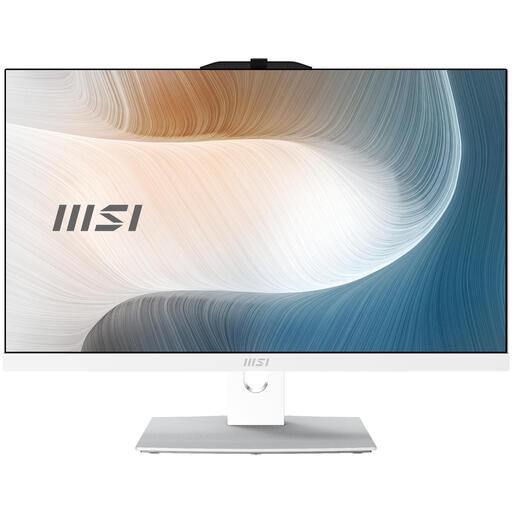
MSI Modern AM242P 1M-1224EU, 23.8 inch
The built-in screen combines the computer and monitor in one dedicated workspace.
- 23.8-inch Full HD screen
- Intel Core 5 120U
- 8 GB DDR5 memory
- 512 GB SSD
- Windows 11 Pro and Wi-Fi 6E
- According to the product description, the charger is not included as standard and must be purchased separately.
View at Joybuy
Frequently asked questions
Do I need a screen with a mini PC?
Yes, a compact desktop such as a mini PC needs a separate screen. Check that the video output on the computer you choose is compatible with your screen; an all-in-one has a built-in screen.
How can I avoid losing teaching files?
Set up a backup that lets you restore your files, and check that your approach complies with your school’s policies. Microsoft Support describes File History as a Windows feature for keeping and restoring files and folders.
Can I store pupil data on my personal computer?
That depends on your school’s policies and safeguards; the PC model alone doesn’t give a simple yes or no. The Dutch Data Protection Authority says schools must be able to show what technical and organisational measures they take to protect pupil data. So ask which personal devices, accounts and storage locations are allowed.
What if my desktop breaks sooner than expected?
For a consumer purchase in the Netherlands, ACM ConsuWijzer says the seller must provide a free remedy if a product breaks sooner than you could reasonably expect with normal use. This could mean a repair, replacement or refund. The appropriate solution depends on the circumstances, so there is no fixed warranty period that applies to every computer.
What should I do with my old computer when I buy a new one?
The Dutch Government states that when you buy a new, similar device, you can hand your old computer to the seller under the old-for-new scheme. Transfer any files you need securely first, then delete them from the old computer before handing it in.


