First, choose a setup that lets you read your text and sources clearly at the same time. For this kind of writing, your screen layout, connections and existing equipment matter more than extra graphics power. A mini PC is a good fit if you want to choose your own screen; an all-in-one combines the computer and screen, while a tower is worth considering mainly if you need the expansion options offered by that particular model. Before buying, check the connections, what’s included and the relevant product rules.
Who is this guide for?
Writer who needs sources alongside the text
You want to switch quickly between your biography, interviews and match information as you write. So first, work out how much screen space you need and whether you can arrange your windows comfortably on one screen. Microsoft Support explains how to snap windows in Windows.
Writer with a growing archive
You keep versions, notes and source files, and want to know how much material the chosen model can store locally. Also check how your writing software saves files: according to Microsoft Support, AutoSave in Microsoft 365 applies when the file is stored on OneDrive or SharePoint Online.
Writer with a permanent workspace
You spend long periods writing and want to position your screen, keyboard and desk comfortably. A compact computer alone won’t make your workspace more comfortable; consider your screen setup and whether your desk is adjustable too.
What should you look for?
Mini PC with a separate screen
A good fit if: you already have a suitable screen or want to choose the screen size and setup yourself.
Consider: the screen and any other peripherals are separate items. Check that the PC’s video outputs match your screen’s inputs.
All-in-one desktop
A good fit if: you want a computer and built-in screen for a permanent workspace.
Consider: your screen choice is tied to the computer. Check that the built-in screen works well with your editor and sources.
Larger desktop or tower
A good fit if: as well as writing, you need the expansion options or connections of a particular tower.
Consider: a larger case won’t automatically give you an advantage for working with text and sources. Check the specifications of the exact model.
| What to consider |
What should you check? |
Who is this important for? |
| Reading text and sources |
Try your editor with the screen layout you have in mind. If you plan to use multiple screens, check the video outputs on the exact computer model. |
I want to read my biography and match sources at the same time without constantly hiding windows. Around 36% of consumers prioritise a clear screen layout. |
| Storing your manuscript and sources |
Check the SSD capacity of the model you’re considering and how your editor saves files. Microsoft 365 AutoSave applies to files stored on OneDrive or SharePoint Online. |
For a long project, I want to keep my versions and source files safe and know where my editor stores them. Around 29% of consumers prioritise keeping their material safe. |
| Workspace comfort |
Check that you can position your screen, keyboard and desk comfortably. Arboportaal outlines specific workplace requirements for employees who use a screen for more than 2 hours a day. |
When I write for long periods, I want to position my screen, keyboard and desk comfortably. Around 21% of consumers put workspace comfort first. |
| Complete setup |
Compare the computer with the screen and peripherals you need or already own. |
I want a setup that fits on my desk, taking into account the equipment I already have. Around 14% of consumers prioritise the space required and the overall workspace setup. |
Common mistakes
-
Assuming a small computer is a complete writing setup
A mini PC doesn’t automatically come with a built-in screen. Even a small computer may still need a separate screen and other peripherals.
Check what you already own and what’s included with the exact model before choosing your complete setup.
A separate screen and the peripherals you need are additional parts of your workspace.
-
Thinking more graphics power will solve a lack of screen space
A more powerful graphics card won’t automatically make text and sources easier to read side by side.
First, try arranging windows in your editor, then decide which screens and connections you need.
-
Confusing AutoSave with a backup
Microsoft describes AutoSave for Microsoft 365 files stored on OneDrive or SharePoint Online. It isn’t a general setting for every editor or storage location.
Check your own software settings and keep a separate copy of your manuscript and sources as well.
A separate backup also requires a separate storage location.
Brands to consider
Apple
Apple offers both a desktop for use with a screen of your choice and an iMac with a built-in screen.
- For the specified Mac mini model, Apple lists 16 GB of memory, a 256 GB SSD and support for external displays.
- Apple specifies a built-in 24-inch screen for the iMac reviewed.
- These are specifications for the models mentioned, not the results of an independent performance test. Check software compatibility and the specifications of the model you choose.
Dell
The Dell Pro Micro is a compact Windows desktop range with configurable models.
- The QCM1250 configuration reviewed lists Windows 11 Pro, 16 GB DDR5 and a 512 GB SSD.
- These details apply to that configuration and don’t, on their own, indicate writing performance or the specifications of other models.
Lenovo
The ThinkCentre neo 50q Gen 5 is a mini desktop range where the available display connections may be worth considering.
- For the model specification reviewed, Lenovo lists HDMI 2.1 TMDS and DisplayPort 1.4b.
- Connections may vary by model, so check the specifications of the exact version.
HP
HP offers compact Pro Mini and larger Pro Tower desktops for different permanent workspace setups.
- For the Pro Tower 400 G9 reviewed, HP lists support for up to three screens.
- This figure applies to the model reviewed and shouldn’t be assumed to apply to every HP desktop without checking.
MSI
The Cubi 5 12M is a compact desktop range where the video connections are worth checking for each model.
- MSI lists HDMI, DisplayPort and Thunderbolt 4 for the product range.
- MSI says features may vary by configuration, so check the connections on the exact model.
Joybuy products
This Joybuy selection includes all-in-ones and compact or larger desktops for a permanent writing workspace, with text and sources side by side. Check the screen, connections and included items for each model.
 No image available
HP 24-cr0050nd All-in-One
Suited to a permanent workspace where you want to combine your computer and screen in one device.
The model described has an integrated 23.8-inch Full HD IPS screen, 8 GB of memory and a 512 GB SSD.
The product information states that the power adapter must be purchased separately.
View at Joybuy
 No image available
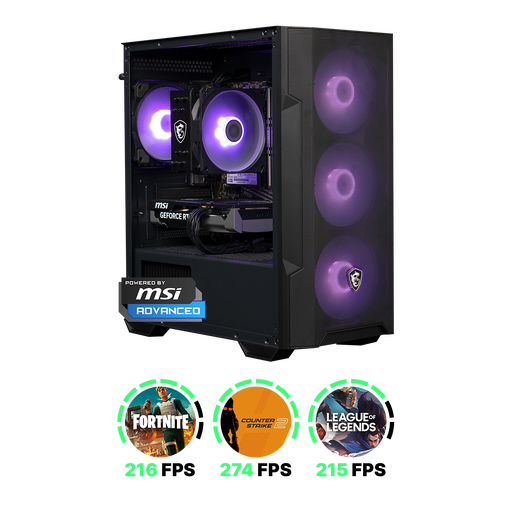
Shark Max Bite R500 Gaming PC
A desktop option for a permanent workspace. Consider whether its specifications meet your actual writing and screen requirements.
The model described lists a Ryzen 5 5500, 16 GB DDR4 and a 500 GB NVMe SSD.
The product information states that the power adapter must be purchased separately.
View at Joybuy
 No image available
Acer Aspire C24-A WI5418 NL All-in-One PC
Suited to a permanent writing workspace if you want to choose your computer and screen together.
The product name lists a 23.8-inch Full HD IPS screen, Intel Core 5 120U, 16 GB DDR5, a 1 TB PCIe NVMe SSD and Windows 11 Home.
View at Joybuy
 No image available
NVIDIA DGX Spark Founders Edition GB10 Mini PC
A compact option if you specifically need the listed video outputs and storage capacity. Compare these features with your writing setup.
The product name lists 128 GB RAM and a 4 TB SSD. The product description mentions HDMI and USB-C video outputs.
The safety instructions require at least 10 cm of clearance on all sides for ventilation.
View at Joybuy
 No image available
SOYO M5 Mini PC AMD Ryzen 4300U
Suited to a compact setup if you want to compare the listed screen outputs with your displays.
The product information lists 16 GB LPDDR4, a 512 GB SSD and support for three displays via HDMI 2.0, Type-C and DisplayPort 1.4.
View at Joybuy
Frequently asked questions
Do I need two screens to use a split editor?
No. You can snap windows side by side on one screen. Try it to see whether your text and sources remain easy to read; if you want a second screen, also check the connections on the exact computer model.
How can I avoid losing changes to my manuscript?
Check your editor’s storage settings and make a separate backup. Microsoft describes AutoSave in Microsoft 365 for files stored on OneDrive or SharePoint Online. Don’t assume it applies to every editor or to files stored locally.
Does a one-year manufacturer’s warranty cover all my rights in the Netherlands?
No. The legal guarantee for a consumer purchase is separate from any manufacturer’s warranty. According to ACM ConsuWijzer, the seller must offer a solution if a product proves faulty under normal use sooner than you could reasonably expect.
Can I return a desktop bought online?
According to ACM ConsuWijzer, online consumer purchases generally come with a legal cooling-off period of up to 14 days after delivery. Check the relevant exceptions and return conditions.
Which rules apply to the computer and writing workspace?
Relevant EU product rules apply to electrical and electronic equipment; Your Europe lists this type of equipment among the product groups that may be subject to CE rules. Check the requirements for the exact model. Arboportaal also outlines specific workplace rules for employees: if they spend more than 2 hours a day working with a screen, the screen and keyboard must not be attached to each other. This workplace rule does not automatically apply to every individual writer.


