What should you look for when choosing?
First decide which search fields and software you need, then check that they work with the desktop’s operating system. The Broadcasting Music Library and Zotero explain how catalogue data and search functions work together; choosing a computer won’t make up for missing catalogue fields.
| What to consider |
What to look for |
Who it matters most to |
| Searching by musical details |
Check whether the software has fields and filters for details such as composer, instrumentation and information about the work. |
If I want to find scores by more than just their titles, my catalogue needs to be able to record the relevant details. Around 36% of consumers say search fields are their top priority. |
| Searchable scans |
Test your own PDFs to see whether the text can be selected and found; check OCR and indexing if needed. |
If I work with image scans, I want to know whether OCR is needed and whether my software can search the recognised text. Around 29% of consumers prioritise searchable scans. |
| Keeping and sharing data |
Plan backups for both your catalogue and attachments, and test that you can restore them. Set up appropriate access controls if you process personal data. |
If others rely on the collection, I want to be able to restore files and manage everything properly. Around 21% of consumers say continuity and shared management are their main priorities. |
| Complete workspace |
Check the screen and USB connections, and what’s included with your chosen configuration. |
If I want to keep using my existing screen, scanner and input devices, the desktop needs to connect to them. Around 14% of consumers say a complete, compact workspace is their top priority. |
Joybuy products
These desktop options are intended as possible fixed workstations for catalogue and scanning tasks. Before buying, check that your software works with the operating system and configuration you choose.
 No image available
SOYO Y5Pro Mini PC
A Windows 11 mini PC for a fixed catalogue workstation; check that your software and peripherals are compatible.
Intel Core i5 8250U/8350U, 8 GB DDR4 memory and a 256 GB SATA SSD.
View at Joybuy
 No image available
Apple Mac mini M6, 16 GB, 256 GB SSD
A compact Mac desktop for a fixed workstation; check that your catalogue and scanning software work on macOS.
M6 chip with 12-core CPU and 12-core GPU, 16 GB of memory and a 256 GB SSD.
View at Joybuy
No image available
Apple Mac mini M6, 16 GB, 512 GB SSD
A compact Mac desktop for a fixed workstation; check that your catalogue and scanning software work on macOS.
M6 chip with 12-core CPU and 12-core GPU, 16 GB of memory and a 512 GB SSD.
View at Joybuy
No image available
Apple Mac mini M6, 24 GB, 512 GB SSD
A compact Mac desktop for a fixed workstation; check that your catalogue and scanning software work on macOS.
M6 chip with 12-core CPU and 12-core GPU, 24 GB of memory and a 512 GB SSD.
View at Joybuy
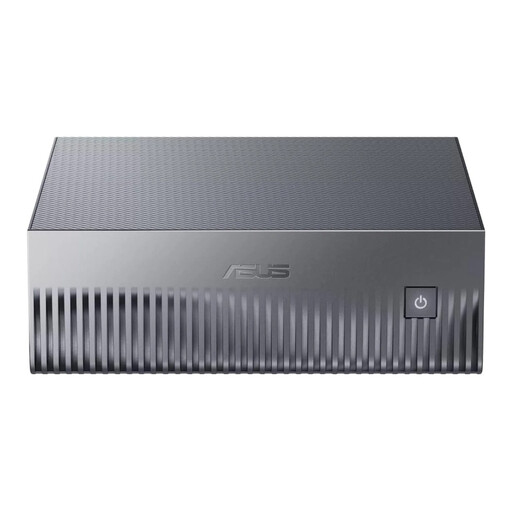 No image available
ASUS Ascent GX10 GX10-GG0003BN
A mini PC for a fixed workstation; check that the operating system and software requirements suit your catalogue workflow.
GB10, 128 GB LPDDR5x-SDRAM and a 1 TB SSD.
View at Joybuy
Frequently asked questions
Will a fast desktop automatically make your sheet music fully searchable?
No. You also need suitable catalogue data and software. The Broadcasting Music Library explains how details such as composer and instrumentation help you find repertoire.
Why can’t the search function find words in your scanned PDF?
Check whether the PDF contains selectable, searchable text. Zotero indexes text in PDF attachments; an image scan may need OCR first, as Adobe explains for scanned PDFs. Then check that your software indexes the text.
How can you avoid losing your catalogue?
Back up both your catalogue data and attachments, and test that you can restore them. Microsoft describes File History as a way to restore previous versions of Windows files and folders; check that your catalogue files are included.
What are your rights if a desktop you’ve bought develops a fault?
When you buy as a consumer in the Netherlands, you’re entitled to a product that works properly, and the seller must provide a solution if there’s a problem. A manufacturer’s warranty or an extended warranty you’ve purchased is separate from your statutory guarantee, according to the Dutch government. If you’re buying on behalf of an organisation, check the applicable purchase and service terms.
Can you scan sheet music and share the digital collection with others?
Making a copy for your own use doesn’t automatically mean you can share protected scans with others. The Dutch government distinguishes between private use and distribution or making material available to the public. Check the rights for the relevant editions before sharing a collection.
Does the GDPR apply if you also record borrower details?
If an organisation processes personal data, it must keep it appropriately secure. The Dutch Data Protection Authority explains that the organisation determining the purposes and means of processing may be responsible for it. Tailor your setup to the data you actually record and how you use it.


