Who is this choice relevant to?

Teacher using prescribed school software

You write and send feedback through your school’s systems. The software you need and the way the device is managed will help determine which desktop is right for you. Kennisnet outlines the conditions for digitalisation in education.

Team sharing a workstation

Several colleagues use the same room or computer. The Dutch Data Protection Authority advises limiting access to pupil data to what is necessary.

Teacher writing feedback for long periods

You’ll want to read and type comfortably at an adjustable workstation; noise can also matter in a shared space. Arboportaal outlines the requirements for working with display screen equipment.

What should you look for when choosing?

Mini PC with separate screen

Suitable if: you already have a suitable screen or want to choose the computer and screen separately.

Consider: you’ll need to arrange the screen separately, and possibly the keyboard and mouse too. Check the connections and school software.

All-in-one desktop

Suitable if: you want to buy the computer and screen together.

Consider: check that the stand or mounting option you choose allows the screen to be set at the right height for its users.

Compact desktop with separate screen

Suitable if: there’s room for the computer case and the school is considering future upgrades or maintenance.

Consider: you’ll need a separate screen. Check the upgrade options for the specific configuration.

What to consider What should you check? Who should prioritise this?
School software and management Ask the school which applications, operating systems and management settings are required. Only then compare the specifications of the exact configuration. If I need to work in the school’s environment, I want to know first which software and management tools are essential. Around 36% of consumers prioritise compatibility with school software and management tools.
Pupil data when sharing a device Discuss with the school how individual access, screen locking, storage and screen placement will be managed. The Dutch Data Protection Authority says access to pupil records should be limited to what is necessary. When feedback includes information that can identify a pupil, I want to prevent colleagues from viewing it or gaining access without a good reason. Around 29% of consumers prioritise protecting pupil data when a device is shared.
An adjustable, quiet workstation Check whether the screen can be set at the right height for different users. Arboportaal states that when someone works with display screen equipment for more than 2 hours a day, the screen and keyboard must not be attached to one another. MSI lists 28 dB at idle and 38 dB at full load for the PRO DP21 14MQ; these are manufacturer figures for that series. For longer writing sessions, I want to be able to adjust my screen properly and be distracted as little as possible by noise. Around 21% of consumers cite screen adjustability and a quiet workspace as their main concerns.
Complete purchase and support Check what’s included with each configuration and who provides support. If the school is buying, distinguish between consumer rights and business terms. I want to know in advance whether the screen, keyboard, mouse and support are covered by the available budget. Around 14% of consumers prioritise a complete workstation and clear support.

Common purchasing mistakes

  • Assuming a mini PC is a complete workstation

    A mini PC may need a separate screen. You may also need to arrange input devices and connection cables separately.

    Compare what’s included in the specific offer with what’s already available at the workstation.

  • Choosing an all-in-one based only on screen size

    For long periods of screen work, it also matters whether users can adjust the screen to suit them. Configurations can vary.

    Before buying, check the screen height and the stand or mounting option you’ve chosen.

  • Confusing a security claim with a secure workstation set-up

    The school must put appropriate security measures in place and manage access to pupil data.

    Ask the person responsible for school IT to review the accounts, access rights and storage, regardless of the brand.

Brands to consider

Dell

Dell lists business mini PCs and all-in-one desktops for different screen set-ups.

  • According to Dell Netherlands, the Dell Pro Micro QCM1250 configuration comes with Windows 11 Pro, 16 GB memory and a 512 GB SSD.
  • The processor and memory, among other specifications, vary by configuration for the Pro 24 QC24251. Check the configuration and screen set-up you’ve chosen.

Lenovo

The ThinkCentre M70q Gen 5 Tiny is a compact business Windows desktop for which you choose the screen separately.

  • Lenovo lists Windows 11 Pro, 16 GB memory and a 512 GB SSD for configuration 12TD0017MH.
  • Check the exact configuration and whether the offer includes a screen and the input devices you need.

HP

According to the manufacturer, HP Pro includes Mini and Tower models that you use with a separate screen.

  • The Pro Mini 400 G9 and Pro Tower 400 G9 listings reviewed show configurations with Windows 11 Pro.
  • Check the configuration and available connections for each model, as well as how much space the case takes up.

MSI

The PRO DP21 14MQ is a compact business desktop for which MSI lists connections and noise levels.

  • MSI specifies 28 dB at idle and 38 dB at full load for this series.
  • These are manufacturer figures for the series mentioned; they don’t tell you how distracting the noise will be in a particular shared space.

Apple

The Mac mini with M6 is a compact macOS option if the school supports the applications and management tools needed in that environment.

  • Apple lists 16 GB unified memory and a 256 GB SSD for the base configuration.
  • Check that the school’s specific applications and management settings support macOS; you’ll need to choose the screen separately.

Joybuy products

This selection includes all-in-one desktops with an integrated screen and mini PCs for a separate-screen set-up.

Acer Aspire C24-A WI5418 NL all-in-one PC

Acer Aspire C24-A WI5418 NL All-in-One PC

An integrated screen may suit you if you want to choose the computer and screen together. Ask the school to confirm software and management compatibility first.

23.8-inch Full HD IPS screen; Intel Core 5 120U; 16 GB memory; 1 TB SSD; Windows 11 Home.

Joybuy

ACEMAGIC E3B mini desktop

ACEMAGIC E3B Mini Desktop, AMD R5 7430U

A mini PC may suit you if you want to choose the screen separately. Check which connections and software the school needs.

AMD R5 7430U; 16 GB LPDDR4X; 512 GB M.2 2280 SATA SSD; HDMI 2.0, DP 1.4b and USB-C; Windows 11 Pro.

Joybuy
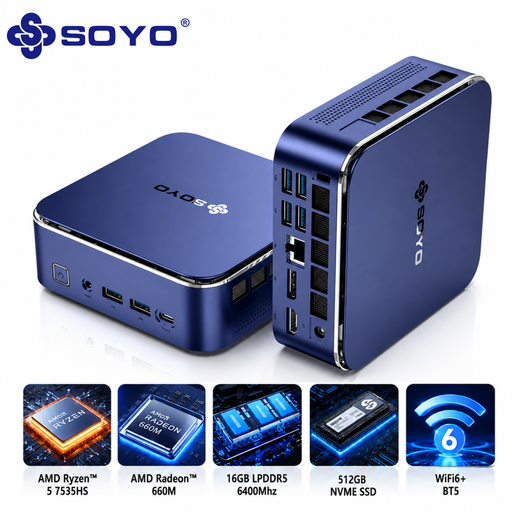
SOYO S5Air mini PC

SOYO S5Air Mini PC, AMD Ryzen 5 7535HS

This mini PC is an option for a separate-screen set-up. Ask the school to check that the chosen system environment works with its applications.

AMD Ryzen 5 7535HS; 16 GB LPDDR5; 512 GB NVMe SSD; Windows 11 Pro.

Joybuy

SOYO M5 mini PC

SOYO M5 Mini PC, AMD Ryzen 4300U

A mini PC suits a workstation with a separate screen. Check in advance that its connections match the equipment you want to use.

AMD Ryzen 4300U; 16 GB LPDDR4; 512 GB SSD; HDMI 2.0, Type-C and DP 1.4; Windows 11 Pro.

Joybuy

MSI Modern AM273QP AI all-in-one PC

MSI Modern AM273QP AI 1UM-061EU All-in-One PC

The integrated screen makes this an option if you want to choose the computer and screen together. Check the screen height you need and that the school supports it.

Intel Core Ultra 5 125H; 27-inch screen; 2560 × 1440 pixels; 16 GB DDR5; 1 TB SSD.

Joybuy

Frequently asked questions

Does the school need to use a particular type of desktop to comply with the GDPR?

No. Data protection rules don’t require a mini PC, all-in-one or any other type of desktop. When pupil data can identify individuals, the school must take appropriate technical and organisational measures and limit access to pupil records. So it’s important to consider how the device is set up and used too.

What should you look for in a shared display screen workstation?

Check that the workstation can be adjusted to suit its users and that the screen can be positioned at a suitable height. Arboportaal specifically states that the screen and keyboard must not be attached to one another if an employee works with display screen equipment for more than 2 hours a day. Don’t assume that this time limit applies to every user without knowing how they use the workstation.

Is Windows 10 still an obvious choice for this workstation?

No. Microsoft says that regular support for Windows 10 ended on 14 October 2025. Microsoft lists separate options for extended security updates; ask the school to decide whether an existing device with these updates fits its management requirements.

What warranty or cooling-off period applies to a purchase?

For a consumer purchase in the Netherlands, statutory guarantees apply without a fixed statutory guarantee period, according to the Dutch government. For distance purchases, you’ll usually have a 14-day cooling-off period. These consumer rules don’t necessarily apply to a business purchase by the school; in that case, check the contract and service agreements.
