
Colleagues sharing a workstation
You share a computer with others and want to keep personal work files and access rights separate. Microsoft Support explains how Windows supports separate user accounts, each with its own settings and files.


Choose a desktop that fits in with your school’s accounts, teaching applications, and storage and recovery arrangements. In a shared workspace, access management and suitable connections matter more than unused extra capacity. A compact Windows mini PC can save desk space, while a configurable desktop may be useful if you need particular connections or a specific configuration. Choose a Mac mini only if the school’s software and management systems work with macOS, and check the connections and included components for each configuration.
You share a computer with others and want to keep personal work files and access rights separate. Microsoft Support explains how Windows supports separate user accounts, each with its own settings and files.
You want documents to be easy to find and need to agree with your organisation on how storage and recovery are handled. Kennisnet describes storage, backup and recovery as parts of information management.
You’re looking for a desktop that fits on a desk and can connect to existing monitors and peripherals. Acer describes compact Veriton models for offices and shared workspaces, among other settings; check the connections on the specific configuration.
First, decide how colleagues will access accounts and files, and how teaching materials can be recovered. Then compare the connections, included components and service terms for the exact configuration.
| Consideration | What should you check? | Who should prioritise this? |
|---|---|---|
| Separate access | Discuss user accounts, administrator rights and file access with the IT administrator. | If I share a computer with colleagues, I want to prevent accounts or pupil files from getting mixed up. Around 31% of consumers prioritise separate access. |
| Managing and recovering files | Agree which folders are shared, who manages them and which data is covered by the recovery process. | I want to be able to find teaching materials and know how they can be recovered if files are lost. For around 25% of consumers, file management and recovery are the main concern. |
| Space and connections | Compare the ports on the exact configuration with your monitor, printer and other essential peripherals; check what’s included. | I want to save space on a shared desk and connect my existing equipment. Around 25% of consumers say their workspace setup is their main consideration. |
| Components and service | Check what’s included with the computer and which service terms apply to your purchase. | I want to know in advance which components I still need and who to contact if the computer needs servicing. Around 19% of consumers prioritise a complete, maintainable workstation. |
Separate Windows accounts can keep each user’s settings and files apart. For pupil records, the school should restrict access to people who need the data for their work, as the Dutch Data Protection Authority explains.
Discuss personal accounts and appropriate access rights with the IT administrator before putting the computer into use.
Local storage capacity is not the same as a backup and recovery process. Kennisnet describes these procedures as separate parts of information management.
Check where teaching files are stored and whether they’re covered by your organisation’s recovery arrangements.
Without a workable recovery process, lost materials can mean extra work to restore them.
A desktop won’t necessarily connect to your existing monitor and peripherals. Lenovo states that the monitor is sold separately for the ThinkCentre M70q Gen 5 Tiny configuration 12TD0017MH.
Check what’s included and which connections are available on the exact configuration, then compare them with the components you need at the workstation.
You may need to buy a monitor, input devices or suitable connection adaptors separately.
The ThinkCentre M70q Gen 5 Tiny is a compact business desktop range running Windows; configuration 12TD0017MH is one specific example.
The Pro Mini 400 G9 is a compact business desktop range running Windows; 6D494EA#ABH is a specific configuration.
The Dell Pro Micro QCM1250 is a configurable business micro desktop.
The Mac mini is a compact macOS option if it’s compatible with your school’s existing environment.
Acer offers Veriton mini PCs as a compact business desktop option for workspaces where space is limited.
These Joybuy products are compact mini PCs and desktops to consider for everyday work with teaching materials. Check software compatibility, accounts, connections and included components for each model.
 No image available
A compact Windows mini PC for everyday office work; check that the configuration suits your school’s account management needs.
Windows 11; Intel Core i5 8250U/8350U; 8 GB DDR4; 256 GB SATA SSD; two HDMI outputs; Bluetooth 5.2 and Wi-Fi 5.
 No image available
A compact mini desktop for productivity; check with your IT administrator that Windows 11 Home works with your school’s existing software.
Intel Core Ultra 5 325; 16 GB LPDDR5X; 512 GB PCIe 4.0 SSD; Intel Graphics; Wi-Fi 7; Windows 11 Home; Seashell colour.
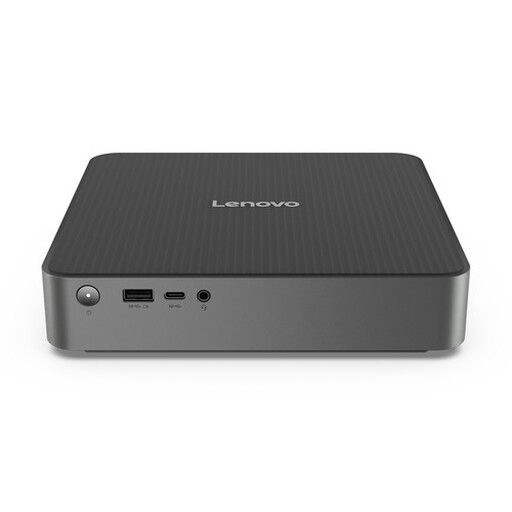 No image available
A compact desktop option for office work; check that the operating system and monitor connections are suitable for your workspace.
Windows 11 Home; 1-litre chassis; the product description states that it supports up to three monitors.
 No image available
Consider this compact mini PC only if your organisation’s applications and IT management are compatible with NVIDIA DGX OS.
128 GB RAM; 4 TB SSD; NVIDIA DGX OS.
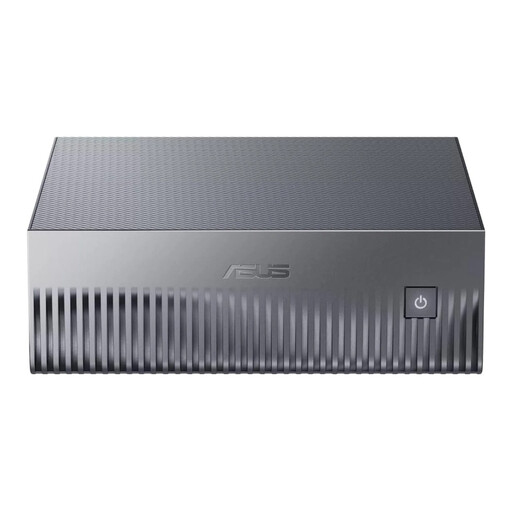 No image available
Before choosing, check that your school’s software and management systems work with this mini PC and your existing workstation.
128 GB LPDDR5x-SDRAM; 1 TB SSD; Wi-Fi 7.
Windows supports separate user accounts, each with its own settings and files. Ask your IT administrator to set up accounts, permissions and access to shared teaching materials in line with school policy; a new device won’t do this automatically.
No. Local storage capacity and recovery are two different things. Kennisnet describes backup strategies and recovery procedures for designated systems in schools; check which arrangements apply to your files.
Compare the connections on the exact desktop configuration with the inputs and cables on your monitor and printer. Also check whether the monitor and input devices are actually included.
For consumer purchases, the Dutch government describes the legal guarantee as your right to receive a product that works as it should. There’s no fixed statutory warranty period in the Netherlands, and the retailer is your point of contact if a product is faulty. If you’re buying on behalf of a school, check the business terms and conditions.
No. A shared computer doesn’t automatically give everyone access. The Dutch Data Protection Authority says access to pupil records must be managed so that no more people can view personal data than is necessary for the purpose; the school decides which staff need access.