Start by choosing your catalogue software and finding out how it links to photos and documents. This will determine whether you need a PC and how you can move your files. Then compare a compact PC, tower, Mac or all-in-one based on storage, the connections you need and your workspace setup. Make sure you have a restorable backup of both the catalogue and its linked files.
Who is this buying guide for?
Collection manager using source links
You catalogue seeds and want to be able to open the right photo or source document for each item. So think beyond the computer itself: consider your folder structure and catalogue software too. Genesys from Crop Trust covers data and images of seeds in genebanks, among other things. Microsoft Support and LibreOffice explain how file links can depend on where files are stored.
Manager of lots of source files
You keep scans or photos alongside your catalogue and want to be able to restore both. The Digital Trust Center advises keeping backups in more than one location and testing that you can restore them.
User of existing Windows software
You want to keep using an existing Access catalogue or another application. Microsoft states that Access is available for PC only, so check your software’s system requirements before choosing a platform.
What should you look for when buying?
Start with your software and file links. Then work out how much local storage you need, which connections you’ll use and what other equipment your workspace requires.
| What to consider |
What should you check? |
Who is this important for? |
| Working source links |
Decide where to store your catalogue and files. Test with sample files to check that the links still work if you move the folder or computer. |
If I want to open the right photo or document quickly from a catalogue, I need to test the file structure and links in advance. Around 36% of consumers prioritise working source links. |
| Storage and recovery |
Measure how much space your files take up and allow for growth. Test restoring both the catalogue and its linked files. |
When I store lots of scans or photos, I want to know that I can recover both the files and the catalogue. Around 29% of consumers give storage and recovery top priority. |
| Software compatibility |
Check the name, version and system requirements of your catalogue software. If possible, open a copy of the catalogue on the platform you’re considering. |
If I want to keep using my existing catalogue, I need to know before buying whether the software will work on the computer. Around 21% of consumers prioritise compatibility. |
| Complete workspace |
Check which monitor, input devices, cables and ports you already have, and what’s included with the exact configuration. |
If I still need a screen or connections for peripherals, I want to make sure my whole workspace is properly set up. Around 14% of consumers focus mainly on their workspace setup. |
Common pitfalls
-
Storing every photo as an attachment in a single Access database
Microsoft Learn states that an Access database has a maximum total size of 2 GB and a limit of 256 MB per individual file. Large source files can therefore affect how you store your collection.
Decide whether to store files as attachments or as separate linked files before setting up your catalogue. Test your approach with files from your own collection.
If the database reaches its limit, reorganising your files could take extra work.
-
Backing up only the catalogue
Restoring a catalogue won’t help you open source files that weren’t copied or moved with it.
Test restoring a complete sample set containing the catalogue, source files and working links. The Digital Trust Center advises keeping backups in more than one location and testing them.
Missing scans or photos can take time to track down or collect again.
-
Comparing a mini PC as if all peripherals were included
Lenovo states that the screen, keyboard and mouse for the product line mentioned are sold separately.
Check what’s included in the exact offer and compare it with the other items you still need.
You may still need a monitor, keyboard, mouse or suitable cable to complete your workspace.
-
Choosing a Mac without checking your catalogue software
Microsoft states that Access is available for PC only. If you have an existing Access catalogue, take extra care before switching to macOS.
Check the system requirements and open a copy of your catalogue using the software you plan to use on your new computer.
Switching may take time as you test alternative software, data and file links.
Relevant brands
Lenovo
The ThinkCentre neo 50q Gen 5 is a compact Windows desktop for anyone who wants to choose their own screen and peripherals.
- For configuration 13B9009EEZ, Lenovo Netherlands lists Windows 11 Pro, 16 GB of memory and a 512 GB SSD.
- Lenovo says the screen, keyboard and mouse are sold separately. Check what’s included in the specific offer.
HP
The Pro Mini 400 G9 and Pro Tower 400 G9 offer compact and larger case formats for a Windows workspace.
- For specific configurations in the Netherlands, HP Netherlands lists Windows 11 Pro, 16 GB of memory and a 512 GB SSD.
- Upgrade options depend on the exact model, so don’t assume what’s available based on the case format alone.
Dell
Dell offers a range of desktop formats, including models with a built-in screen.
- Dell lists a 23.8-inch screen for the Pro 24 all-in-one. For the Pro Micro QCM1250, Dell lists USB, HDMI and DisplayPort connections, among others.
- Check the storage, memory and connections you need on the exact configuration.
Apple
The Mac mini is a compact macOS option if your chosen catalogue software works on macOS.
- Apple lists 16 GB of unified memory and 256 GB of SSD storage for the M6 base model.
- Microsoft states that Access is available for PC only. So first check whether you can use your existing catalogue on macOS.
Joybuy products
This Joybuy selection includes a mini PC and Windows desktops with stated local storage. For each configuration, check that the software, storage, connections and included components are right for your catalogue work.
 No image available
SOYO Y5Pro Mini PC, Intel Core i5 8250U/8350U, 8 GB DDR4, 256 GB SATA SSD
The listed Windows 11 makes this an option to consider if your catalogue software requires Windows.
The product name lists 8 GB DDR4 and a 256 GB SATA SSD. The description mentions HDMI, USB and Ethernet connections; check that the exact ports suit your equipment.
Joybuy
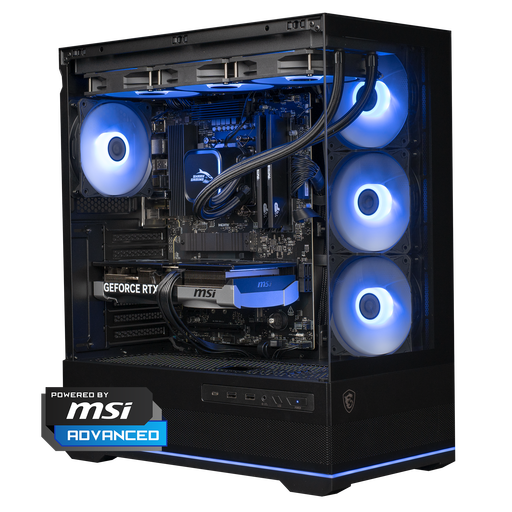 No image available
Shark Ultimator R700 Gaming PC, RTX 5070, R7, 16 GB, 1 TB
The listed Windows 11 Home and local storage make this a desktop to consider if your catalogue software works with it.
The product description lists 16 GB DDR5 memory and a 1 TB NVMe SSD. According to the description, the charger must be purchased separately. Also check which connections your workspace requires.
Joybuy
 No image available
RGB Gaming PC, RTX 5060, Ryzen 5, 16 GB, 480 GB SSD
Before choosing this desktop, check that the listed Windows version and your catalogue software meet your requirements.
The description lists 16 GB DDR4 memory, a 480 GB SSD and a USB Wi-Fi adapter. Windows is listed as an evaluation version.
Joybuy
 No image available
Panoramic Gaming PC, AMD Ryzen 7 5700X, GeForce RTX 5060 Ti 8GB, 16GB DDR4, 480GB NVMe PCIe SSD
Check your catalogue software’s system requirements and whether the stated Windows version is suitable for your needs.
The product name lists 16GB DDR4 and a 480GB NVMe PCIe SSD. The description mentions a Windows 11 evaluation version and an included Wi-Fi adapter.
Joybuy
 No image available
Gaming Desktop PC Ryzen 7 7800X3D, GeForce RTX 5080, 32GB DDR5, 1TB NVMe SSD
Check that the listed Windows version is suitable for the catalogue software you want to use.
The product name lists 32GB DDR5, a 1TB NVMe SSD and Windows 11 Trial.
Joybuy
Frequently asked questions
Do I need to buy a Windows PC for my seed catalogue?
Only if your chosen software requires one. Microsoft states that Access is available for PC only. For other catalogue software, check its system requirements and test your existing files before switching.
How can I keep links to photos and source documents working after moving them?
Keep your folder structure consistent and test the links using a copy of your catalogue. Microsoft Support and LibreOffice explain that file links can depend on where the files are stored, so check how your own catalogue software handles them too.
Is a large SSD enough to keep my collection safe?
No. Storage space alone isn’t a backup. The Digital Trust Center advises keeping backups in more than one location and testing that you can restore them. Be sure to include both the catalogue and its linked files.
What do warranty and the cooling-off period mean when buying online in the Netherlands?
For a consumer purchase, the Dutch government states that you have a statutory guarantee with no fixed legal guarantee period; if something is faulty, the seller must provide a solution. When buying remotely from a business, you usually have a 14-day cooling-off period. Check the terms for your purchase, especially if you’re buying for business use.
Do I need to consider privacy rules for provenance data?
If your catalogue contains personal data, the GDPR may apply and you’ll need an appropriate legal basis for processing it. The Dutch Data Protection Authority explains the possible legal bases. Assess the data and how you use your catalogue on a case-by-case basis.


