If you don’t have a suitable monitor yet and want your computer and screen in one device, start by looking at an all-in-one; just remember to account for your scanner’s power supply separately. If you already have a suitable monitor, compare mini PCs that you can use with it. Choose a tower mainly if connectivity or future upgrades matter more than a compact setup. Whichever option you choose, check the requirements of your photo-editing software, your scanner’s connection and the power needs of all your devices.
Who is this choice relevant to?
Scan editor with limited power sockets
You’re setting up a dedicated scanning area and want to know how many mains sockets your computer, monitor and scanner will need between them. For example, Epson Netherlands describes the USB power supply for the ES-50, while HP Netherlands and Lenovo Netherlands document their all-in-one models.
Photo retoucher working with lots of scans
You regularly remove dust spots and want to view and edit your scans clearly. Adobe describes retouching tools for small dust spots and lists its software requirements; the configuration you need depends on the software you use.
Scanner owner with an existing monitor
You want to keep using your current monitor, so you need to check that your scanner, drivers and editing software will work with the computer you choose. Apple and LaserSoft Imaging provide information about their products and software; check compatibility with your exact scanner and system.
What should you look for?
| What to consider |
What should you check? |
Who is this important for? |
| Power sockets required |
Note whether each device uses mains or USB power. Check the power specifications for your exact scanner model. |
If I’m setting up a scanning area with few free sockets, I want to know which devices need their own mains power. Around 36% of consumers put the number of sockets required first. |
| Precise dust-spot retouching |
Compare screen resolution, memory and available SSD space with your software’s requirements. Adobe lists 8 GB RAM as the minimum for Photoshop 27.x and recommends 16 GB or more. |
When working with lots of scans, I want to inspect small dust spots closely and correct them precisely. Around 29% of consumers prioritise precise retouching. |
| Compatibility |
Check the system requirements, scanner drivers and USB and display ports needed for the exact models. |
If I want to keep using my scanner and monitor, I want to know before buying whether they’ll work with the computer and software. Around 21% of consumers prioritise compatibility with their existing equipment. |
| Reusability and flexibility |
Check whether the screen is built in and what memory and storage configuration the model has. Also consider which existing components you can keep using. |
If I want to reuse or upgrade equipment later, I want to know which components are integrated and which are separate. Around 14% of consumers prioritise this consideration. |
Common buying mistakes
-
Assuming a mini PC gives you a complete setup with one plug
A mini PC doesn’t have a built-in screen. Your scanner may also need its own mains power, so the complete workstation could need more sockets than just the one for the computer.
Check the power requirements for your computer, monitor and scanner together. If you don’t have a suitable monitor yet, compare all-in-ones too.
-
Assuming a faster desktop will automatically remove all dust
Infrared correction depends on the scanner and the original. Epson states that Digital ICE cannot be used with black-and-white or Kodachrome film on the Perfection V850 Pro.
Check which correction options your scanner supports for the material you’re scanning. You may still need to retouch images manually.
Manual correction can take extra time.
-
Choosing an all-in-one based on the model range alone
Models in the same range can differ in memory, screen and connectivity. For example, Dell lists EC24250 configurations with 8 GB and 16 GB RAM.
Compare the full model number and selected configuration with the requirements of your software, scanner and existing monitor.
Brands to consider
HP
HP OmniStudio X models combine the computer and screen in a single desktop.
- HP Netherlands lists a 31.5-inch 4K screen, 16 GB RAM, 1 TB SSD and USB ports in the stand for the OmniStudio X 32c1650nd.
- These specifications apply to that model; for a specific configuration, also check how accessible the ports are.
Lenovo
Lenovo offers all-in-ones as well as mini and tower desktops, so you can choose a form factor to suit your workspace.
- Lenovo Netherlands lists a 23.8-inch Full HD screen, 16 GB RAM and 512 GB SSD for the A100 F0JN001GNY.
- Check the exact configuration and screen resolution before choosing; models within a product range aren’t necessarily identical.
Apple
Mac mini is a compact computer designed for use with a separate monitor, while iMac has a built-in screen.
- Apple lists a built-in 24-inch 4.5K screen for iMac, and support for external displays with Mac mini models.
- Before switching to macOS, check that your exact scanner and editing software are supported. A built-in screen or compact computer doesn’t guarantee faster retouching.
Dell
The Dell 24 All-in-One is a desktop with a built-in screen.
- Dell lists a 23.8-inch Full HD screen and several configurations for the EC24250, including models with 8 GB or 16 GB RAM.
- Check the selected memory configuration and the other specifications for the full model number against your software requirements.
Joybuy products
These product picks are all-in-one desktops with a built-in screen, designed for a dedicated scanning and retouching workspace.
 No image available
MSI Modern AM273QP AI 1UM-061EU
The integrated 27-inch QHD screen is a good fit if you want to keep your computer and screen together in one place.
27-inch screen with 2560 × 1440 pixels; Intel Core Ultra 5 125H; 16 GB DDR5-SDRAM; 1 TB SSD.
View at Joybuy
 No image available
MSI Modern AM273Q AI 1UM-058EU
The built-in 27-inch QHD monitor combines the screen and computer for a dedicated workspace.
27-inch screen with 2560 × 1440 pixels; Intel Core Ultra 7 155H; 32 GB DDR5-SDRAM; 1 TB SSD; Windows 11 Pro; Wi-Fi 6E.
View at Joybuy
 No image available
Lenovo Yoga AIO 27IAH10 F0J2001DNY
This all-in-one combines the computer with a 27-inch QHD screen, so you don’t need to set up a separate computer monitor.
27-inch QHD screen with 120 Hz; Intel Core Ultra 7 255H; Intel Arc 140T Graphics; 16 GB LPDDR5X; 1 TB SSD; Windows 11 Home.
View at Joybuy
 No image available
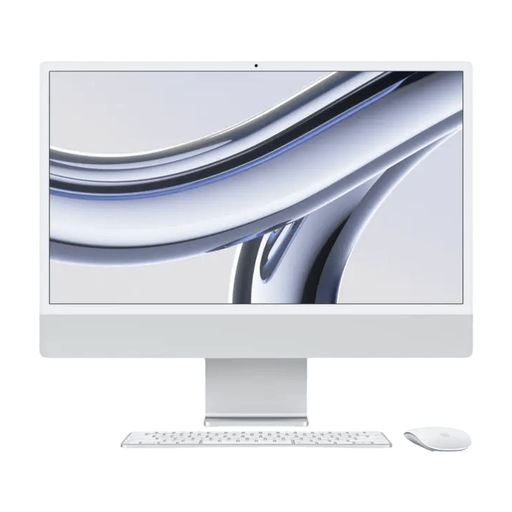
Apple iMac 24-inch M3, 16 GB, 512 GB, Silver (2023)
The built-in screen combines the computer and monitor. Check in advance that your scanner and software work with macOS.
24-inch model; M3; 16 GB memory; 512 GB storage; Silver (2023).
View at Joybuy
 No image available
HP 24-cr0050nd
The integrated 23.8-inch monitor makes this a good option if you want to keep your computer and screen together. The listed power adapter must be purchased separately.
23.8-inch IPS screen with Full HD resolution; 8 GB non-upgradable RAM; 512 GB SSD; five USB ports. Adobe recommends 16 GB RAM or more for Photoshop; this model has 8 GB.
View at Joybuy
Frequently asked questions
Can my scanner work without an extra power socket?
It depends on the scanner model. Epson states that the ES-50 gets power from the computer through a single included USB cable. For other scanners, check the power specifications for the specific model.
Do I need a powerful graphics card to retouch dust spots in scans?
Not for that task alone: Adobe describes the Spot Healing Brush for small dust spots. If you use Photoshop, compare the graphics card and memory in the computer you’re considering with the requirements for your version of Photoshop. For other software, check the requirements set by its supplier.
Why are spots sometimes still visible after automatic dust correction?
Infrared correction only works with a suitable scanner and compatible original. SilverFast uses the infrared channel for this; Epson states that Digital ICE cannot be used with black-and-white or Kodachrome film on the Perfection V850 Pro. Check support for your scanner and material; you may need to correct some spots manually.
Can I plug one extension lead into another if there aren’t many power sockets?
The Netherlands Fire Service advises against plugging extension leads into one another. First check the power requirements of your complete setup and use a connection that’s suitable for your equipment.
Which marking should I check when buying a new desktop in the Netherlands?
For the specific model, check whether it carries the applicable CE marking. The Dutch Government and the European Union explain the CE requirements for products covered by the relevant EU rules; a CE marking alone says nothing about whether your scanner or software is compatible.


