
Employee retouching scans
You want to remove small dust spots while preserving detail in the original. Adobe describes a Dust & Scratches filter in Photoshop; a higher setting can blur more of the image.


First, choose a desktop that works with your editing software and existing scanner. Then decide whether a compact Windows workstation or a macOS setup is right for your office. Adobe recommends 16 GB RAM or more for Photoshop, but this isn’t a general minimum requirement for every scanning workflow. If scans contain identifiable people, make sure the files have appropriate access controls and security.
You want to remove small dust spots while preserving detail in the original. Adobe describes a Dust & Scratches filter in Photoshop; a higher setting can blur more of the image.
You’re choosing a computer for several users and need to arrange appropriate access and security if scans contain personal data. Adobe doesn’t allow account sharing, so also consider your users and licensing setup.
You want to keep using your current scanner. Before buying, check that its driver and your preferred scanning method work with the operating system you choose. Adobe notes that scanner manufacturers provide support for scanner software and drivers.
A good fit when: several employees use a dedicated Windows workstation and the scanner is supported on Windows.
Check: the exact scanner driver, connections and service terms for the configuration you choose.
A good fit when: your office already uses macOS and the scanner has a suitable scanning method or supported software.
Bear in mind: an existing Windows scanner or Windows software may not work on macOS; also check that the storage capacity is suitable for your scans.
A good fit when: you want to allow for possible hardware upgrades when planning your office setup.
Check: memory, storage and connections for each version; there’s no evidence that a dedicated graphics card is required for dust correction.
Start with your scanner and editing software, then compare the configurations. This helps you avoid choosing a desktop that looks suitable for its memory or operating system but doesn’t fit your existing workflow.
| What to consider | What should you check? | Who is this important for? |
|---|---|---|
| Preserving detail | Choose your editing software first and compare its system requirements with the exact configuration. Adobe recommends 16 GB RAM or more for Photoshop 27.x; this isn’t a general requirement for every scanning workflow. | If I want to remove dust spots without losing fine detail, I pay attention to the settings and editing method. Around 33% of consumers put retouching quality first. |
| Shared use and security | Establish whether scans contain personal data and how your organisation manages access and storage. Set up Adobe accounts in line with the applicable account terms. | When several colleagues use the same workstation, I want to know who can access scans and accounts. Around 27% of consumers give shared management and data protection top priority. |
| Existing scanner | Check with the scanner manufacturer that there’s a driver for the exact model and operating system, and that you have the required physical connection. | If I want to keep using my current scanner, I want to know in advance whether it’ll work with the new computer. Around 27% of consumers prioritise keeping their scanner. |
| Purchase and support | Compare the complete configuration and service terms. Also establish whether the PC is being bought for business or as a consumer. | When I choose a dedicated office computer, I want the configuration and support to suit the workplace. Around 13% of consumers give purchase and service top priority. |
Adobe warns that a larger radius in the Dust & Scratches filter blurs more of the image. This can lose detail and may mean more repair work is needed.
Start with a low setting and assess the result on a duplicate layer or with a mask.
Drivers and scanning methods depend on the scanner model and operating system. Adobe describes several scanning options and notes that the scanner manufacturer provides support for drivers and scanner software.
Before buying, check support for your exact scanner model and preferred file workflow.
Adobe says that an individual account, including one within a Teams subscription, is personal and isn’t intended to be shared.
Identify the actual users and decide on the appropriate licensing setup in advance.
Additional licences may be needed for extra users.
The ThinkCentre M75q Gen 5 Tiny is a compact business Windows desktop range.
The Pro Mini 400 G9 is a compact business Windows desktop range.
The Mac mini is an option for an office looking to use a macOS scanning and editing workflow.
The Dell Pro Micro QCM1250 is a compact business desktop range.
The ExpertCenter D5 SFF is a business desktop range to consider if you’re looking into upgrade options.
These Joybuy product picks are Windows desktops for a shared scan-editing workstation. Check support for your existing scanner separately for each model.
 No image available
The all-in-one design combines a computer and screen in a single device, making it a good choice if you’re looking for that kind of setup.
 No image available
The mini PC form factor may suit a desk where you want a compact computer; check that its connections and scanner driver work with your workflow.
 No image available
This mini desktop runs Windows 11 Pro. Before buying, check that your scanner works with your preferred Windows scanning method.
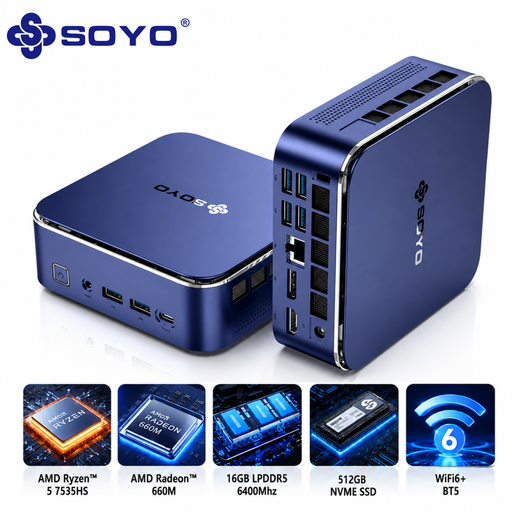 No image available
This compact mini PC is an option for a Windows workstation; check that the scanner driver and connection you need are suitable for the exact model.
 No image available
Windows 11 Pro is listed for this mini PC; confirm scanner support and the connections you need for your office workflow.
Not for dust correction alone. If you use Photoshop 27.x, check that the graphics hardware meets Adobe’s requirements; a desktop range offering an optional dedicated graphics card doesn’t mean one is required.
First, check for a driver or scanner software for your exact scanner model and operating system. Adobe describes several options for Photoshop, including a separate scanning app, macOS Image Capture and Windows WIA. Which one works depends on your scanner.
No. Adobe says that individual and Teams accounts are personal and aren’t intended to be shared. Work out how many licences the actual users need before finalising your software setup.
No, consumer rules don’t automatically apply to business sales. Business.gov.nl distinguishes between sales to consumers and businesses; check who the PC is being bought on behalf of and which warranty and service terms apply.
That depends on the content and how it’s processed. The Dutch Data Protection Authority considers identifiable people in images to be personal data and says that organisations must protect personal data properly. Assess which measures are suitable for your scans and organisation; choosing a desktop doesn’t in itself demonstrate compliance with the GDPR.