What should you look for when buying?
First, check that your scanner and retouching software work with the system you’ve chosen. Then compare the available storage, connections and the size of your complete workspace.
| What to consider |
What should you check? |
Who should pay particular attention? |
| Software and scanner |
Compare your retouching software’s system requirements with the desktop, and find drivers for your exact scanner model and operating system. |
If I want to keep using my scanner and trusted software, I check compatibility before choosing a system. Around 36% of consumers prioritise this. |
| Memory and free storage |
Check the installed RAM and how much SSD space will be left after installing software and storing your scans. Adobe recommends 16 GB RAM or more for Photoshop. |
When I edit lots of scans or large files, I want enough room for my files and temporary editing files. Around 29% of consumers put memory and working space first. |
| Desk space and connections |
Compare the size and connections of the exact configuration with your scanner, monitor and input devices; also check what’s included. |
If my desk is small but I still need to connect my scanner and other devices, I weigh up size and ports together. Around 21% of consumers prioritise this combination. |
| Archive and backup |
Work out how much space your scans take up and how you’ll make a separate backup; the internal SSD is not a backup in itself. |
When I want to keep both original and edited scans, I include backup storage and the other parts of my workspace in my decision. Around 14% of consumers prioritise their archive and complete setup. |
Desktops at Joybuy
This selection includes tower and Mac mini options to compare for retouching scans. Check that the storage, connections and software listed for each configuration suit your workspace.
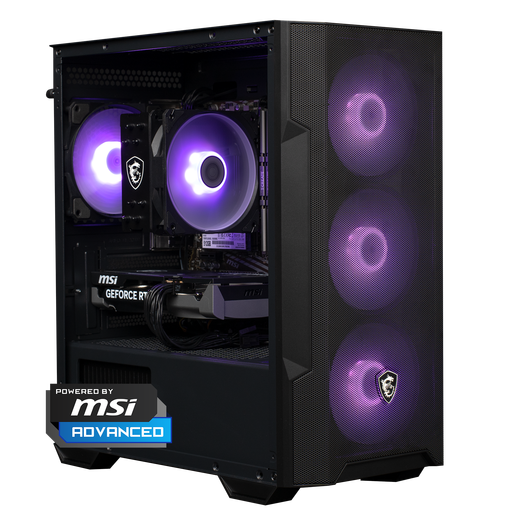 Image unavailable
Shark Max Bite R500 Gaming PC Powered by MSI
The listed 16 GB RAM meets Adobe’s recommendation for Photoshop; compare the storage capacity with your own scans.
Specifications: 16 GB RAM; 500 GB NVMe SSD.
View at Joybuy
 Image unavailable
RGB Gaming PC RTX 5060 Ryzen 5
The listed 16 GB RAM meets Adobe’s recommendation for Photoshop; also consider how much storage space your scans will need.
Specifications: RTX 5060; Ryzen 5; 16 GB; 480 GB SSD; Wi-Fi.
View at Joybuy
 Image unavailable
Panoramic Gaming PC AMD Ryzen 7 5700X
The listed 16 GB RAM meets Adobe’s recommendation for Photoshop; compare the SSD capacity with the size of your archive.
Specifications: GeForce RTX 5060 Ti 8GB; 16GB DDR4 RAM; 480GB NVMe PCIe SSD.
View at Joybuy
 Image unavailable
Mac mini Apple M6, 16 GB, 256 GB SSD
This compact desktop is an option if you want to use macOS; first check that your scanner and software are compatible.
Specifications: Apple M6 chip; 12-core CPU and 12-core GPU; 16 GB memory; 256 GB SSD. The description lists Thunderbolt 4, USB-C and HDMI.
View at Joybuy
Image unavailable
Mac mini Apple M6, 16 GB, 512 GB SSD
This compact desktop is an option if you want to use macOS; first check that your scanner and software are compatible.
Specifications: Apple M6 chip; 12-core CPU and 12-core GPU; 16 GB memory; 512 GB SSD. The description lists Thunderbolt 4, USB-C and HDMI.
View at Joybuy
Frequently asked questions
Will my existing scanner still work with a Mac or a new Windows PC?
It depends on the exact scanner model and operating system. Before you buy, look up the model-specific drivers and software on the scanner manufacturer’s website, and check the connection required too; Epson provides support by model.
Do I need a special graphics card to remove dust from scans?
Not necessarily for this task alone: check the requirements of the software you plan to use. For Photoshop 27.x on Windows, Adobe lists requirements including DirectX 12 with feature level 12_0 or later and at least 1.5 GB of GPU memory. A product name alone doesn’t tell you whether a configuration meets every requirement.
How can I remove a speck of dust without blurring the whole scan?
Adobe describes using the Spot Healing Brush to remove small specks of dust from scans, and suggests a separate empty layer as a way to preserve the original. Adobe warns that a larger radius with the Dust & Scratches filter can cause more blurring, so check the result on the image you’re editing.
How can I protect my original scans from being lost?
Keep a separate backup as well as the files on your desktop. Apple explains how Time Machine can back up a Mac to, for example, a connected external drive; for other systems, check which backup method is right for your computer.
What are my rights when I buy a desktop online in the Netherlands?
According to ACM ConsuWijzer, ordinary online consumer purchases usually come with a statutory 14-day cooling-off period after delivery, although exceptions apply. The legal guarantee is separate from a manufacturer’s warranty: if a product doesn’t meet what you could reasonably expect under normal use, the seller is responsible for putting things right.


