First, choose the operating system and development tools you want to use. Then decide whether split windows on one monitor are enough, or whether you also want to connect multiple physical displays. Microsoft explains that Visual Studio Code can show editors side by side, while Apple, HP, Lenovo and ASUS publish specifications for individual desktop configurations. So check the memory, storage, video outputs and included items for the exact model.
Who could benefit from a desktop for this coding task?
Builders who want to see windows side by side
If you want to view code, scheduling logic or a preview while building your planner, Visual Studio Code can open editors side by side on one screen. Microsoft describes this layout; if you want to use two physical displays, you’ll also need to check the connections on your chosen desktop.
Builders using several development tools
If you use a browser, terminal or local development environment alongside your editor, choose a desktop based on the specific tools you use. Docker Desktop, for example, has its own system requirements if you want to use it on Windows.
Builders who want to configure their own setup
If you want to choose your own components or operating system, check in advance what’s included in the configuration and what installation work is required. ASUS offers both complete mini PCs and kits without a pre-installed operating system in its NUC 14 Pro range.
What should you look for?
Complete Windows mini PC
A good fit if: you want a compact Windows computer for your editor, browser and terminal.
Keep in mind: check the connections and specifications for the exact configuration; they aren’t necessarily the same across every model in a range.
Mac mini with macOS
A good fit if: you want to use development tools on macOS and are looking for a compact computer to pair with a separate monitor.
Keep in mind: check that your tools are compatible and choose your memory and storage configuration carefully.
Mini PC or desktop you can customise
A good fit if: you want to choose your own components or operating system, or need room to make changes.
Keep in mind: a kit may be supplied without a pre-installed operating system and could require extra installation work.
A split editor doesn’t automatically mean you need a second monitor. First decide how many physical displays you want to use, then choose the connections and configuration to suit your tools. Microsoft explains how to view editors side by side in Visual Studio Code, while Docker publishes separate requirements for Docker Desktop on Windows.
| What to consider |
What should you check? |
Who should prioritise this? |
| Workspace |
Decide whether you want one or two physical displays. If you want two, check the video outputs on the exact desktop and the connections on your monitors. |
If I want to see code and a preview at the same time, I need to know whether one screen will do or whether I should connect two. Around 36% of consumers prioritise visible workspace. |
| Multiple tools |
Make a note of the tools you use at the same time and compare the installed RAM and SSD capacity. Check Docker’s requirements if you want to use Docker Desktop on Windows. |
If I keep a browser, terminal or local tools open alongside my editor, I want a configuration that suits the way I work. Around 29% of consumers give the development tools they use simultaneously top priority. |
| Operating system and tools |
Check that your chosen editor, programming language and any local services are compatible with the operating system and processor architecture of the configuration. |
If I already know which development tools I need, I want to check first which platform they run on. Around 21% of consumers prioritise tool compatibility. |
| Complete setup |
Check what’s included, such as the operating system, memory and storage, and allow space for the computer and peripherals. |
If I’m looking for a complete computer that will fit in my workspace, I want to know what still needs to be installed or bought. Around 14% of consumers prioritise a complete setup that fits their space. |
Common buying mistakes
-
Assuming a split editor needs two monitors
Visual Studio Code can show editors side by side on one screen, so you don’t need a second physical monitor to use this layout.
Try the layout you want on your current screen. Check the video outputs only if you actually want to connect additional physical displays.
-
Mistaking a mini PC kit for a complete computer
ASUS offers both complete mini PCs and kits without a pre-installed operating system in its NUC 14 Pro range.
Check the full model code and what’s included before choosing a configuration. Make sure the operating system and any components you need are included.
Depending on the kit, you may need additional components and installation work.
-
Treating the manufacturer’s warranty as your full legal protection
The Government of the Netherlands says there’s no fixed statutory warranty period in the Netherlands, and that your statutory rights apply alongside any manufacturer’s or seller’s warranty.
Keep your purchase and product information, and report any fault to the seller. Before paying for an extended warranty, consider what it adds to your existing rights.
Brands to consider
Apple
The Mac mini is a compact option for macOS. Apple’s Dutch specifications list various memory and storage configurations for the M6 model, among other details.
- Apple lists support for external displays; check the connections and configuration of the model you choose.
- Check that your development software and any containers are compatible with your chosen chip and macOS.
HP
The Pro Mini range includes compact Windows computers. According to HP, the Pro Mini 400 G9 configuration described as 6D494EA#ABH has Windows 11 Pro, 16 GB RAM and a 512 GB SSD.
- The configuration listed has clearly specified Windows components to compare.
- These specifications apply to configuration 6D494EA#ABH, not automatically to other HP desktops or configurations.
Lenovo
The ThinkCentre M70q Gen 5 is a compact business desktop range. Lenovo’s product specifications list HDMI and DisplayPort among the connections available across the range.
- The range includes configurations with specified video connections.
- Lenovo notes that some connections are optional and only available on certain models, so check the exact configuration.
ASUS
The NUC 14 Pro range includes complete mini PCs and kits. ASUS distinguishes in its specifications between models with an operating system and kits without one pre-installed.
- The different configurations let you choose between a complete mini PC and a kit.
- Check the exact model code and what’s included with each offer.
Desktop options at Joybuy
These desktop options include compact Windows mini PCs, a Mac mini and a larger desktop configuration, so you can find a setup to suit your operating system, tools and preferred display arrangement.
 No image available
Panoramic Gaming PC, Ryzen 7 5700X, RTX 5060 Ti, 16 GB RAM, 480 GB SSD
A larger desktop configuration to compare if you’re looking for a desktop setup for your editor and other tools.
The title lists an AMD Ryzen 7 5700X, GeForce RTX 5060 Ti with 8 GB, 16 GB DDR4 RAM and a 480 GB NVMe PCIe SSD. Windows 11 Home is pre-installed but not activated, according to the title.
View at Joybuy
 No image available
Mac mini, Apple M6 chip, 24 GB, 512 GB SSD
A compact option to consider if you want to use macOS. Check in advance that your development tools are compatible with the configuration you choose.
The product name lists an Apple M6 chip with a 12-core CPU and 12-core GPU, 24 GB memory and a 512 GB SSD. The product description lists support for up to three external displays.
View at Joybuy
 No image available
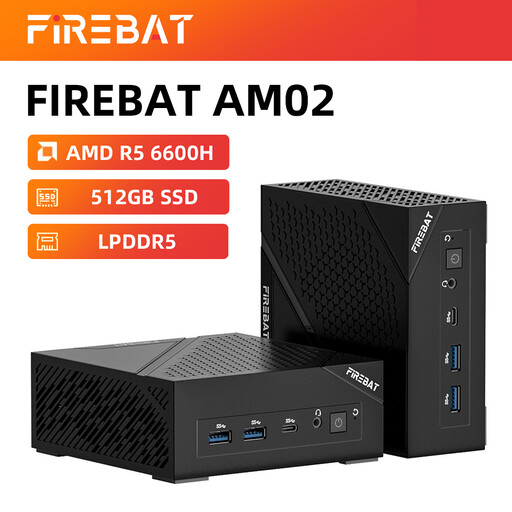
FIREBAT Mini PC AM02L, AMD 6600H, 16 GB LPDDR5, 512 GB NVMe
A compact Windows mini PC to compare if you want to use an editor, browser and terminal in a small setup.
The product name lists 16 GB LPDDR5, a 512 GB M.2 NVMe SSD and Windows 11 Home. Listed video connections include HDMI 2.1 and DisplayPort 1.4.
View at Joybuy
 No image available
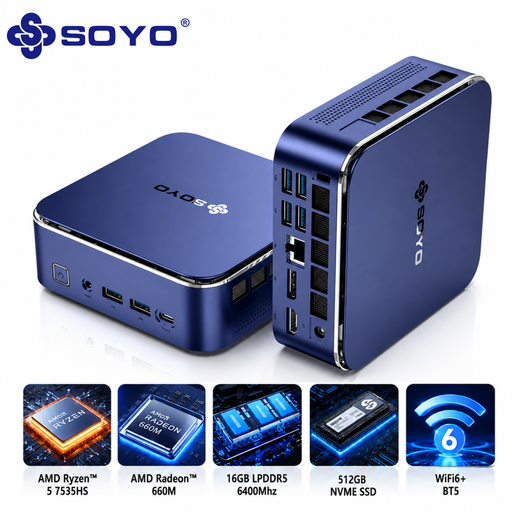
SOYO S5Air Mini PC, Ryzen 5 7535HS, 16 GB LPDDR5, 512 GB NVMe SSD
A compact Windows mini PC to compare if you want to use several development tools and need video outputs for your display setup.
The product name lists Windows 11 Pro, 16 GB LPDDR5 and a 512 GB NVMe SSD. HDMI, DisplayPort and Type-C video output are listed.
View at Joybuy
 No image available
SOYO M5 Mini PC, Ryzen 4300U, 16 GB LPDDR4, 512 GB SSD
A compact Windows mini PC to compare if you’re looking for a small desktop setup with several listed video outputs.
The product name lists Windows 11 Pro, 16 GB LPDDR4 and a 512 GB SSD. HDMI, Type-C and DisplayPort are listed as video outputs.
View at Joybuy
Frequently asked questions
Do I need two monitors to view two code files side by side?
No. Visual Studio Code can open editors side by side on one screen. If you also want to use two physical monitors, check the outputs on the exact desktop configuration and the connections on your displays.
What should I check if I want to develop the planner locally with Docker?
First, check whether you actually need Docker; Docker Desktop’s requirements aren’t a general minimum for everyone who uses a code editor. For Windows, Docker lists WSL 2.1.5 or later, among other requirements. Some Windows 11 installations need version 23H2, build 22631 or later, with a suitable edition such as Enterprise, Pro or Education.
What if the desktop I bought online develops a fault?
When you buy as a consumer in the Netherlands, the product must be of satisfactory quality. According to the Government of the Netherlands, there’s no fixed statutory warranty period, and the seller must provide a solution if something goes wrong. Online purchases from a business also often come with a 14-day cooling-off period; check the relevant terms and exceptions.
Do privacy rules apply if the rehearsal planner processes names and contact details?
Yes. If the planner processes personal data, the GDPR applies. The Dutch Data Protection Authority says this also applies to pilots and tests. The measures you need depend on the data and how you use the planner, not on the desktop brand.


