
Product photographer working with colour
You assess whether product colours look true to life. Alongside your desktop, calibrated screens, monitor profiles and the destination of your photos all matter.


A desktop for product photography should be able to run two screens at the same time in the exact configuration you choose; the computer itself won’t ensure consistent or reliable colour. A compact Mac desktop is a good fit if you use macOS and choose storage to suit your photo library. When comparing Windows desktops, check the display outputs, memory and storage of the exact model you want to order. You’ll also need to match your monitor profiles to your colour workflow.
You assess whether product colours look true to life. Alongside your desktop, calibrated screens, monitor profiles and the destination of your photos all matter.
You want to view a photo on one screen and your library or workspace on the other. The connections must support both screens at the same time; Adobe explains how to use a second screen in Lightroom Classic.
You’re weighing up a compact computer against the storage space you need for files now and in the future. Compare the storage and exact configuration of the desktop you’re considering.
A good fit if: you use macOS and want a small desktop. Apple specifies support for multiple external displays on the Mac mini with M6.
Bear in mind: display support says nothing about colour reproduction; the base configuration reviewed has a 256 GB SSD.
A good fit if: you use Windows and want a small workspace. The HP Z2 Mini G1i configuration reviewed lists 32 GB RAM and a 1 TB SSD.
Bear in mind: check which display outputs can be used at the same time on the exact model, and whether they’re compatible with your monitors.
A good fit if: a tower suits your workspace and you want to compare a specific Windows configuration, for example from Lenovo or Dell.
Bear in mind: the Lenovo tower reviewed lists a 256 GB SSD; Lenovo says monitors and input devices are sold separately.
| Consideration | What to check before buying | Who is this important for? |
|---|---|---|
| Colour assessment | Check your monitor profiles, whether the screens can be calibrated and where your photos will be used. | If I’m assessing product colours critically, I want the screen profiles and output destination to work together. Around 36% of consumers say reliable colour is their top buying priority. |
| Two screens at the same time | Compare the inputs on both monitors with the outputs and simultaneous display support of the exact desktop configuration. | When I want to use two screens at once, I check that the model I choose can drive each one separately. For around 29% of consumers, display support comes first. |
| Storage for photos | Check the memory and SSD capacity of the exact model, and consider where you’ll store original photos and backups. | For a large photo library, I want to know how much memory and local SSD storage the desktop has. Around 21% of consumers give these file storage and editing needs top priority. |
| Complete workspace | Check whether you already have two suitable monitors, the right cables and any calibration equipment you may need. | If I still need monitors, cables or calibration equipment, I look at the complete setup rather than just the computer. Around 14% of consumers put the full equipment setup first. |
A more powerful computer won’t automatically correct differences in colour reproduction between screens. Adobe explains how monitor profiles help manage colour reproduction.
Plan your screens and colour workflow alongside your computer. Also consider suitable monitors and any calibration equipment you may need.
You may need a suitable tool for calibration; this is separate from the desktop.
The connections and simultaneous display support of the exact model must suit the monitors you want to use.
Before buying, compare your monitors’ inputs with the usable outputs on the configuration you’re ordering.
You may need suitable cables or adapters.
Lenovo says that monitors and input devices are sold separately with the tower reviewed.
Check what comes with the desktop and what you already have for your workspace.
If you don’t already have these items, you’ll also need to arrange two monitors and any input devices you need.
A compact macOS desktop option if you want to match the display support and storage of your chosen configuration to your workspace.
The Z2 Mini G1i is a compact Windows workstation range; specifications vary by model.
The ThinkStation P3 range includes a Tiny case and a tower model to suit different workspaces.
Dell Pro Precision desktops and Dell Pro Max are Windows workstation ranges to compare if you’re looking for a configurable workspace.
This selection includes compact Mac mini models and desktops for working with multiple screens. For each model, check that the exact configuration works with both monitors at the same time. Colour profiles and calibration remain part of your separate colour workflow.
 Image unavailable
A compact macOS desktop to consider if this model meets your storage needs; check the connections for both screens.
Apple M6 chip with 12-core CPU and 12-core GPU, 16 GB memory and 256 GB SSD.
A desktop on its own won’t ensure consistent colour reproduction across two monitors.
Image unavailable
A compact macOS desktop to compare if you need more local SSD storage than the 256 GB model offers.
Apple M6 chip with 12-core CPU and 12-core GPU, 16 GB memory and 512 GB SSD.
Check that the display outputs and monitor profiles suit your complete setup.
Image unavailable
A compact macOS desktop to compare if this combination of memory and local storage suits your photo library.
Apple M6 chip with 12-core CPU and 12-core GPU, 24 GB memory and 512 GB SSD.
The desktop configuration alone won’t determine whether two screens show the same colours.
 Image unavailable
A desktop to consider if you use Windows and the listed configuration meets your local storage needs; check that it works with your two specific monitors.
Intel Core Ultra 7 265F, 32 GB DDR5, 1 TB SSD, NVIDIA GeForce RTX 5070 12 GB and Windows 11 Home.
The desktop alone won’t guarantee consistent colour reproduction across your screens.
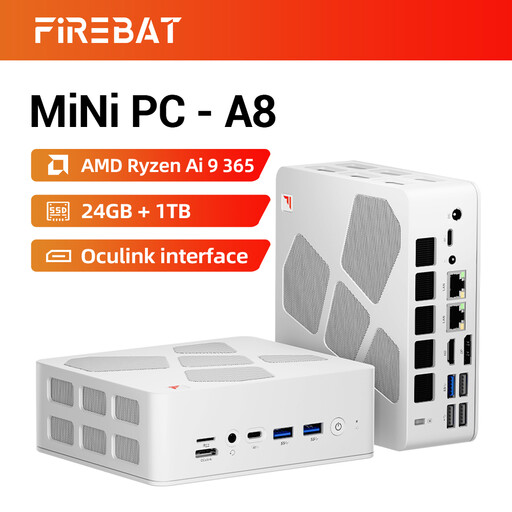 Image unavailable
A compact desktop to compare if you want to explore the listed multi-display configuration; check that the connections work with your two screens.
AMD Ryzen AI 9 365, 24 GB DDR5, 1 TB PCIe 4.0 SSD and 4K quad-display support according to the product title.
The desktop itself won’t determine whether the two monitors show the same colours.
No. A desktop’s ability to run two screens and the colour reproduction of each screen are two different things. Use suitable monitor profiles and calibrate the screens you use to assess colour.
Connect both screens, check that Windows detects them, then choose to extend your displays rather than duplicate them. Microsoft Support explains that you can adjust settings for connected displays individually.
Check whether two monitors and input devices are included, and whether you need suitable cables or calibration equipment. For the Lenovo tower reviewed, Lenovo states that the monitor and input devices are sold separately.
For online sales to consumers, the Netherlands Authority for Consumers and Markets says there is usually a statutory 14-day cooling-off period after delivery, subject to legal exceptions. Don’t assume this consumer rule automatically applies to a business order.