First, choose the operating system you want to use to check the printer steps. A compact desktop is a good fit if you already have a suitable monitor; if not, compare it with an all-in-one. Make sure your resources are actually stored locally, and check support for your specific printer model: neither type of desktop guarantees printer compatibility.
Who is this choice relevant to?
Writer checking printer steps
You’re writing the guide and want to run through the steps on the operating system you’re covering. Support for the specific printer model matters more than extra processing power. Microsoft Support and Apple Support explain the relevant checks for Windows and macOS.
Writer with offline source material
You want to be able to open manuals, screenshots and drafts without an internet connection. Microsoft Support explains that files available online only can’t be opened offline, so check that the resources you need are stored locally.
Writer setting up a permanent workspace
You want to use drafts and reference materials side by side, and work out whether you need a separate monitor, suitable ports and peripherals. Check what’s included with the exact desktop configuration before setting up your workspace.
What should you consider when choosing?
Compact Windows desktop
A good fit if: You’re writing or checking Windows printer steps and already have a suitable monitor.
Bear in mind: You may need to buy a monitor separately. Also check support for your printer model and the ports you need.
Windows all-in-one
A good fit if: You also need a monitor and want to compare computers with an integrated display.
Bear in mind: The display is part of the configuration you choose, so you have less flexibility to select a separate monitor.
Mac mini
A good fit if: Your guide covers macOS and you want to use a separate monitor.
Bear in mind: Check whether your model supports AirPrint or requires suitable printer software, and see if you’ll need any cables or adapters.
| Buying consideration |
What should you check? |
Who is this more relevant to? |
| Printer and operating system |
Check the exact printer model, the features you need and the connection method. Find out whether you need Windows support, AirPrint or software from the printer manufacturer. |
If I want to run through the setup for my guide myself, the computer needs to work with the printer steps I’m covering. Around 36% of consumers put compatibility first. |
| Resources available offline |
Save the files you need locally and try opening them without an internet connection beforehand to make sure they’re available. |
If I want to work on my guide while travelling or without an internet connection, the manuals and images need to be stored on the computer. Around 29% of consumers prioritise offline access. |
| Monitor and connections |
Check whether a monitor is included and whether the ports are suitable for your printer, monitor and any storage devices. Remember to allow for any cables or adapters you may need. |
If I want to view drafts and reference materials side by side, my workspace needs to suit the screens and devices I use. Around 21% of consumers prioritise setup and connections. |
| Components and aftercare |
Check what’s included with the exact configuration and which terms and conditions apply to your purchase. |
If I want to put together a complete workspace, I need to know whether a monitor and input devices are included, and which terms and conditions apply. Around 14% of consumers prioritise components and aftercare. |
Things to look out for when buying
-
Mistaking a cloud folder for an offline archive
Files available online only won’t open without an internet connection. So, seeing a folder doesn’t necessarily mean its contents are stored locally.
Download the files you need and, before working offline, check that you can open them without an internet connection.
Downloaded manuals and images take up local storage space.
-
Assuming every printer works the same way on Windows and macOS
The support and installation steps you need depend on the printer model, operating system and connection method.
Check support for the exact printer model and test the installation on the system you’re writing the guide for.
Some combinations require additional software, a suitable cable or an adapter.
-
Comparing a mini PC with a complete workspace
A compact computer and an all-in-one don’t necessarily include the same workspace components. You may need to buy a monitor separately for a mini PC, while a listing we reviewed for an HP OmniStudio includes a monitor and input devices.
Compare what’s included with the exact configurations and check which additional components you’ll need.
With a separate setup, you’ll need to arrange a suitable monitor and, potentially, input devices separately.
Brands to consider
Lenovo
The ThinkCentre M70q Gen 5 Tiny 12TD0017MH is a compact Windows 11 Pro desktop with 16 GB of memory and a 512 GB SSD, designed to be used with a separate monitor.
- Lenovo says that memory and storage in this product range are accessible for servicing or upgrading.
- A monitor and certain input devices may be sold separately with the configuration mentioned.
HP
The HP range we reviewed includes both compact Pro Mini desktops and OmniStudio all-in-ones, offering different ways to incorporate a monitor into your workspace.
- The HP Pro Mini 400 G9 listing specifies Windows 11 Pro, 16 GB RAM and a 512 GB SSD. The OmniStudio 24cu0613nd listing specifies a 23.8-inch monitor, with a keyboard and mouse included.
- These details apply to the configurations mentioned and may not apply to other HP desktops.
Apple
The Mac mini is a compact macOS option if you’re checking macOS printer steps and want to choose a separate monitor yourself.
- Apple Netherlands lists a range of Mac mini configurations and support for external displays via Thunderbolt and HDMI.
- The right printing option depends on your printer model: check for AirPrint support or suitable software from the printer manufacturer. You may also need an adapter.
Dell
The Dell Pro Micro QCM1250 is a compact Windows desktop range worth comparing if desk space is a consideration.
- Dell Netherlands lists a range of configuration options for the QCM1250.
- Check the full configuration you’ve chosen before comparing it with a version that has a fixed model number.
Joybuy products
This Joybuy selection focuses on all-in-one desktops with an integrated display. For each model, check the operating system, configuration and connections you need for your printer steps and workspace.
 No image available
Acer Aspire C24-A WI5418 NL All-in-One PC, 23.8-inch
A good fit for a workspace where you want an integrated display and local storage for your drafts and resources.
23.8-inch Full HD IPS display, Intel Core 5 120U, 16 GB DDR5, 1 TB PCIe NVMe SSD, Intel Graphics and Windows 11 Home.
A keyboard and mouse are listed as included accessories.
View at Joybuy
 No image available
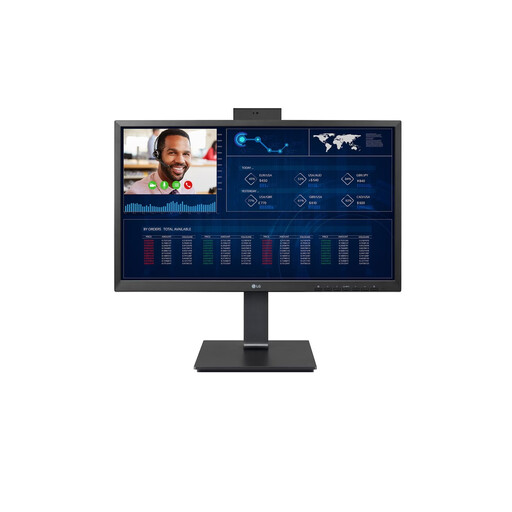
LG AIO 24CQ651N-6N All-in-One
An option to compare if you’re looking for an integrated display and SSD storage for a permanent workspace with locally stored resources.
The product description lists a 24-inch Full HD IPS display, SSD storage and USB, HDMI and DisplayPort connections.
View at Joybuy
 No image available
MSI Modern AM273QP AI 1UM-061EU All-in-One PC
A good fit for a workspace where you want an integrated 27-inch display and local storage for drafts and reference materials.
27-inch QHD display, Intel Core Ultra 5 125H, 16 GB DDR5, 1 TB SSD and Windows 11 Pro.
View at Joybuy
 No image available
MSI Modern AM273Q AI 1UM-058EU All-in-One PC
An all-in-one option to compare if you want to access drafts and locally stored resources in the same workspace.
27-inch QHD display, Intel Core Ultra 7 155H, 32 GB DDR5, 1 TB SSD, Windows 11 Pro and Wi-Fi 6E.
View at Joybuy
 No image available
Lenovo Yoga AIO 27IAH10 F0J2001DNY
A good fit for a permanent workspace with an integrated 27-inch display and local storage for your writing and resources.
27-inch QHD display with 120 Hz, Intel Core Ultra 7 255H, 16 GB LPDDR5X, 1 TB SSD and Windows 11 Home.
A wireless keyboard and mouse are listed as included.
View at Joybuy
Frequently asked questions
Can you check printer steps without installing an additional driver?
Sometimes. Microsoft Support says that Windows supports most printers by default, but some models or features may require additional software. Apple uses AirPrint for compatible printers and recommends software from the manufacturer for other printers. Check the specific printer model and the features covered in your guide.
How can you make sure your reference materials open without an internet connection?
Save the files you need locally and check that they open without an internet connection. If you use OneDrive Files On-Demand, set the files you need to always be available on this device. Files available online only can’t be opened without an internet connection.
What should you have ready before testing a printer installation?
Make a note of the exact printer model and connection method, and check which software you need. Microsoft Support recommends using Windows Update for printer drivers; download any necessary software in advance if you want to carry out the test offline. Also check that your cable fits the computer’s ports.
Are you always entitled to exactly two years’ statutory warranty on a desktop in the Netherlands?
No. According to ACM ConsuWijzer, statutory warranty in the Netherlands doesn’t have a fixed term of exactly two years; it depends on what you could reasonably expect from the product. This applies here to a consumer purchase.
Is there a cooling-off period for online purchases in the Netherlands?
For an online consumer purchase of a product, there is generally a statutory cooling-off period that ends 14 days after delivery, according to ACM ConsuWijzer. Check the terms and conditions and any exceptions that apply to your purchase.


