First, choose a desktop that supports your chosen design software, then decide whether you have a suitable screen. A mini desktop lets you choose your own screen, an all-in-one combines the computer and screen, while an expandable desktop is mainly worth considering if you also expect to take on more demanding creative work. Compare the exact configuration and the complete setup, and check which product documentation applies to the specific offer.
Who is this guide for?
Poster designer with a permanent workspace
You mainly create layouts combining text and images. Check the requirements of your chosen software and the exact desktop configuration; Adobe and Lenovo explain that software and design requirements can vary by application.
Designer preparing files for print
You want to review your design on screen and send the file to the printer. Adobe recommends agreeing the required bleed and marks with your printer, then adjusting your PDF export settings accordingly.
Designer presenting a poster
You want to be able to show your work at the presentation venue. Check the ports on the desktop and the screen you’ll be presenting on; Apple documents external display support for the Mac mini.
What should you consider when choosing?
Mini desktop with a separate screen
A good fit if: you already have a suitable screen or want to choose one yourself.
Bear in mind: the screen, cables and input devices need to suit your setup and may need to be purchased separately.
All-in-one desktop
A good fit if: you want a permanent workspace with an integrated screen.
Bear in mind: check the screen specifications and exact configuration; a product series name does not mean every model has the same configuration.
Expandable Windows desktop
A good fit if: you expect to do more demanding creative work as well as poster design, or need specific expansion options.
Bear in mind: a workstation is not automatically necessary for text, vector and layout work alone; HP’s positioning for more demanding applications is not a performance test for your poster.
| What to consider |
What should you check? |
Who should pay particular attention? |
| Software and memory |
Compare the operating system, processor and memory of the exact configuration with your software requirements. For InDesign 21.3 and later on Windows, Adobe lists 8 GB RAM as the minimum and 16 GB as the recommended amount. |
If my main priority is using my chosen design software smoothly, I’ll start by checking the supported software version and configuration. Around 40% of consumers make software compatibility their top purchasing priority. |
| Screen and print file |
Check the screen specifications for the configuration. Ask your printer about the required bleed area, marks and PDF settings; don’t assume there’s one universal setting. |
If I want to assess text and images on screen and may have the design printed, I’ll compare the screen options with the printer’s requirements. Around 30% of consumers prioritise the screen and print requirements. |
| Complete workspace |
Make a note of what you already have and, for each configuration, compare which computer, screen, input devices, cables and software you still need. |
If I want to put together a usable workspace using what I already own, I’ll look beyond the computer itself. Around 20% of consumers make the cost of a complete workspace their top priority. |
| Connecting for a presentation |
Check the video output on the exact desktop, the input on the presentation screen and which cable or adapter you’ll need. Test the setup in advance. |
If I want to show my poster at the client meeting, I’ll make sure the available ports are compatible with the screen. Around 10% of consumers start by checking presentation connections. |
Common buying mistakes
-
Comparing the computer alone
A mini desktop and an all-in-one don’t automatically give you the same complete workspace.
Compare what you already own with what’s included in the exact configuration, and factor in any screens, input devices, cables and software you still need.
With a mini desktop, you may still need to buy a screen, input devices or compatible cables.
-
Assuming a product series name means a fixed configuration
Memory, processor, storage and ports can vary between configurations.
Compare the full model code and advertised specifications with your software and screen requirements.
-
Assuming a screen that looks good means your poster is print-ready
For commercial printing, the printer’s file requirements are a separate step from reviewing your design on screen.
Ask your printer which bleed and marks are required, then check the exported file before sending it. Adobe describes separate settings for this in InDesign.
If the settings don’t meet the printer’s requirements, you may need extra time for corrections or file preparation.
Brands to consider
Apple
The Mac mini is a compact macOS desktop that lets you choose your screen separately.
- Apple describes several memory and storage configurations, as well as support for external screens.
- Check which screen and other components will suit your workspace.
Lenovo
The IdeaCentre AIO 24IRH9 is an all-in-one series with an integrated screen.
- Lenovo documents several processor and operating system configurations within the series.
- Check the configuration and screen specifications of the specific model; series information won’t necessarily describe every offer.
HP
HP positions models in its Z workstation ranges for tasks including graphic design and more demanding creative workflows.
- HP lists expansion options for each model.
- This is the manufacturer’s positioning, not an independent performance test or proof that you need a workstation for a single poster.
Desktops on Joybuy for poster design
The options below include mini desktops with a separate screen, an all-in-one and a Windows gaming desktop. Assess the exact configuration against your software, screen and complete workspace.
 No image available
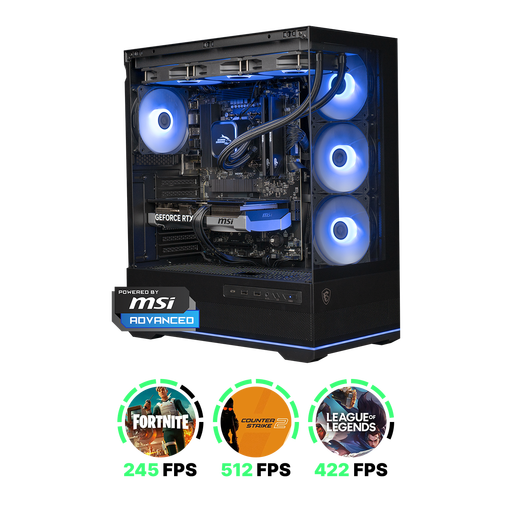
Shark Ultimator R700 Gaming PC
Could suit you if you’re looking for a Windows desktop; check that this configuration works with your design software and presentation setup.
The product information lists a GeForce RTX 5070, Ryzen 7 7800X3D, 16 GB DDR5, a 1 TB SSD and Windows 11 Home.
Joybuy
 No image available
Apple Mac mini M6, 16 GB, 256 GB SSD
Suited to a workspace where you choose an external screen yourself or already have a suitable one.
The product name lists an M6 chip, 12-core CPU, 12-core GPU, 16 GB memory and a 256 GB SSD. Apple documents support for external screens; you’ll need to buy a suitable screen separately for your workspace.
Joybuy
No image available
Apple Mac mini M6, 16 GB, 512 GB SSD
Suited to a workspace where you choose an external screen yourself or already have a suitable one.
The product name lists an M6 chip, 12-core CPU, 12-core GPU, 16 GB memory and a 512 GB SSD. Apple documents support for external screens; you’ll need to buy a suitable screen separately for your workspace.
Joybuy
No image available
Apple Mac mini M6, 24 GB, 512 GB SSD
Suited to a workspace where you choose an external screen yourself or already have a suitable one.
The product name lists an M6 chip, 12-core CPU, 12-core GPU, 24 GB memory and a 512 GB SSD. Apple documents support for external screens; you’ll need to buy a suitable screen separately for your workspace.
Joybuy
 No image available
Acer Aspire C24-A WI5418 NL All-in-One
Suited to a permanent workspace where you want a computer with an integrated screen.
The product information lists a 23.8-inch Full HD IPS screen, Intel Core 5 120U, 16 GB DDR5, a 1 TB PCIe NVMe SSD, Intel Graphics and Windows 11 Home. Check that the screen specifications suit the way you want to review your poster.
Joybuy
Frequently asked questions
Do I need a separate graphics card for a poster?
Not as a general rule: first check the requirements for your software version and any other tasks you do. Adobe lists specific conditions for optimum GPU performance in InDesign on Windows; these don’t mean you need to buy a separate graphics card for every poster.
What should I test before a client presentation?
Check that your design software is supported on the configuration you’ve chosen, and test the video connection with the screen at the presentation venue. The available ports vary by desktop model.
Which settings should I check for a printed poster?
Ask your printer for the required file specifications. Adobe recommends agreeing the bleed area and required marks for commercial printing; InDesign has separate PDF export settings for print.
Which product regulations apply to a desktop in the Netherlands?
Electrical and electronic equipment sold in the Netherlands is subject to the applicable European safety requirements. According to information from the Dutch government, once the technical and administrative requirements have been met, the manufacturer must affix the CE mark and draw up an EU declaration of conformity. Check the documentation for the specific offer.
Do online purchases always come with a 14-day cooling-off period?
No, this doesn’t apply to every purchase without exception. The Dutch government states that consumers generally have a 14-day cooling-off period for distance purchases, and lists some exceptions. Check the terms of the specific purchase; this consumer guidance doesn’t establish rights for business purchases.


