First, choose a screen you can position well in relation to the window, and use to assess reflections and colour reproduction. Then choose a desktop to suit your software and files. For occasional retouching, a compact computer with a separately chosen screen may be enough. If you work with large files or need more memory and ports, consider a tower or workstation. Check the exact configuration, screen connections and cost of the complete setup.
Who is this buying guide for?
Retoucher working next to a bright window
Wants to assess the details in an old portrait without distracting light falling on the screen. Screen positioning, reducing reflections and checking colour come first. EIZO explains how calibration and profiling contribute to colour management; BenQ provides product specifications for the SW272U.
Editor of large photo files
Works with multiple layers or several files and bases their choice on software requirements, memory and working storage. Adobe lists 8 GB RAM as the minimum and 16 GB or more as the recommended amount for Photoshop 27.x and later.
Budget-conscious hobby workstation
Wants to put together a practical setup without spending the whole budget on the computer case. So compare the cost and required components of the screen and any colour-management tools, too.
What should you look for when choosing?
Compact desktop with a separate screen
Best for: a small workspace where you want to choose your own screen and position it in relation to the window.
Bear in mind: you’ll need to budget for the screen and any calibration equipment as well as the computer.
Configurable Windows tower
Best for: Windows users who want to compare different configurations when buying.
Bear in mind: check the specific model’s configuration, including memory, storage and ports. The model name alone doesn’t tell you which configuration you’ll get.
Workstation for larger projects
Best for: anyone who regularly works with large, layered files and needs more memory or ports.
Bear in mind: choose workstation capacity to suit your files and software; it’s not automatically necessary for one modest portrait.
| What to consider |
What should you check? |
Who is this important for? |
| Reflections and visibility |
Check the screen coating, adjustability and position in relation to the window. If you’re considering a monitor hood, check that it fits your specific screen. |
If I want to assess subtle portrait details next to a bright window, I pay particular attention to reflections and screen position. Around 36% of consumers give reducing reflections top priority. |
| Memory and storage |
Compare the RAM and SSD in the exact configuration with your software requirements and the space your files need. |
If you work with large or layered files, you’ll want enough memory and working storage without paying for more capacity than you need. Around 29% of consumers prioritise smooth processing. |
| Colour management |
If you want to print the portrait, check the colour capabilities and calibration method of the specific screen. |
For a print, I want to be able to check how the image looks on screen, rather than relying on a powerful computer alone. Around 21% of consumers give colour management for printing top priority. EIZO distinguishes profiling and calibration as separate steps in colour management. |
| Complete workstation |
Check which components you already have and which you still need, and include the screen, required connections and any colour-management tools in your choice. |
If I want to put together a complete workstation within my budget, I consider more than just the computer. Around 14% of consumers prioritise the cost of the complete setup. |
Common buying mistakes
-
Comparing only the computer case
Next to a bright window, visibility can affect your work, whatever processor you choose.
Start by listing the components you already have and still need. Consider the screen’s position and reflections before settling on a computer configuration.
Brands to consider
Apple
Mac mini models combine a compact computer with a screen you choose separately. Mac Studio is a range to consider if you need a configuration with more memory.
- For the entry-level Mac mini M6 configuration in the Netherlands, Apple lists 16 GB memory and a 256 GB SSD. Apple says the Mac Studio M5 Max starts with 36 GB memory.
- These specifications apply to the configurations mentioned. Choose the exact model and include the external screen separately in your setup.
Dell
The Pro Max Tower T2 is a configurable Windows tower to consider if you want to compare options when choosing your setup.
- The Dutch configurator offers a choice of processors and chassis.
- Check the full order: changing one option can also affect other specifications. The configurator alone doesn’t tell you how well the computer will perform for retouching.
Lenovo
The ThinkCentre neo 50t Gen 6 is a tower range with Dutch configurations to suit different memory and storage needs.
- The Dutch model page shows, among other options, a configuration with 16 GB RAM and a 512 GB SSD.
- Other configurations with different storage capacities are also available, so check the one you’ve chosen.
HP
HP mini desktops and the Z2 Mini G1i may suit anyone looking to pair a compact Windows computer with a separate screen.
- HP lists 32 GB RAM and a 1 TB SSD for one Dutch Z2 Mini G1i configuration.
- Those specifications and the associated service information apply to that configuration, not automatically to other HP mini PCs.
BenQ
The PhotoVue SW272U is a separate photo-editing screen to consider if reflections are a concern in your workspace.
- BenQ specifies a 27-inch 4K screen, matte coating, typical brightness of 400 nits and hardware calibration for the SW272U.
- These product specifications don’t prove that the screen will be free from reflections in every position next to a window.
EIZO
ColorEdge screens and model-specific monitor hoods are options for a workspace where colour management and incoming light need attention.
- EIZO describes the CH2400 as recommended for certain 24-inch ColorEdge CS models and as a way to reduce direct light from above and the sides.
- Check that the hood is compatible with your screen; a monitor hood won’t eliminate every reflection from the window.
Computers on Joybuy
These computers are options for photo editing, from compact desktops to tower PCs. Choose a screen separately to suit its position next to the window.
 No image available
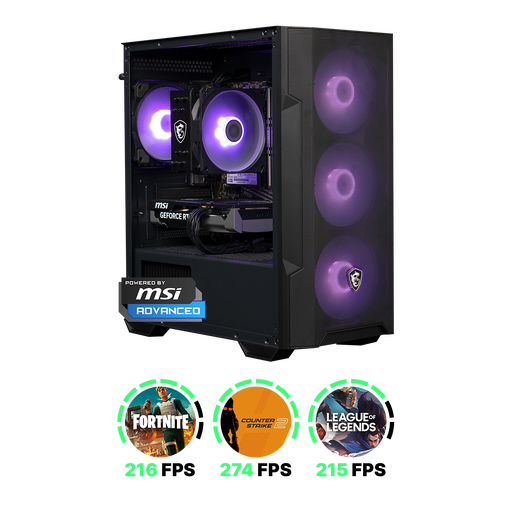
Shark Max Bite R500 Gaming PC, RTX5060, R5, 16 GB, 500 GB
A tower PC to compare if you’re looking for a computer with a separately chosen screen for photo editing.
The stated configuration includes 16 GB memory and a 500 GB NVMe SSD. Compare this model with your software requirements and the space your files take up.
View on Joybuy
 No image available
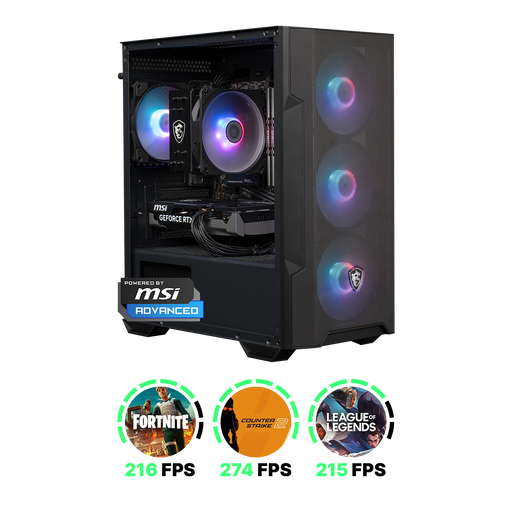
Shark Max Bite R501 Gaming PC, RTX5060, R5, 16 GB, 1 TB
A tower PC to compare if you’re looking for a computer with a separately chosen screen for photo editing.
This configuration lists 16 GB memory and a 1 TB NVMe SSD. Check that it suits your software and local working files.
View on Joybuy
 No image available
Apple Mac mini M6, 12-core CPU, 12-core GPU, 16 GB, 256 GB SSD
A compact desktop for anyone who wants to choose their own screen and position it in relation to the window.
This configuration lists 16 GB memory and a 256 GB SSD. The product description states that it supports up to three external screens; check that the connections suit the screen you choose.
View on Joybuy
No image available
Apple Mac mini M6, 12-core CPU, 12-core GPU, 16 GB, 512 GB SSD
A compact desktop for anyone who wants to choose a separate screen for a workspace next to the window.
This configuration lists 16 GB memory and a 512 GB SSD. The product description states that it supports up to three external screens; check that the connections suit your screen setup.
View on Joybuy
No image available
Apple Mac mini M6, 12-core CPU, 12-core GPU, 24 GB, 512 GB SSD
A compact desktop for anyone who wants to choose a separate screen and compare options with more memory for retouching.
This configuration lists 24 GB memory and a 512 GB SSD. The product description states that it supports up to three external screens; check the screen connections for your setup.
View on Joybuy
Frequently asked questions
Do you need a workstation specifically for Photoshop?
No, not just to retouch a portrait. For Photoshop 27.x and later, Adobe lists 8 GB RAM as the minimum and 16 GB or more as the recommended amount. Compare these requirements with your files and other software. Large or layered files may be a reason to consider a higher-spec configuration.
Will a monitor hood help if your desk is next to a window?
According to EIZO, a suitable monitor hood reduces direct light from above and the sides. First, check the direction of the reflections and whether the hood is compatible with your screen. You may also need to move or turn the screen.
Should you calibrate your screen before printing the portrait?
If print colour is important, it’s a good idea to check how the image looks on screen. EIZO distinguishes profiling, where a profile is measured, from calibration, where the display is adjusted. A computer or screen specification alone can’t guarantee that the screen and print will match.
What rights do you have when buying a desktop online in the Netherlands?
For a standard online consumer purchase, ACM ConsuWijzer says you’ll generally have a 14-day cooling-off period after delivery, with some exceptions. You also have a legal guarantee if the product doesn’t perform as you could reasonably expect under normal use. The cooling-off period and legal guarantee are separate rights.


