
Portrait retoucher with their own monitor
You want to keep your existing setup and are mainly looking for a suitable computer. Check that the monitor is a good match and suits your colour workflow.


Choose a desktop based on your editing software, the monitor you already have and the space in your home office. Then compare the configuration of the exact model. A compact PC saves space, a tower gives you room to upgrade components, and an all-in-one combines the computer and screen. Whichever form you choose, you’ll still need to consider colour accuracy, memory, storage and backups.
You want to keep your existing setup and are mainly looking for a suitable computer. Check that the monitor is a good match and suits your colour workflow.
You work with more demanding Photoshop documents or want room to upgrade later. Compare the memory, SSD and upgrade options of the specific configuration.
You want to fit both a computer and screen into a small workspace. Compare a compact desktop with an all-in-one, and check which components you’ll need separately.
Choose this format if: you have limited desk space and already use a suitable screen, or want to choose one separately.
Bear in mind: you’ll need a separate monitor, and upgrade options depend on the specific case.
Choose this format if: you have room for a larger case and want the option to upgrade components later.
Bear in mind: the options available across a product range don’t tell you which components are included in the configuration you order.
Choose this format if: you want a single computer with a built-in screen on your desk.
Bear in mind: you choose the screen and computer together. Built-in doesn’t automatically mean it’s suitable for your colour work.
Whatever format you choose, compare the exact configuration rather than just the product family. Adobe lists 8 GB RAM as the minimum and 16 GB or more as the recommendation for Photoshop version 27.x. These are software requirements, not a performance guarantee for any particular desktop.
| What to consider | What should you check? | Who should pay particular attention? |
|---|---|---|
| Memory and retouching workspace | Check the RAM in the exact configuration and the available SSD space. For Photoshop 27.x, Adobe recommends 16 GB RAM or more and specifies a fast internal SSD for its recommended Windows configuration. | If I work with larger Photoshop documents, I want to know whether the memory and space for working files suit my software. Around 30% of consumers put editing capacity first. |
| Colour assessment | Check whether a monitor is included, how it connects and how you can profile it in your workspace. Adobe also highlights the importance of ambient lighting when assessing colour. | If I want to assess skin tones carefully, I need to take my screen and working environment into account. Around 30% of consumers prioritise reliable colour assessment. |
| Desk space | Compare the case, how it will be positioned and which components are included. With a compact desktop, the screen is separate; with an all-in-one, it’s built in. | If my desk has limited space, I want to know in advance whether I’ll need a separate monitor or would prefer an all-in-one setup. Around 20% of consumers start with the workspace they have available. |
| Storage and file retention | Check the SSD capacity of the configuration you order, any upgrade options and your separate backup plan for the catalogue and original files. Adobe treats Lightroom Classic catalogue backups as a separate task. | If I want to keep my portrait files safe, I don’t want to mistake storage on my computer for a backup of my originals. Around 20% of consumers prioritise storage and file retention. |
Adobe says that monitor calibration and ambient lighting affect how predictable colours are. So your choice of desktop alone won’t determine how skin tones appear on your screen.
Take your existing or planned monitor into account, and decide how you’ll profile it in your workspace.
The maximum upgrade options available across a workstation range won’t necessarily be included in the configuration you buy. Memory, storage and screen connections can vary between configurations.
Before you buy, check the exact model and the selected memory, storage and connection configuration.
Adobe describes backing up a Lightroom Classic catalogue as a separate task. This doesn’t replace checking where your original portrait files are stored.
Check separately how you’ll keep both the catalogue and the original files safe.
You may need separate backup storage or a service for your originals, in addition to your work computer.
According to Apple Netherlands’ specifications, the Mac mini offers a compact macOS option that lets you choose your computer and monitor separately.
The ThinkCentre models reviewed include a compact Tiny desktop and an all-in-one with a built-in screen.
The Z2 SFF G1i is a workstation range worth comparing if upgrade options matter to you.
Dell’s desktop range includes various formats, such as towers, all-in-ones and workstations.
This selection includes compact desktops, upgradeable towers and an all-in-one for a home workspace. Compare the listed features with your monitor, software and file workflow.
 No image available
A compact desktop option if you want to choose your computer and monitor separately.
The product title lists 24 GB memory and a 512 GB SSD.
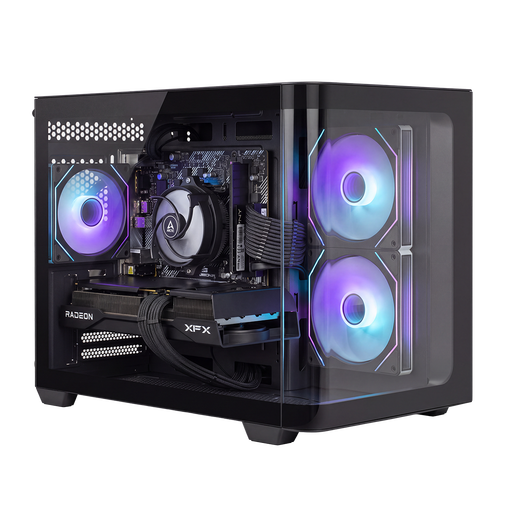 No image available
A tower to compare if you’re looking for a desktop case with the listed configuration.
The product title lists RX9070, R7, 16G and 1TB.
 No image available
A desktop to compare if you already have a screen setup; check that the connections are compatible with your monitor.
The product title lists an Intel Core Ultra 7 265F, 32 GB DDR5, a 1 TB SSD and an NVIDIA GeForce RTX 5070 with 12 GB.
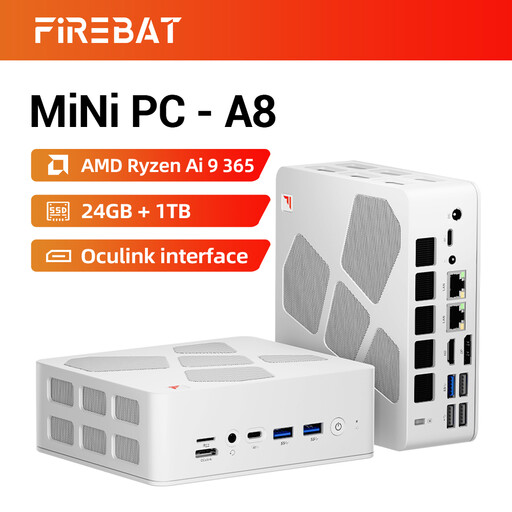 No image available
A mini PC to consider if a compact setup suits you and you want to choose a separate screen.
The product title lists AMD Ryzen AI 9 365, 24 GB DDR5, a 1 TB SSD and support for four 4K screens.
 No image available
An all-in-one to compare if you want your computer and screen together on your desk. Assess the screen’s suitability for your colour work separately.
The product title lists a 27-inch QHD screen, 120 Hz, 16 GB LPDDR5X and a 1 TB SSD. The product description lists 99% sRGB; this isn’t an independent measurement.
For Photoshop version 27.x, Adobe lists 8 GB as the minimum and 16 GB or more as the recommendation. Check the requirements for the version you use and the memory in the exact desktop configuration; this isn’t a performance guarantee.
Assess and profile your monitor in the lighting conditions you work in. Adobe notes that monitor calibration and ambient lighting affect how predictable colours are, including when printing.
No. Treat backing up the catalogue and keeping the original photos safe as separate checks. Adobe provides instructions for catalogue backups; also check where your originals are stored and how you’re keeping them safe.
For a consumer purchase in the Netherlands, your statutory rights are separate from any manufacturer’s warranty. If a product doesn’t meet what you could reasonably expect when used normally, the seller must resolve the issue. The ACM lists free repair or replacement among the options.
For a standard online consumer purchase, you’ll generally have a statutory 14-day cooling-off period after delivery. The ACM lists exceptions, including products genuinely made to order. Check the details of your specific order, and don’t assume that every configured PC automatically falls under an exception.