Start by deciding how you’ll use handwritten references. To digitise paper notes, you’ll need a suitable scanner or camera, while writing on portfolio PDFs calls for a suitable input method and annotation software. If you already have a suitable screen, a mini PC with the necessary connections could be a good fit. If you want to buy the computer and screen together, compare all-in-one desktops and assess screen quality and any peripherals separately.
Who is this desktop choice relevant to?
Reviewers who want to add handwritten feedback
You review portfolio PDFs and want to add handwritten comments, or refer to paper notes alongside the screen. Pen input and scanning are different solutions: Wacom explains how to use a pen tablet with a driver, while Microsoft Support explains how to use a scanner in Windows.
Reviewers of colour-sensitive designs
You compare design images and want to take the screen’s characteristics into account. Assess the screen as a separate choice, even with an all-in-one PC; resolution alone doesn’t tell you whether the colour reproduction meets your requirements.
Buyers putting together a complete workstation
You want to know which components come with the computer and what else you’ll need. The Mac mini configuration reviewed is designed for use with external displays; according to HP, the HP OmniStudio configuration reviewed has a built-in 27-inch QHD screen.
What should you consider when choosing?
Mini PC with a separate monitor
A good fit if: you already have a suitable screen or want to choose the screen size, colour reproduction and positioning yourself.
Bear in mind: you’ll need a separate screen and any pen or scanning equipment; also check the connections on the devices you choose.
All-in-one desktop
A good fit if: you want to buy the computer and screen together.
Bear in mind: the screen is part of the configuration you choose. A stated resolution doesn’t, by itself, prove colour accuracy or pen support.
| What to consider |
What should you check? |
Who is this important for? |
| Handwritten input |
Choose between scanning paper and writing directly on a PDF. Check connections, drivers and software compatibility for the exact devices. |
If you want to digitise paper notes or add your own comments to PDFs, the input method is key. Around 33% of consumers prioritise handwritten input or digitisation. |
| Screen for design images |
Compare the specifications of the exact screen; resolution is not the same as colour accuracy. For example, BenQ provides a factory calibration report for monitor PD2705U. |
If you review colour-sensitive design images, you’ll want to assess the screen separately. Around 27% of consumers give screen assessment top priority. |
| Complete setup |
Check whether the configuration includes a screen and which peripherals you already have. Apple lists external display support for the Mac mini configuration reviewed; HP describes the OmniStudio reviewed as having a built-in screen. |
If you want to choose your computer, screen and required input devices as a complete setup, it helps to have an overview of all the components. Around 20% of consumers prioritise a complete workstation. |
| Files and storage |
Compare the SSD capacity of the exact configuration with the size of your portfolio and scan archive. Microsoft Support explains how to scan in Windows, but compatibility with your scanner depends on the equipment you choose. |
If you want to store and find portfolios and digitised notes, storage is another factor in your choice. Around 20% of consumers give their file workflow top priority. |
Common mistakes when choosing
-
Assuming a desktop automatically supports handwriting input
A scanner converts paper notes into files; a pen tablet can let you add handwritten comments. These are different tasks.
Decide whether you want to scan, write directly on PDFs or do both. Then check the connection and software compatibility for each device.
-
Assuming screen resolution proves colour accuracy
A stated resolution doesn’t automatically tell you how well a screen reproduces colour. What’s more, the specifications of a separate monitor don’t necessarily apply to a screen supplied with a different desktop.
Compare the colour specifications for the exact screen you plan to use to review portfolios.
-
Comparing only the computer
A mini PC uses an external screen, while an all-in-one desktop may include one in its configuration. This means you could end up comparing computers with different components.
For each option, make a list of what you already own and what else you need for your workstation.
Brands to compare for this type of setup
Apple
The Mac mini M6 configuration reviewed is a compact desktop for anyone choosing a separate screen.
- Apple Netherlands lists 16 GB of memory, a 256 GB SSD and support for external displays for this configuration.
- The screen is a separate choice. Also consider storage and any peripherals for this exact configuration.
Lenovo
ThinkCentre Tiny is an option if you’re looking for a separate Windows desktop; the specifications given apply to configuration M70q Gen 6 13A4007KEZ.
- Lenovo Netherlands lists Windows 11 Pro, 16 GB of memory and a 512 GB SSD for this configuration.
- Don’t assume these configuration details apply to other versions of the M70q.
HP
The HP OmniStudio 27-cy0670nd reviewed combines a desktop with a built-in screen.
- HP Netherlands lists a 27-inch QHD screen, 16 GB of memory and a 512 GB SSD for this model.
- These specifications alone don’t confirm pen support or colour accuracy.
Joybuy products for a desktop setup with a screen
This selection features all-in-one desktops with an integrated screen, for anyone who wants to choose their computer and screen together when reviewing portfolios.
 No image available
MSI Modern AM273QP AI 1UM-061EU all-in-one PC
An all-in-one configuration for anyone who wants to combine a computer and screen in a single desktop setup.
27-inch screen; 2560 × 1440 pixels; Intel Core Ultra 5 125H; 16 GB DDR5-SDRAM; 1 TB SSD.
Joybuy
 No image available
MSI Modern AM273Q AI 1UM-058EU all-in-one PC
An all-in-one configuration to compare if you want to choose a desktop and screen together.
27-inch screen; 2560 × 1440 pixels; Intel Core Ultra 7 155H; 32 GB DDR5-SDRAM; 1 TB SSD; Windows 11 Pro; Wi-Fi 6E.
Joybuy
 No image available
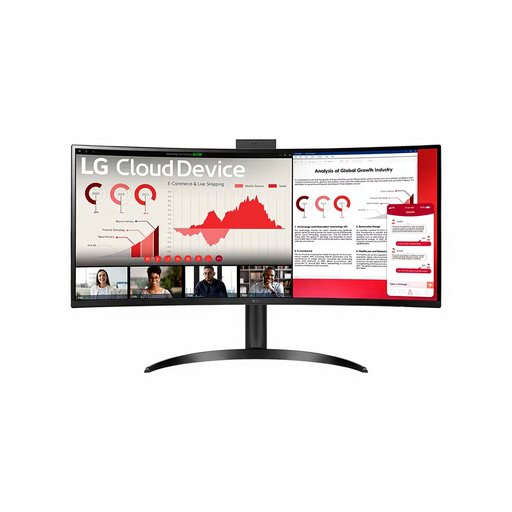
LG ThinClient BOX AIO 34CR651N-6P
The product name identifies this as an AIO configuration; check that it’s compatible with your software and portfolio workflow.
Joybuy
 No image available
Lenovo Yoga AIO 27IAH10 F0J2001DNY
An integrated screen could be a good fit if you want to view your design portfolios on a single desktop setup.
27-inch QHD screen; 120 Hz; Intel Core Ultra 7 255H; 16 GB LPDDR5X; 1 TB SSD; Windows 11 Home.
Joybuy
 No image available
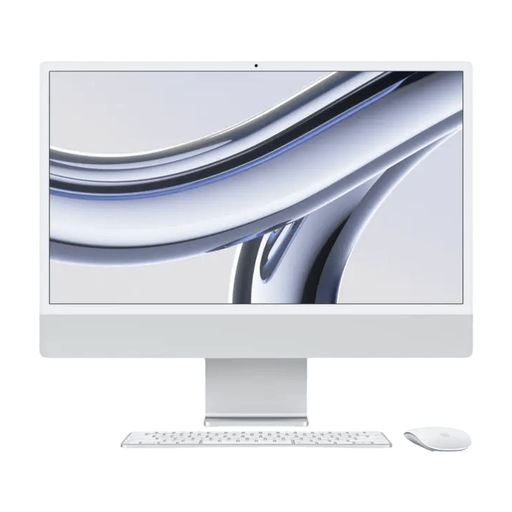
Apple iMac 24-inch M3, 16 GB, 512 GB, silver (2023)
An all-in-one computer to compare if you’re looking for an integrated desktop setup.
24-inch 4.5K Retina screen; M3; 16 GB memory; 512 GB SSD.
Joybuy
Frequently asked questions
Can I add handwritten comments directly to a portfolio PDF?
Yes. Adobe describes a freehand drawing tool for PDF comments in Acrobat. Wacom describes the Intuos as a pen tablet with a driver for Windows or Mac; check that your exact tablet and software work with your computer.
How do I transfer paper notes to a Windows desktop?
You can scan paper notes as an image or document using a scanner. Microsoft Support explains how to install and use a local or network scanner in Windows; check in advance that your scanner and connection work with the computer you choose.
What are my rights when buying a desktop online in the Netherlands?
According to ACM ConsuWijzer, when you buy as a consumer online, you generally have a statutory cooling-off period of up to 14 days after delivery; exceptions may apply. The statutory guarantee is separate from any manufacturer’s warranty. If a product doesn’t meet reasonable expectations during normal use, the seller must offer a solution.


